Bind Data to CRM Record Detail Pages in Your LWR Site
Data-bound components used on CRM record detail pages automatically populate with
content saved in Salesforce CRM data in records. Map fields in the component property panel to
fields in the CRM records.
Required Editions
Available in: Salesforce Classic and Lightning Experience
Available in: Enterprise, Performance, Unlimited,
and Developer Editions
Be a member of the site AND Create and Set Up Experiences
OR
Be a member of the site AND an experience admin, publisher, or builder in that
site
In Experience Builder, navigate to a detail page such as Record Detail, and click
Components.
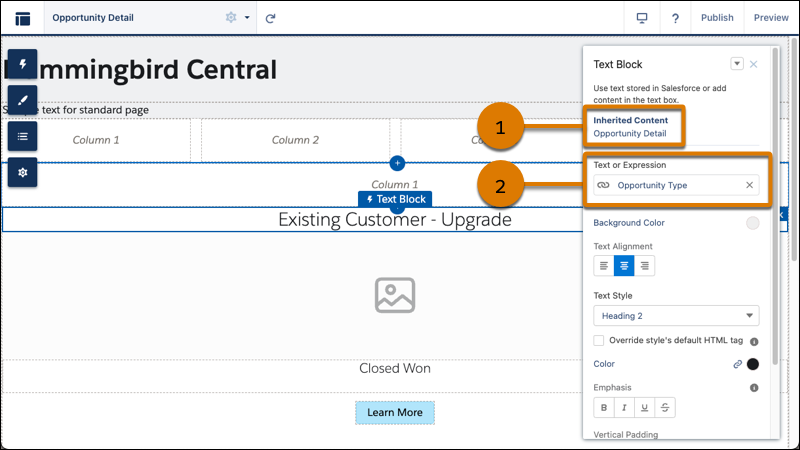
Drag a component that supports data binding, such as Banner, Card, Grid, Overlap, and Tile,
onto the page. In the component property panel, you already have content inherited from the
content pages (1).
Note The Grid component can be added to any type of site page in addition to Record Detail
pages
In the component property panel, map the fields in the record to fields in the object
detail page (2). You can bind data from any field on the detail page, including custom
fields.
To use a component on a detail page without binding content, click the chain link icon
next to the data source to unlock the content. Add your own content, or paste in a valid URL in
the field to link to static content.
We use three kinds of cookies on our websites: required, functional, and advertising. You can choose whether functional and advertising cookies apply. Click on the different cookie categories to find out more about each category and to change the default settings.
Privacy Statement
Required Cookies
Always Active
Required cookies are necessary for basic website functionality. Some examples include: session cookies needed to transmit the website, authentication cookies, and security cookies.
Functional Cookies
Functional cookies enhance functions, performance, and services on the website. Some examples include: cookies used to analyze site traffic, cookies used for market research, and cookies used to display advertising that is not directed to a particular individual.
Advertising Cookies
Advertising cookies track activity across websites in order to understand a viewer’s interests, and direct them specific marketing. Some examples include: cookies used for remarketing, or interest-based advertising.