In enhanced LWR sites, visitors can search for CMS content published from enhanced CMS
workspaces. Visitors can also search for content within the Rich Content Editor and HTML Editor
components, as well as within page title metadata. Use the Search Bar and Results Layout
components to add the search functionality to your enhanced LWR site.
Required Editions
Available in: Salesforce Classic and
Lightning Experience
Available in: Enterprise, Performance, Unlimited, and
Developer Editions
Be a member of the site AND Create and Set Up Experiences
OR
Be a member of the site AND an experience admin, publisher, or builder in that
site
Visitors can search only indexed content, so after you publish fresh content in your
site or in the connected CMS workspace, rebuild the index. In Experience Builder, navigate to
Settings | Search, and then click Rebuild
Index.
CMS Content Search isn’t available for Government Cloud
organizations.
Note Searches that contain partial keywords don’t return search results.
However, if a user enters a misspelled word in the Search field, CMS Content Search attempts to
correct the word and provides search results for records that contain the corrected
words.
Search results can only be shown on a standard Search page, so to use the Results Layout
component, you must first create the search page.
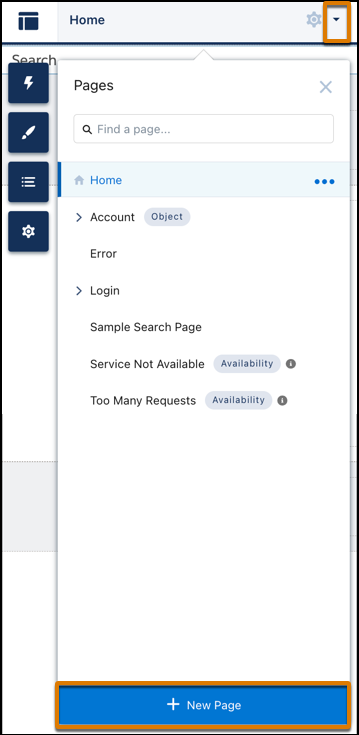
In Experience Builder, click the Pages menu on the top toolbar, and then click
New Page at the bottom of the menu.
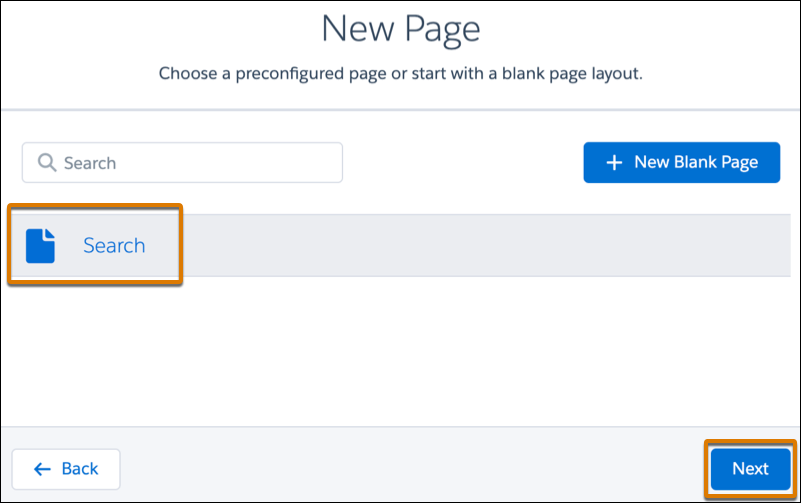
Select the Standard Page type.
Select the preconfigured Search page and click
Next.
Enter a name and URL for the page, and then click Create.
From the Components panel, drag the Search Bar component onto the
header section of the page. When you add the component to the header section, CMS content
search is available across all site pages.
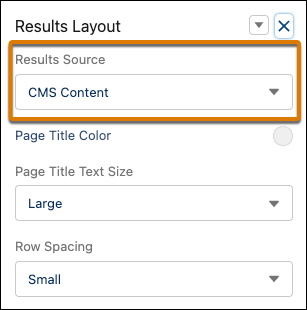
To open the properties panel of the Results Layout component, drag the component from the
Components panel onto the page, and click the component on the canvas.
From the properties panel, make sure the Results Source field
displays the CMS Content option.
Preview and publish your site.
Did this article solve your issue?
Let us know so we can improve!
Loading
Salesforce Help | Article
Cookie Consent Manager
Cookie Consent Manager
General Information
Required Cookies
Functional Cookies
Advertising Cookies
General Information
We use three kinds of cookies on our websites: required, functional, and advertising. You can choose whether functional and advertising cookies apply. Click on the different cookie categories to find out more about each category and to change the default settings.
Privacy Statement
Required Cookies
Always Active
Required cookies are necessary for basic website functionality. Some examples include: session cookies needed to transmit the website, authentication cookies, and security cookies.
Functional Cookies
Functional cookies enhance functions, performance, and services on the website. Some examples include: cookies used to analyze site traffic, cookies used for market research, and cookies used to display advertising that is not directed to a particular individual.
Advertising Cookies
Advertising cookies track activity across websites in order to understand a viewer’s interests, and direct them specific marketing. Some examples include: cookies used for remarketing, or interest-based advertising.