Loading
The online Trailblazer Community becomes read-only Oct 30, 2026Read More
Experience Cloud
Provide Search Engines with Fresh Content Snapshots

Provide Search Engines with Fresh Content Snapshots

Experience Builder sites in your production org use the Content Snapshot service to generate SEO optimized HTML for web crawlers such as Googlebot, and content sharing platforms such as Facebook. The concept is common to single-page application frameworks known as dynamic rendering. Salesforce takes a snapshot when you make changes to your site’s publicly available content. This functionality works well for most updates. But let’s say you update a page with time-sensitive information, such as price changes for a flash sale. Instead of waiting, you can take a manual snapshot once every 24 hours to refresh the page content served to search engines.

Required Editions

Available in: Salesforce Classic and Lightning Experience
Available in: Enterprise, Performance, and Unlimited Editions. This feature isn’t supported in Government Cloud.
Applies to: LWR and Aura sites
User Permissions Needed
To customize or publish an Experience Cloud site:
  • Create and Set Up Experiences AND View Setup and Configuration AND be a member of the site

    OR

  • View Setup and Configuration AND be a member of the site AND have appropriate role-based site access
Tip
Tip The Content Snapshot section appears in Experience Builder only after you set a preferred domain for your Experience Builder site and ensure that your site is publicly available.

A content snapshot is generated and served in production for every route included in your standard sitemap for all site languages added to your site. A snapshot includes views produced with the standard language parameter and record detail pages where the guest user has read access to one or more records. We don't recommend producing different content based on your own query string parameters because snapshots aren’t supported for permutations of your own parameters.

  1. In Experience Builder, update the page’s content, and then publish your site to make your changes live.
    You can only take snapshots of published pages.
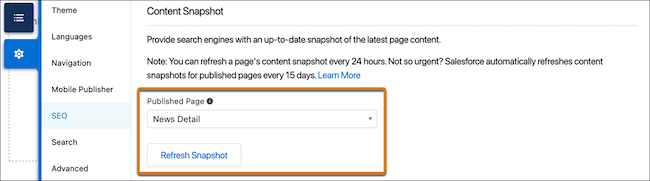
  2. On the SEO settings tab, select the page in the Published Page dropdown.
    Content Snapshot
  3. Click Refresh Snapshot.

Manual snapshots are processed as quickly as possible, but your updates can take some time to appear in search results. If you request manual snapshot refreshes for a large volume of pages simultaneously, your snapshots won’t all be updated at the same time.

 
Loading
Salesforce Help | Article
