You are here:
Enable Question-to-Case
Enable Question-to-Case in your Experience Cloud sites, Salesforce org, or both.
Required Editions
| Available in: Salesforce Classic and Lightning Experience |
| Available in: Enterprise, Performance, Unlimited, and Developer Editions |
| Applies to: Aura and Visualforce sites |
| User Permissions Needed | |
|---|---|
| To enable Question-to-Case: | Customize Application |

- From Setup, enter Support Settings in the Quick Find box, then select Support Settings.
- To enable Question-to-Case in Aura and Salesforce Tabs + Visualforce sites where you have enabled Chatter Questions, select Enable Question-to-Case in Experience Cloud Sites.
- To enable Question-to-Case in your Salesforce org, select Enable Question-to-Case in Salesforce.
- Click Save.
- Question-to-Case isn't available in sites using Lightning Web Runtime (LWR) or Help Center templates.
- Case assignment rules aren’t supported in Question-to-Case. By default, cases created from questions are assigned to the moderator who escalates the question. You can write a workflow rule that automatically adds cases that were created from questions to a queue so agents can claim them.
Add the Question from Chatter Field to the Case Detail View
When a case is created from a question in Chatter, the Question from Chatter field on case detail pages displays a link to the original question. This field helps agents quickly navigate to the feed.
Required Editions
| User Permissions Needed | |
|---|---|
| To set field-level security: | Manage Profiles and Permission Sets AND Customize Application |
| To customize page layouts | Customize Application |
First, use field-level security to specify which users can see the Question from Chatter field on case detail pages.
- From the object management settings for cases, go to Fields.
- Click Question from Chatter.
- Click Set Field-Level Security.
- Select Visible for any profile that you want to be able to use Question-to-Case.
- Click Save.
After you make the field visible to users, you can choose to add it to the Case Details view.
- From the object management settings for cases, go to Page Layouts.
- Click Edit next to the page layout that you want to customize.
- Drag the Question from Chatter field from the Fields section of the page layout editor palette to the Case Information section of the page.
- Click Save.
- Click Page Layout Assignment to confirm that the user profiles, which need Question-to-Case are assigned to the page layout that you customized. In addition, assign internal users who need access to the Question from Chatter field on cases to that page layout.
See Also
Add the Escalate to Case Action to the Feed Item Layout and Confirm Access
Give moderators the ability to create cases from questions by adding the Escalate to Case action to Chatter Questions pages. This action is created automatically when Question-to-Case is enabled in your organization. Make sure that the profiles that need Question-to-Case have access to the record type associated with the Escalate to Case action.
- From Setup, enter Feed Item in the Quick Find box, then select Feed Item Layouts.
- Click Edit next to Feed Item Layout.
- Drag the Escalate to Case action from the Quick Actions category in the palette to the Quick Actions in the Salesforce Classic Publisher section.
- Click Save.
- Click Page Layout Assignments to confirm that the user profiles that need Question-to-Case are assigned to the Feed Item Layout.
Check which record type is assigned to the profiles that need access to the Escalate to Case action.
- From Setup, enter Profiles in the Quick Find box, then select Profiles.
- Click the name of a profile.
- In the Record Type Settings section, make a note of which case record types the profile uses.
- In the Permissions section, make sure that the user profile has either the Moderate Chatter or Moderate Experiences Feeds permission enabled.
Then, check which record type the Escalate to Case action uses, and change it if necessary.
- From Setup, enter Actions in the Quick Find box, then select Feed Item Actions.
- Click Edit next to the Escalate to Case action.
- Confirm that the Record Type field shows a record type that’s assigned to the profiles that need access to this action. If it doesn’t, select an appropriate record type from the drop-down list.
- Click Save.
Create a Case from a Question in Chatter
If a question in Chatter hasn’t been resolved, moderators can create a case from the question. Question-to-Case must be enabled in your org.
Required Editions
| User Permissions Needed | |
|---|---|
| To create a case from a question in Salesforce: | Moderate Chatter OR Modify All Data AND Create on cases |
| To create a case from a question in an Experience Cloud site: | Moderate Chatter OR Modify All Data OR Moderate Experiences Feeds AND Create on cases |
- Navigate to the question in the feed.
-
Select Escalate to Case in the action dropdown menu.
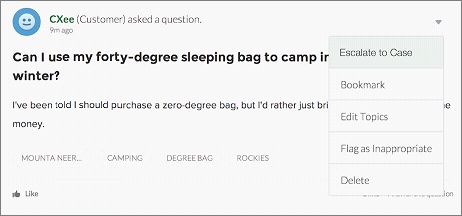 A window appears that’s pre-populated with the case subject, contact, and description. Unless Question-to-Case has a queue associated with it, the case is automatically assigned to you.
 - If needed, edit the case details.
- Create the case.
After a case is created from a Chatter question, the customer who asked the question receives an email notifying them that a case was created from their question. The email provides the case number and a link to the case.
Agents can respond to the question directly from the case feed using the action in the publisher. Agents choose who can view the response by selecting either “Customer Only” or “Everyone”. They can also navigate to the original question from the case’s detail page by clicking the link in the Question from Chatter field.
- BestCommentId: The ID of the comment that was selected as the best answer. If no comment has been selected as the best answer, this field is null.
- CommentCount: The number of comments on a question.
- LikeCount: The number of likes on a question.
- Each flow variable’s data type must match the feed item field’s data type. CommentCount and LikeCount are number fields, while BestCommentId is a text field.
- The creation of a feed item can trigger a flow, but updates to feed items (such as likes and comments) can’t. Depending on your use case, you might need to specify how much time must pass before a related flow runs.
