You are here:
Ask Button
The Ask Button component lets users click a button to ask a question that is then published to the site. Users must log in to ask questions and participate in discussions.
The Customer Service template pages come with two Ask Button components: one at the top of the page, and one at the bottom. The two aren’t linked, so you can remove one button or use different text or styling for each button.
- Select the Ask Button component on the page you're configuring.
-
In the property editor, configure the properties for the component.
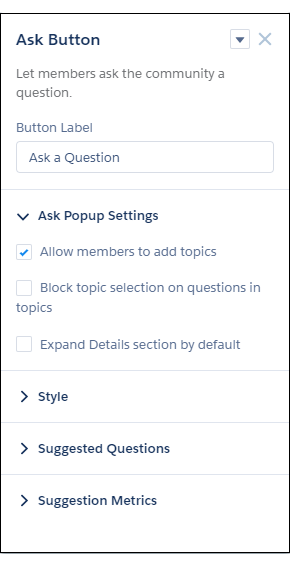
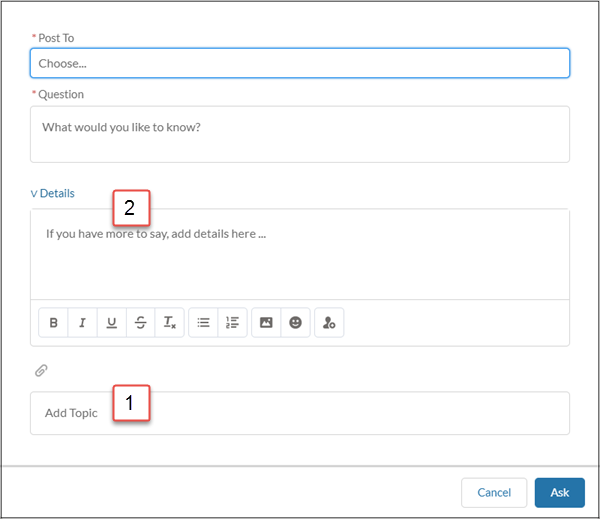
Property Details Button Label Enter the text to show on the Ask button. The default is Ask a Question. Allow members to add topics Select to show the topic area at the bottom of the feed publisher (1) and to allow members to add topics. Block topic selection on questions in topics In a topic feed, block members from choosing a different topic from the Post To list when they ask a question. Expand Details section by default When a member asks a question, show the Details section in an expanded state (2). Button Text Color Set the color to use for button text when the button is inactive.
For all values,
 link icon shows that
the current selection comes from colors defined in the
Experience Builder theme.
link icon shows that
the current selection comes from colors defined in the
Experience Builder theme.Button Text Hover Color Set the color to use for button text when a member mouses over the button.
In Experience Builder, you can test hover colors in Preview mode.
Button Background Color Set the color to use for the button background when the button is inactive. Button Background Hover Color Set the color to use for the button background when a member mouses over the button.
In Experience Builder, you can test hover colors in Preview mode.
Button Border Color Set the color to use for the border that surrounds the button. Button Border Radius Move the slider to control the amount of curve to use for the button shape. Max Button Width Move the slider to control the width of the button. Width percentage is set against the full width of the container the button sits in. So 100% is the full width of the container, rather than the full width of the browser page. Button Alignment Set the position of a button within its container by selecting Center, Left, or Right. Suggest questions Select to show previous questions that are similar to the one the member is asking. This property assists with question deflection and helps in using existing resources. Include discussions in suggestions Select to show discussions related to the question the member is asking. This property assists with question deflection and helps in using existing resources. Include articles in suggestions Select to show Knowledge articles related to the question the member is asking. This property assists with question deflection and helps in using existing resources. Max Suggestions to Show Set the maximum number of questions, discussions, and articles to show to a member who is asking a question. Show satisfaction prompt Select to show the member a prompt that asks if they were satisfied with the information provided when they asked a question. Satisfaction Prompt Enter the question you want to ask a member about their satisfaction with the questions, discussions, and articles provided in response to their question. The default is Did we help to answer your question? Frame the question so that a positive response shows that your data helped and a negative response shows that it didn’t. Member response data provides you with metrics on the effectiveness of question deflection. Ask follow-up question Select to ask the member a follow-up question to their satisfaction response. Follow-Up Prompt Enter the follow-up question you want to ask the member. The default is Can we close your question? A member’s positive response closes the question without posting it. A negative response keeps the member’s question active. Confirmation Message Enter a confirmation message to show when a member responds to your prompts. The default is Got it!