You are here:
Dashboard
Use the Dashboard component to add dashboards you set up in your org’s public folder to your site’s pages.
- Select the Dashboard component in the page you're configuring.
-
In the property editor, configure the properties for the component.
Property Details Dashboard Name Select an available dashboard. Height Adjust the height of the dashboard. Column width controls the dashboard width.

Example Sample Dashboard component: 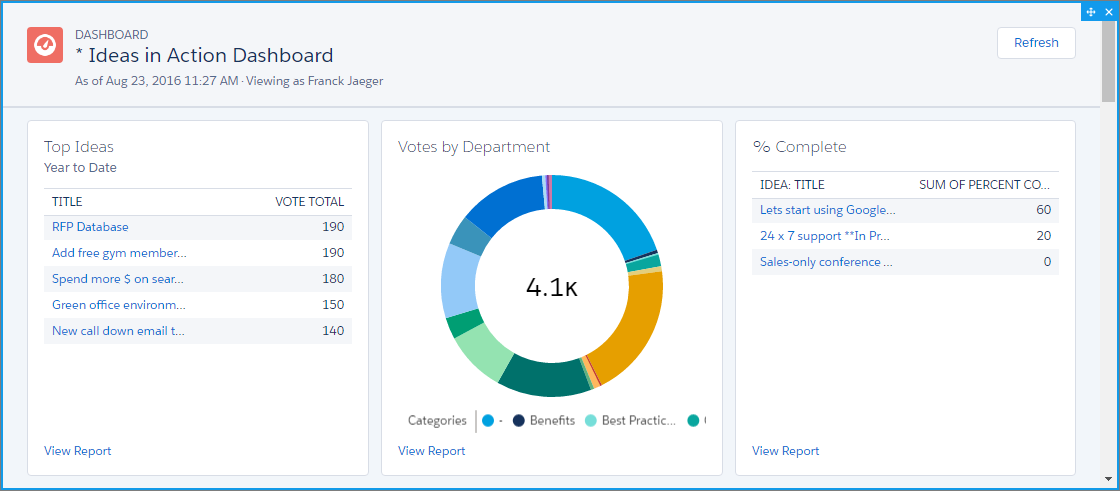

Note
- Members can’t change the dashboard’s running user in the site. This view is read only.
- The refresh button isn’t available in Experience Builder sites on mobile devices.
- Dashboards data is automatically refreshed when viewed in Experience Sites.
- Starting Spring '25, the developer name is supported for Dashboards. However, the Dashboard component won't render on the site if it's in a private folder (This can happen if you move the dashboard to a private folder after adding it to a site) or if it contains a duplicate developer name. In both cases, you can't retrieve the Dashboard ID.
Did this article solve your issue?
Let us know so we can improve!
