You are here:
Enhanced List View
Partners can better prioritize selling when they can see activity frequency metrics for their contacts, leads, and opportunities, and get insights on their deal health. Use the Enhanced List View component to give partners access to Contact Intelligence View, Lead Intelligence View, and Pipeline Inspection from their Experience Cloud sites.
Required Editions
| Available for partners in Experience Cloud Aura sites, accessed through Lightning Experience in Enterprise, Performance, and Unlimited Editions with Sales Cloud or Service Cloud. A PRM add-on license is required for each partner user. |
| User Permissions Needed | |
|---|---|
| To customize an Experience Cloud site: | Create and Set Up Experiences AND Be a member of the site OR View Setup and Configuration AND Be a member of the site AND Be an experience admin, publisher, or builder in that site |
To give partners access to these features, you must also complete basic Contact Intelligence, Lead Intelligence, and Pipeline Inspection setup requirements. Requirements include assigning corresponding permission sets. Then, verify which steps you must complete based on when you create your site, the features you choose to enable, and the Experience Cloud template you’re using. Not all steps are required for all templates.
-
If the feature you want to enable isn’t preconfigured in your Experience Cloud
template, create a page for it.
We recommend creating a separate page for each Enhanced List View feature (Contact Intelligence View, Lead Intelligence View, Pipeline Inspection). Only one feature can be displayed per component, and the Enhanced List View component displays at full screen.
- Create a Standard Page with a flexible layout.
- From the Component menu, drag the Enhanced List View component to the page, and select it.
-
In the property editor, configure the properties for the
component
Property Details Object Select the object that corresponds with the feature you want to add to this page (Contacts, Leads, or Opportunities)
- If navigation for the feature you want to enable isn’t preconfigured in your Experience Cloud template, add the Enhanced List View page to the site’s navigation menu. From the Settings menu, click Navigation and edit the navigation menu where you want partners to locate the page.
- Repeat steps 1–2 for each Enhanced List View feature (Contact Intelligence View, Lead Intelligence View, Pipeline Inspection) that you want to add a page for.
- Publish the changes to your site.

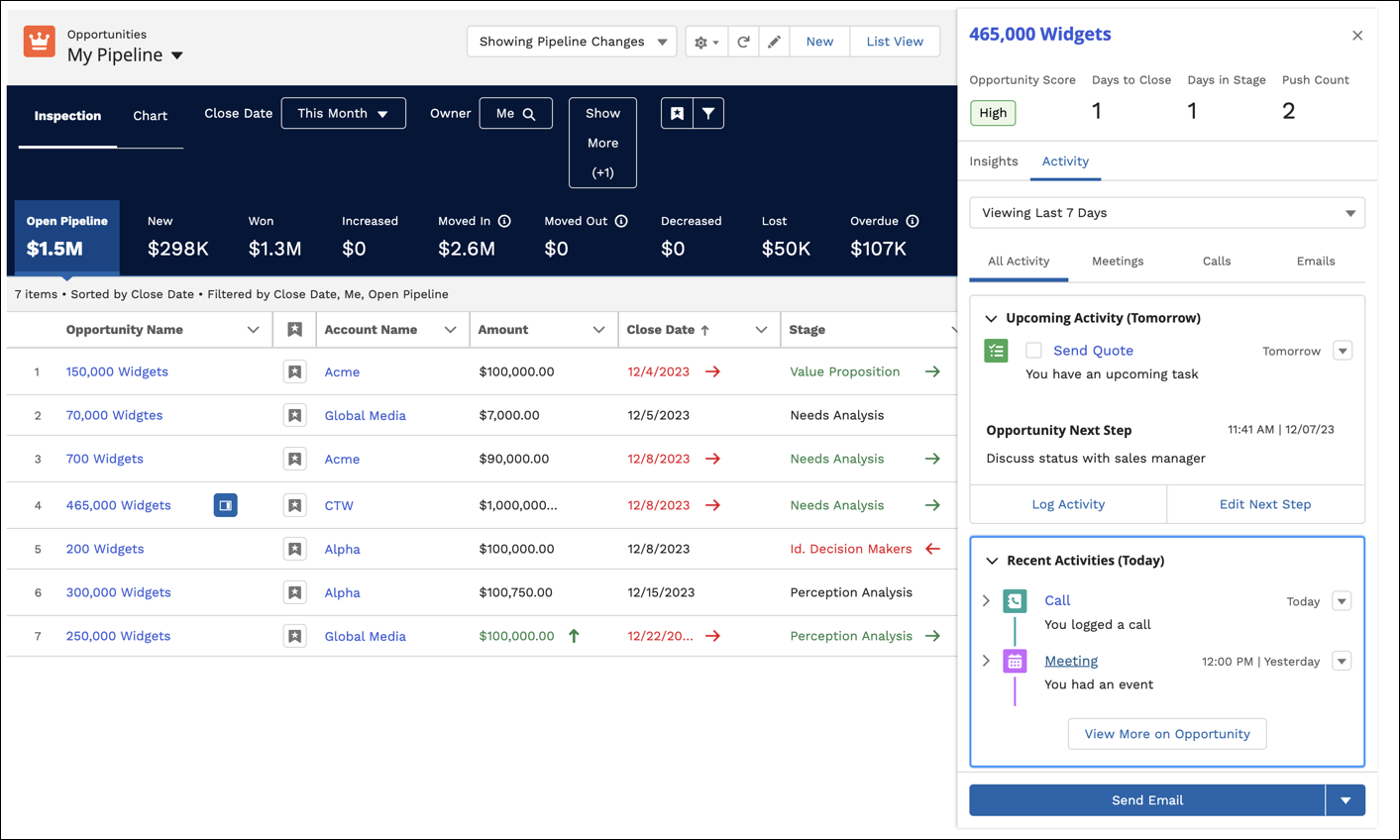
Enhanced List View component for Pipeline Inspection: