You are here:
Headline
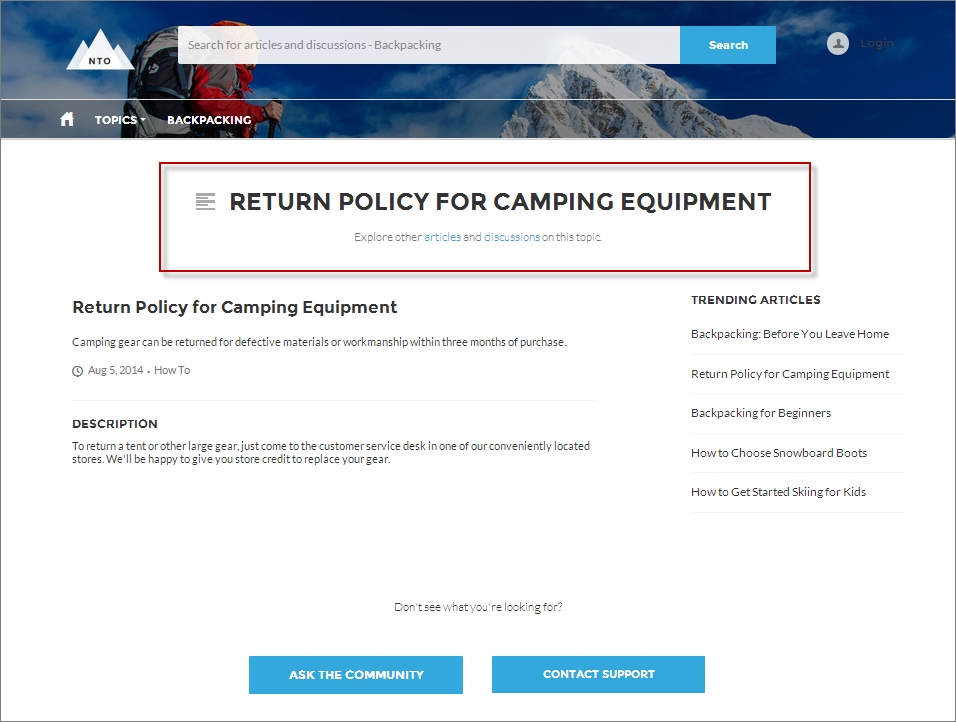
The Headline component gives you customizable headline text and text banner with inline links to pages that show discussions, topics, and articles. It also displays an icon to the left of the banner that identifies the content as an article or a discussion when either is selected.
- Select the Headline component in the page you’re configuring.
-
In the property editor, configure the properties
for the component.
Property Details Title Enter the static text for the page’s headline. The default text for the page is Welcome!. Banner Text Enter the static text that appears on the home page. The default text is A place where you can easily find solutions and ask questions. Page Type Enter the type of content that the page displays in this page. Type either article, topic, or discussion to retrieve the title of the page and display an icon identifying the type of page the user is viewing.
When Page Type is set to article, the Headline component is hidden in the mobile view. If you want to show the Headline component, you need custom CSS.
Unique Name or ID The system retrieves the ID from the URL of the question or article when it’s selected. Banner Text with Articles and Discussions Enter the static text and link text that lets users select a page that shows articles or discussions. This text and links in this field appear on the page when Salesforce Knowledge is enabled and set up in your organization. You can translate and change the value of each component, but not the position of the component.
Explore other <a href="javascript:void(0)" class="headlineArticles">articles</a> and <a href="javascript:void(0)" class="headlineDiscussions">discussions</a> on this topicBanner Text with Discussions Enter the static text and link text that lets users select a page that shows discussions only. This text and link in this field appear on the page when Salesforce Knowledge isn’t enabled in your organization. You can translate and change the value of each component, but not the position of the component.
Explore other <a href="javascript:void(0)" class="headlineDiscussions">discussions</a> on this topicShow Subtopics Below the headline, displays links to topics that are children of the current topic. (On mobile devices, these links appear in a Subtopics menu.)
Only navigational topics support parent-child relationships.
Property Details Title Enter {!topicName} to retrieve and display the topic name on the topic detail page. Page Type Enter topic as the page type. Show Subtopics Select this option to display subtopics.