You are here:
Migrate to the Contact Support Form and Case Deflection Components
If you built your Experience Cloud site before Spring `18, you could be using the Create Case Form component. A revamped version, ushered in with Spring `18, has split the component into two: the Contact Support Form and the Case Deflection components. We recommend you update your existing site to use the new components, as future updates and improvements are made on Contact Support Form and Case Deflection. Moreover, the new components allow you to use the Case Deflection Dashboard to verify the efficacy of your site’s case deflection.
Replace the Case Create Form component with the Contact Support Form and Case Deflection components using the following steps.

- Create a new page variation you can use for case deflection. In the Customer Service, make a variation of the Contact Support page. In the Customer Account Portal template, make a variation of the Contact Us page. We recommend the 2-column, 1:1 ratio layout.
-
Drag the Contact Support Form and Case Deflection components on the page.
Configure the component properties.
Note One of the properties on the Contact Support Form component is the global action used to create cases. Create new global actions in Salesforce Setup. For a global action to be used in the Contact Support Form component, it must be a Create a Record action type with the case object as the target.
-
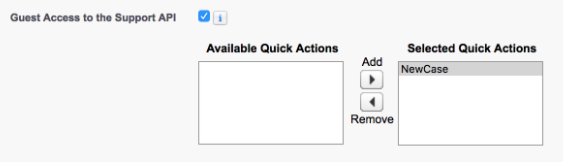
Enable Guest Access to the Support API, and add the
global actions you want to use.
- In Salesforce Setup, enter Sites in the Quick Find box and select Sites.
- Select the Guest Access to the Support API checkbox to enable it.
-
Add your global actions to the Selected Quick
Actions box.
- Click Save.
-
Configure your site’s guest user profile. Disable access to object permissions
for guest users.
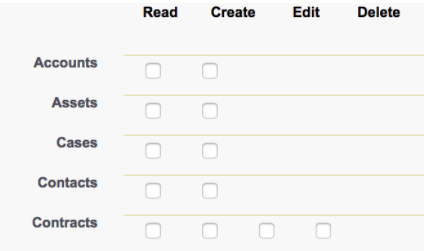 Note Your guest users could need object permissions for custom objects, or other functionality in your site. Test your implementation so you have the best object permission configuration for your site.
