You are here:
User Profile Summary
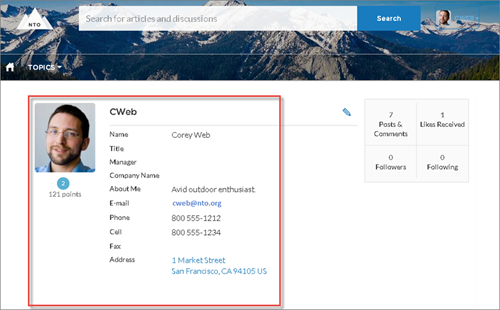
The User Profile Summary component displays the user's contact information, title, address, and manager’s name. If nickname display is enabled for the site, other users’ nicknames are shown in place of the full name. The full name is shown when users view their own profiles.

By default, all the information in a user’s profile is visible to all users in the site, including to unlicensed guest users accessing the site. To limit access to members’ information, use a custom user profile page layout. Hide fields that reveal sensitive information, such as phone, email, title, and manager.
Similarly, consider modifying the fields for unlicensed guest user profiles to show only the necessary information. For example, you could hide the manager field. For detailed instructions on customizing page layouts, see Salesforce Help.
You can add the User Profile Summary component to the Profile page. This component allows users to edit their profile information from the site. When viewing another user’s profile, you can click their address to see a Google map of their location.
- Select the User Profile Summary component in the page you're configuring.
-
To view properties for the component, select the Properties pane:
Property Details User ID The system supplies this value so that authenticated users can view their own information. Don’t update this field.