You are here:
Feed-Based Layouts in Salesforce Classic
Feed-based page layouts make it easier to work with records by providing two separate views: one for the record’s feed, and one for its details, including related lists.
| Available in: Enterprise, Performance, Unlimited, and Developer Editions |
Feed-based layouts offer a more streamlined way of working with records, and don’t require users to scroll through information they’re not interested in to find what they’re looking for. Users can easily switch back and forth between the feed view, which includes the publisher and important events on the record, shown in chronological order, and the details view, which shows in-depth information about the record, including related lists.
Unlike standard page layouts, which include all of a record’s information—the feed, details, and related lists—on one page, feed-based layouts let you switch between the feed view and the details view so you can focus on the type of information you need at any given moment. For example, to see comments others have made about a record or to create a record that’s related to it, you’d use the feed view. To delve into the record’s related lists, attachments, and other in-depth information, you’d use the details view.
Feed-based layouts are available on account, asset, case, contact, lead, opportunity, custom, and external objects. To create feed-based layouts for cases, use Case Feed.
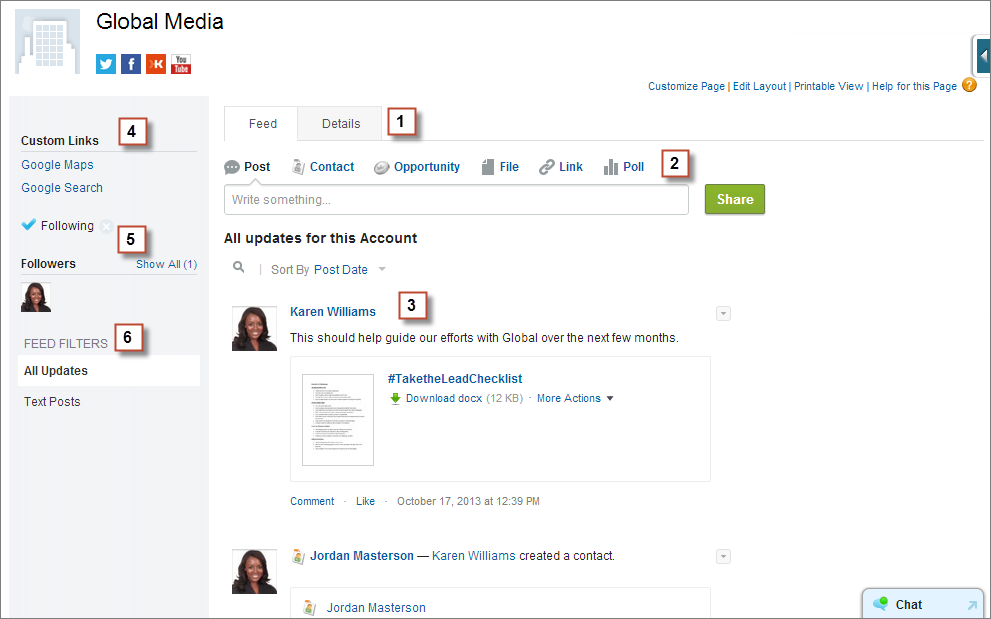
The feed view in these layouts includes:
- Tabs or, if you’re working in the Salesforce console, toggle buttons (
 )
to switch between the feed view and the detail view. (1)
)
to switch between the feed view and the detail view. (1) - The publisher, which might include actions that let you do things like create related records or log calls, depending on how your administrator has set up your organization. (2)
- The record feed, which shows activity on the record, such as comments others have made about it. (3)
- Any custom buttons and links your administrator has added. (4)
- A follow button or following indicator and a list of people who follow the record.
(5)
Depending on how your administrator has set up the page, these might appear on the left side or on the right side.
- Feed filters, which let you choose which information from the feed you see.
(6)
Depending on how your administrator has set up the page, the filters might appear on the left side of the page, in the center, or on the right.
Detail views show in-depth information about the record, including related lists.
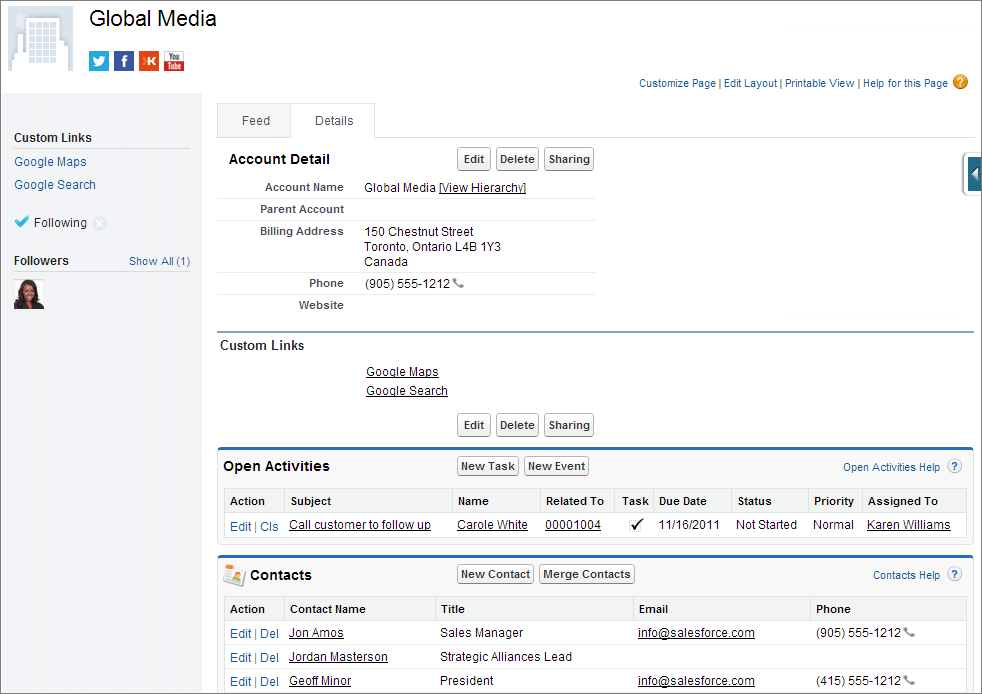
- Create Feed-Based Page Layouts in Salesforce Classic
Make it easier for your users to work with account, contact, lead, opportunity, custom, and external object records by creating feed-based layouts. These layouts include two separate views: one for the record’s feed and one for its details.
