Tips for Building Cross-Object Formulas
Keep these tips in mind when working with cross-object formulas.
Required Editions
| Available in: both Salesforce Classic and Lightning Experience |
| Available in: All Editions |
- Cross-object formulas that reference currency fields convert the value to the currency of the record that contains the formula. If the referenced currency field is from a custom setting, the field value isn’t converted to the record’s currency.
- Salesforce allows a maximum of 10 unique relationships per object in cross-object formulas. The limit is cumulative across all formula fields, rules, and lookup filters. For example, if two different formulas on opportunities reference two different fields of an associated account, only one unique relationship exists (from opportunities to accounts).
- You can’t reference cross-object formulas in roll-up summary fields.
- In cross-object formulas, you can’t reference merge fields for objects related to activities. For example, merge fields for contacts and accounts aren’t available in task and event formulas.
- In cross-object formulas, you can’t reference fields from contacts through person accounts. For more information, see Using custom formula fields with person accounts.
Using the Owner Field
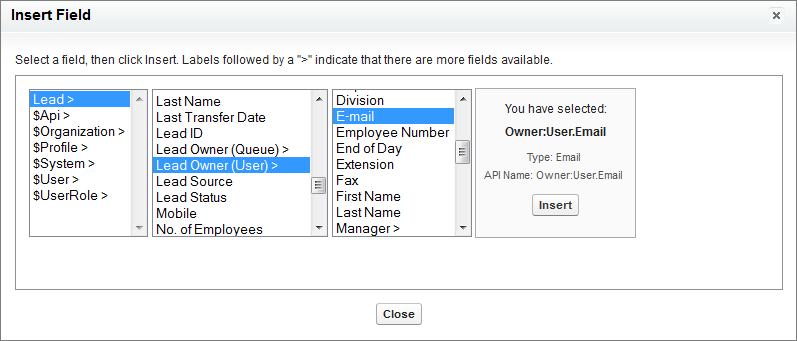
Some objects support different object types for the Owner field, such as a User, Queue, or Calendar. When you create a cross-object formula using Owner on such objects, be explicit about the owner type that you reference.
For example, for owner email where you don’t use queues,
your formula is Owner:User.Email. If you do use queues,
your formula can be
IF( ISBLANK( Owner:User.Id ), Owner:Queue.QueueEmail, Owner:User.Email )Here’s how to select Owner object fields on a Lead in the Advanced formula tab.
- Owner references aren’t supported in Visualforce pages. For example, on a page with Case
as a controller, you can’t include
{!Case.Owner:User.FirstName}. However, you can include an existing spanning formula on a Visualforce page. For example, if you have a custom text formulaMyFormula__con a Case with valueOwner:User.FirstName, you can include{!Case.MyFormula__c}on your Visualforce page. - Owner references aren’t supported on the Queue object. For example, you can't reference
Owner:Queue.Owner.Email. - If your formula has
Owner:User.fieldnameandOwner:Queue.fieldname, they count against the limit of 10 unique relationships per object in cross-object formulas. - On objects that don’t support Queues, User is implicit when referencing Owner. Have your
formula as
Owner.fieldname, notOwner:User.fieldname.
Using Profile.Name
The value of the Profile.Name merge field differs
depending on the context of the cross-object formula field that references it. On detail
pages, the value is the profile name, as expected. In list views and reports, the value is
the internal value of the associated profile instead. If you use Profile.Name in a formula, use it within an OR function to ensure that the formula always returns the
intended result. For example:
IF
     (OR
          (LastModifiedBy.Profile.Name = "Standard User", LastModifiedBy.Profile.Name = "PT2"),
     "Standard", "Not Standard")
None of the above applies to profile names
referenced by the $Profile global variable.
Fields That Can’t Be Used In Formulas
- Fields that are calculated from other fields, like Name fields
- For example, the Account object has an
OwnerIdfield that refers to users. The relationship name is Owner.So you can use the
Owner.Emailfield in a formula. But if you try to useOwner.Namefield in a formula, you get this message: Error: Field name doesn’t exist. Check spelling.To work around this issue, you can use a formula that builds a name directly. For example, on an Account object, you can use
Owner.FirstName & " " & Owner.LastName - Polymorphic relationship fields
- For example, the Case object has a polymorphic relationship field called
OwnerIdthat can refer to Groups or Users. The relationship name is Owner. If you try to useOwner.Emailin a formula, you get this message: Error: Specify an object type for the Owner Field.To work around this issue:
- Create a custom field on the object that has a lookup relationship to the object
that you want to use in the formula.
For example, create a
UserOwnercustom field on the Case object that has a lookup relationship to Users. - Set the custom field to refer to the object.
To continue the example, set the
UserOwnerfield for a specific Case to refer to the required user. - Use the custom field in a formula.
For example, you can use
UserOwner__r.Email, or UserOwner__r.FirstName & " "
                      & UserOwner__r.LastName
- Create a custom field on the object that has a lookup relationship to the object
that you want to use in the formula.
