
You are here:
Add the Provider Search Component to a Record Page
Add the Provider Search component to a Lightning page and customize your Health Cloud users’ search experience.
Required Editions
Available in: Lightning Experience Available in: Enterprise and Unlimited Editions with Health Cloud or Life Sciences Cloud |

Before you start, check that the maps and location service is turned on and that the data integration rule for geocoding in the Care Provider Searchable Fields object is enabled. Go to Setup, in the Quick Find Box enter Data Integration Rules, and select Data Integration Rules. Look for the Geocodes for Care Provider Searchable Field Address and check that the status is Active. Then look for the Geocodes for Account Shipping Address and check that the status is Active. If the setup is incomplete, contact your Salesforce account representative.
Optionally, set up dependent picklists to help users find the right choices faster when searching. For more information, see Use Custom Fields to Run Provider Searches.
-
In Lightning App Builder, edit the page where you want to add the Provider Search
component.
- Place the Provider Search component on the account record page.
- Place the component on the home page of your Health Cloud app.
- Create an app that contains only the provider search component.
 Note In a standalone app, users can’t filter by eligibility according to insurance plan.
- Drag the Provider Search component to the page.
-
In the properties panel, under Search Panel Fields, choose the fields users can
search.
Select Required for fields that must be supplied.
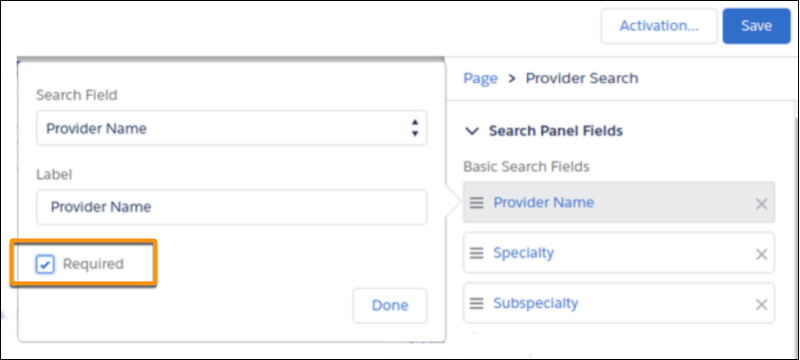
- Click Add Field to add additional fields to the search.
- If you've added custom fields, under Advanced Search Fields, click Add Field to add them to the search.
- If you have more fields than fit on a single screen, users can click View Advanced Search to show all fields. If you want users to see all fields at once, unselect Hide Advanced Search.
- Under Search Results Fields, rearrange the selected field order as needed.
- Save and activate your page.
-
In the App Launcher, search for the page or app and try it out.
 Tip If you have a mobile app set up, some users can make phone calls directly from the provider search result card.
If you don't see search results immediately after setting up provider search, you can manually sync the data. Provider Search automatically syncs the data one time per day. Legacy Provider Search syncs the data every six hours.
