Loading
Upcoming Mandatory Changes to Public Key Infrastructure (PKI)Read More
Salesforce Enforces New Security Requirements in Summer 2026Read More
Table of Contents
Select Filters

          No results
          No results
          Here are some search tips

          Check the spelling of your keywords.
          Use more general search terms.
          Select fewer filters to broaden your search.

          Search all of Salesforce Help
          Create an Action Plan Template for Dealer Visits

          Create an Action Plan Template for Dealer Visits

          Sales managers can create action plan templates to capture frequently performed tasks and to specify mandatory tasks. When you add tasks, the assessment indicator definitions related to a task are automatically added to the template. The template acts as a reusable framework because you can relate a template with multiple Visit records. For example, create an action plan template for quarterly front-office check-ins and add typical tasks, such as conducting a survey, upselling new vehicle accessories, and assessing ongoing promotions.

          Required Editions

          Available in: Enterprise, Unlimited, and Developer Editions.
          User Permissions Needed
          To create action plans:
          • Partner Visit Management permission set
          • Create access on Action Plan Template
          1. From the App Launcher, find and select Action Plan Templates, and then click New.
          2. Enter a name and a description for the template.
          3. For Target Object, select Visit.
          4. For Action Plan Type, select Assessment Execution.
          5. Click Save.
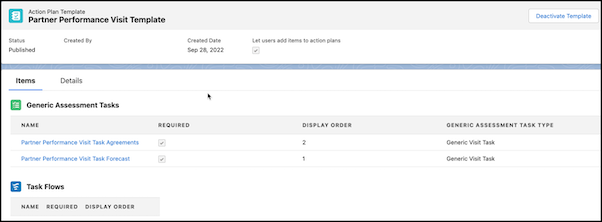
          6. Click New Generic Assessment Task.
            Important
            Important Assessment Task Definitions, Tasks, and Task Flows are not supported for partner visit management in Automotive Cloud. Only add generic assessment tasks to the action plan template.
          7. Select Is Required if you want to make the task mandatory to perform.
          8. Enter a value for Display Order.
            Note
            Note The display order is the sequence to perform tasks in a visit. Each task gets a positive and unique value. When the action plan template is added to a visit, users assigned to the visit can see the tasks sequenced according to the display order. If the display order value isn’t entered, the tasks are sorted in alphabetical order. But if the display order is entered for only a few tasks, then the tasks with undefined display order are sorted in alphabetical order and appear at the top of the task list, followed by the defined tasks. If users create tasks while on a visit, then the newly created tasks are displayed at the end of the task list.
          9. To add more tasks, click New on the header and click Generic Assessment Task.
          10. Save your changes.
          11. Click Publish Template to activate it.
            An action plan template record.
           
          Loading
          Salesforce Help | Article