
You are here:
Create an Actionable Relationship Center Graph for Vehicles
Show information about all stakeholders, vehicle definitions, and assets on a visual graph for Vehicle records. Configure an Actionable Relationship Center (ARC) Graph with information that’s relevant for sales dealers, service technicians, and agents looking at Vehicle records.
Required Editions
| Available in: Enterprise, Unlimited, and Developer Editions. |
| User Permissions Needed | |
|---|---|
| To customize page layouts: | Customize Application |

Note Here we show you how to create an ARC relationship graph with multiple related objects from
Vehicle and display the graph on a Vehicle record. You can add other objects and fields as per
your company’s requirements. For example, you can follow these steps to create a similar
relationship graph on Account and show information that’s derived from assets, business
profiles, contacts, vehicles, and party relationship groups.
- From Setup, in the Quick Find box, enter Actionable Relationship Center, and then select Actionable Relationship Center.
- Click New Relationship Graph.
-
Select a graph template and click Create Graph.
Select Custom Templates to create your template, or select Installed Templates to use a template created by a third party.
-
Configure the graph properties:
-
Enter a label, for example, Vehicle Relationships, and a unique developer name.
When you add the ARC Relationship Graph component to a record page, the label displays in the list of available graphs.
- Click the root node on the graph and complete the root node fields on the Properties tab:
- Object: Vehicle
- Sort By: Last Modified Date Descending
- Node Configuration: Use As Default
-
Enter a label, for example, Vehicle Relationships, and a unique developer name.
- To add child nodes to the relationship graph, click the plus icon below the root node.
-
Configure the child object:
- Complete the child node fields on the Properties tab:
- Object: Asset
- Relationship Type: One-to-Many
- Parent Node Lookup Field: Vehicle
- Sort By: Last Modified Date Descending
- To add another child node to the relationship graph, click the plus icon below the root node.
-
Configure the child object:
- Complete the child node fields on the Properties tab:
- Object: Account
- Relationship Type: Many-to-Many
- Junction Object: Asset Account Participant
- Parent Node Lookup Field: Vehicle
- Object Lookup Field: Account
- Sort By: Account Name Ascending
- Complete the child node fields on the Display tab:
- Label: Accounts
- Show Field: Account Name
- To add another child node to the relationship graph, click the plus icon below the root node.
-
Configure the child object:
- Complete the child node fields on the Properties tab:
- Object: Product
- Relationship Type: Many-to-Many
- Junction Object: Asset
- Parent Node Lookup Field: Vehicle
- Object Lookup Field: Product
- Sort By: Last Modified Date Descending
- Complete the child node fields on the Display tab:
- Label: Products
- Show Field: Make Name
- Show Field: Vehicle Trim Type
-
To add a child node below an existing child node, click the plus icon below the existing
child node.
For example, click the plus icon below the Account node to add a child node.
-
Configure the child object:
- Complete the child node fields on the Properties tab:
- Object: Party Relationship Group
- Relationship Type: One-to-Many
- Parent Node Lookup Field: Account
- Sort By: Last Modified Date Descending
- Complete the child node fields on the Display tab:
- Label: Party Relationship Groups
- Show Field: Name
- Show Field: Category
- Show Field: Lifetime Vehicle Purchase Value
- Show Field: Lifetime Vehicle Purchase Count
-
Save your changes.
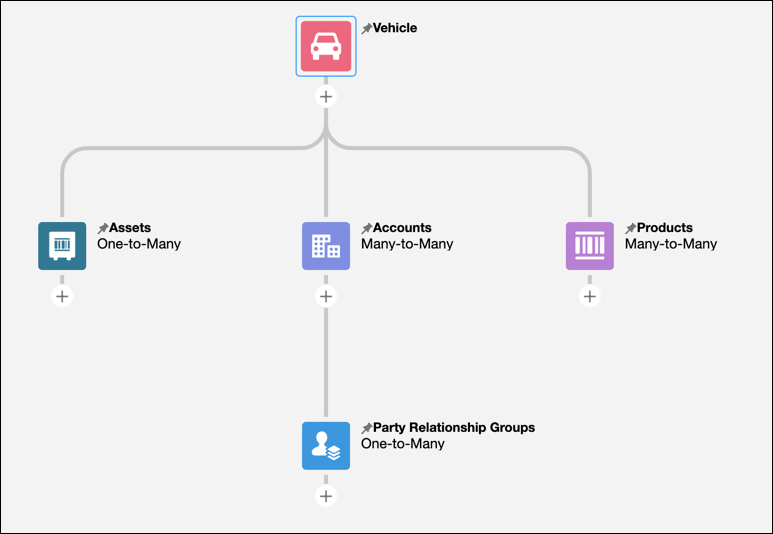
Add the ARC Relationship Graph component to a Vehicle record page layout and assign the page layout to users who an view the information you configured.
Did this article solve your issue?
Let us know so we can improve!
