Loading
Automotive Cloud
Table of Contents
Select Filters

          No results
          No results
          Here are some search tips

          Check the spelling of your keywords.
          Use more general search terms.
          Select fewer filters to broaden your search.

          Search all of Salesforce Help
          Create Party Relationship Groups in Automotive Cloud

          Create Party Relationship Groups in Automotive Cloud

          Create a party relationship group to represent a group of people living together, such as a household, a co-operative, a group of spare parts dealers, or a group of vehicle accessory wholesalers. When you define a customer as a business account in Automotive Cloud, create a related Party Relationship Group record to store information about the household of the customer. Or, create a party relationship group to represent dealer groups and relate them to a dealer account. Use party relationship groups to track the lifetime value of vehicles, parts, and services that a group purchased.

          Required Editions

          Available in: Enterprise, Unlimited, and Developer Editions.
          User Permissions Needed
          To create party relationship groups: Automotive Foundation permission set AND Group Membership permission set.

          Make sure your admin has defined picklist values for the Category and Subtype fields on the Party Relationship Group object in Object Manager.

          1. From the App Launcher, find and select Party Relationship Groups.
          2. Click New.
          3. Search for and select an Account.
            If your admin has added Party Relationship Groups as a related list on the Account record page layout, and you create a record from the related list, this field is prepopulated.
            Note
            Note You must create a Business Account record before creating a party relationship group.
          4. For Category, select the classification of the group, such as Staying under one roof, or Sharing meals together.
          5. For Type, select the type of the group, such as a household.
          6. For Subtype, specify the group subclassification.
            For example, if the type is household, the subtype can be nuclear family or extended family.
          7. For Group Size, enter the number of members in the group.
          8. For Group Income, enter the cumulative income of the members in the group.
          9. For Lifetime Vehicle Purchase Count, enter the total number of vehicles that the group members purchased.
          10. For Lifetime Service Purchase Count, enter the number of parts, accessories, and other services, such as warranty services, that the group members purchased.
          11. For Lifetime Vehicle Purchase Value, enter the total value of the vehicles that the group members purchased.
          12. For Lifetime Service Purchase Value, enter the total value of the services that the group members purchased.
          13. For Lifetime Accessory Purchase Value, enter the total value of the parts and accessories that the group members purchased.
          14. Save your changes.
          Example
          Example

          Neo Motors has a business account record for Acme Financials Florida, a small-scale financial company that purchased a fleet of cars from Xela Automotive to transport employees. Here's how Neo Motors creates a relationship group to get visibility into the purchase history of Acme and to track the total value of cars and accessories sold to all members of Acme:

          • From the App Launcher, search and select Accounts.
          • Click the Acme Financials Florida account.
          • On the Party Relationship Groups related list, click New.
          • Specify these values, and then save your changes:
            • Name: Acme Financials Florida Business Group
            • Category: Business unit
            • Type: Group
            • Subtype: Corporate
            • Group Size: 450
            • Lifetime Vehicle Purchase Count: 25
            • Lifetime Service Purchase Value: US$40,000
            • Lifetime Accessory Purchase Value: US$1,50,000

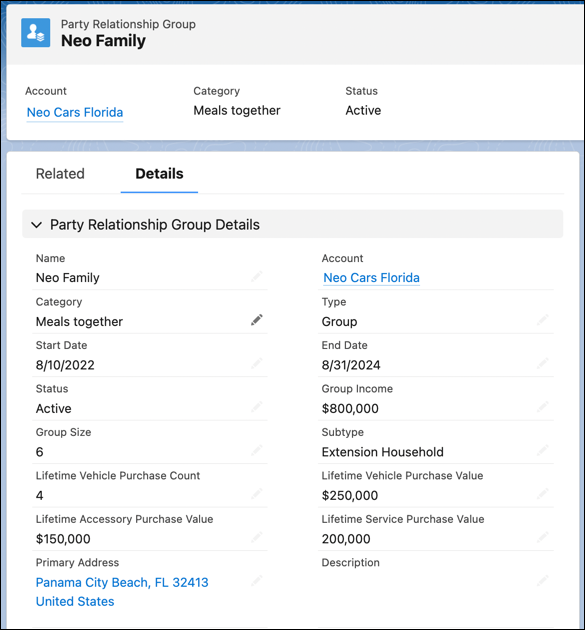
          A party relationship group for a customer household.

          You can also create party relationship groups quickly and easily using a guided workflow. Click New Group on the Party Relationship Groups list view page, and members, related contacts, related business accounts, and even other party relationship groups. In the same workflow, you can also specify roles and relationships among all members and groups.

           
          Loading
          Salesforce Help | Article