
Loading
Feature Disruption - Service Cloud VoiceRead More
Feature degradation | Gmail Email delivery failureRead More
Automotive Cloud
Table of Contents
Select Filters

          No results
          No results
          Here are some search tips

          Check the spelling of your keywords.
          Use more general search terms.
          Select fewer filters to broaden your search.

          Search all of Salesforce Help
          Create Lead Line Items

          Create Lead Line Items

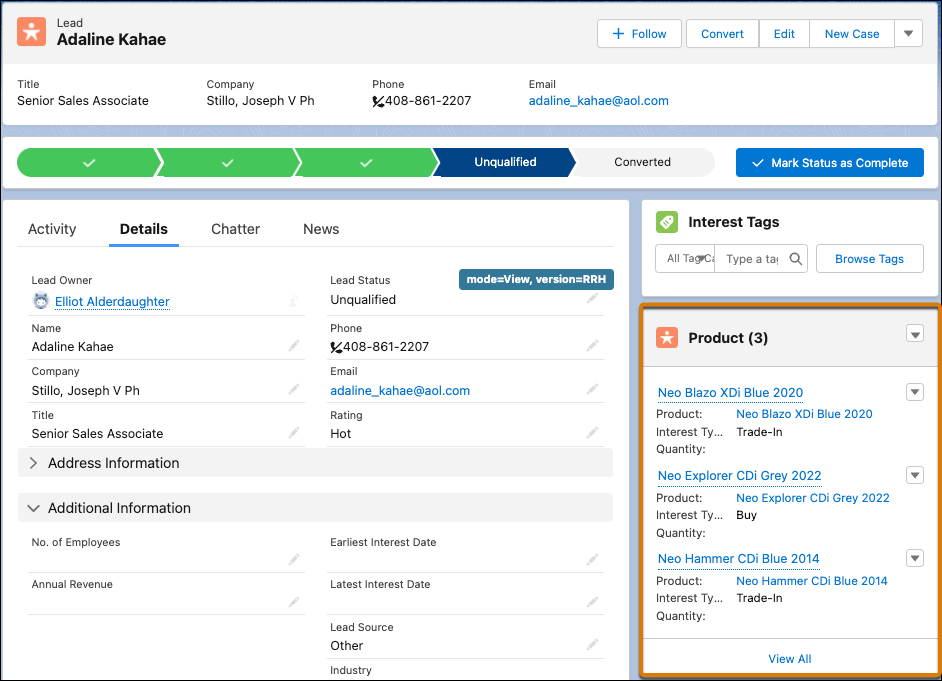
          Relate multiple Lead Line Item records to a Lead record if a prospect is interested in multiple products, such as vehicles, parts, and accessories. If automotive dealers have information on the specific products and services that the leads are interested in, the dealers can focus on the products while engaging with the leads. And if you’re an automotive manufacturer, you must know the type of items a lead is interested in so that you can effectively match and distribute the leads to the right dealer groups.

          Required Editions

          Available in: Enterprise, Unlimited, and Developer Editions.
          User Permissions Needed
          To create lead line items: Partner Lead Management permission set

          Make sure that the Product related list is added to the Lead page layout.

          1. From the App Launcher, find and select Leads.
          2. Select the required lead record.
          3. In the Products related list, click New.
            Depending on how your admin configures the Lead page layout, you can access the Products related list as a card on the page layout or from the Related tab.
          4. Enter a name for the product.
          5. Search for and select the product that the lead is interested in.
            A product can be a vehicle model, a specific part or accessory, or even a service.
            Note
            Note Make sure that the product is active and is associated with a standard price book that’s active.
          6. In the Quantity field, enter the number of units of the product that the lead is interested in.
          7. In the Price Type field, select the type of price, such as quote, offer, or appraisal, associated with the product.
          8. In the Interest Type field, select the lead's interest type.
            A lead can be interested in buying, selling, leasing, or trading a vehicle, or in a test drive.
          9. In the Classification field, select the category of the product, such as new, used, or refurbished.
          10. In the Condition field, select the state of the product, especially if it’s a used or refurbished product.
            • Excellent
            • Good
            • Fair
            • Poor
            • Unknown
          11. In the Item Type field, select the type of item, such as a vehicle, a part, an accessory, or a service.
            The picklist values are defined by your admin based on your business requirements.
          12. In the Asset Identification Number field, enter the unique identifier of the associated product, such as the vehicle identification number or serial number of an accessory.
            Sometimes a lead specifies only the make or model of the vehicle or the type of parts and accessories that they’re interested in. In that scenario, you won’t have any asset identification number to associate with a lead line item. But if a lead is selling a vehicle or trading in their existing vehicle, you can capture the identification number of the specific asset.
          13. Save your changes.

          Lead Products related list on Lead.

          When you convert the lead to an opportunity, the lead line items automatically get converted to opportunity line items if the required configurations are defined.

           
          Loading
          Salesforce Help | Article
