You are here:
Add and Edit Milestones on Vehicle
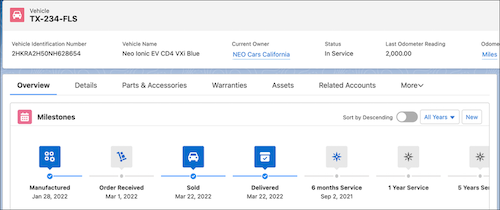
View and update asset-specific milestones on the Events and Milestones component on a Vehicle record. You can sort the milestones by time, filter milestones by time range, and create milestones without losing the context of the vehicle.
Required Editions
| Available in: Enterprise, Unlimited, and Developer Editions. |
| User Permissions Needed | |
|---|---|
| To create asset milestones: | Automotive Foundation User permission set |
Make sure your admin has added the Events and Milestones component to the Vehicle record page layout that’s assigned to your user profile.
- Open a Vehicle record.
-
Click New on the Milestones component.
Or, if you already have a milestone of a specific type on the component, click the icon and select
 .
. -
If you’re creating a milestone from the Vehicle page, the Vehicle and Asset fields are
auto-populated.
 Note You can create milestones for all assets such as spare parts, or accessories. For example, you can create a milestone to record an order that’s received for a windshield that is an asset in your system.
 - Enter a milestone name such as 10,000 miles completed.
- Enter a description.
-
Select a date when the milestone occurred.
This date can be in the past, a current date, or in the future.
- Select a value for Milestone Type.
-
Select a stage such as Active, Tentative, or Expired.
An active milestone is displayed in blue on the Events and Milestones component.
An expired milestone is displayed in gray on the Events and Milestones component, and the record changes to read-only.
A tentative milestone is displayed in gray on the Events and Milestones component but you can still view and edit the record.
- Add a comment explaining the reason for selecting a specific stage. For example, add comments on why you set a milestone as expired.
- Select a date when the milestone expired.
- Select a location where the milestone occurred. For example, select the dealership where the vehicle was sold to the customer.
- If you’re importing data from an external source system, specify the source system name and the identifier of this record in the source system.
- Select Usage Type as Automotive.
- Save your changes.
You can change the status of a milestone record at any point to mark it as expired. For
example, a car was sold to a specific customer on June 2019 and you created an active milestone.
On August 2021, the car is resold to another customer, which is another milestone record. You can
set the status of the first milestone as Expired because it’s no longer valid. For milestones
that you expect in the future, mark the status as Tentative. For example, you can create a
milestone to record the delivery of a car to the customer from a dealer location and set a future
milestone date. You can set the status of the milestone as Tentative because there can be
unforeseen changes in the delivery schedule.