Loading
Salesforce now sends email only from verified domains. Read More
Automotive Cloud
Table of Contents
Select Filters

          No results
          No results
          Here are some search tips

          Check the spelling of your keywords.
          Use more general search terms.
          Select fewer filters to broaden your search.

          Search all of Salesforce Help
          Add Components to Product Bundles in Automotive Cloud

          Add Components to Product Bundles in Automotive Cloud

          Group multiple products into one sellable product bundle for the convenience of customers, product completion, or visualization. With Automotive Cloud, you can create product bundles that include a parent product and multiple child products. Typically, dealers and original equipment manufacturers (OEMs) sell certain accessories and parts along with a specific make and model of vehicle. For example, create a parent product Neo_Ionic_EV_CD4 and add one unit of Neo Car Power Roof Top Window and 5 units of Neo Engine Oil Turbo products as child products. The child products are Product Related Component records.

          Required Editions

          Available in: Enterprise, Unlimited, and Developer Editions.
          User Permissions Needed
          To create product related components: Automotive Foundation User permission set AND Read access on Product Relationship Type
          Note
          Note Make sure the Bundle Tree component is added to the Product page layout.

          You can only create Child Products for a Product record where Product Type is Bundle.

          1. Create a parent product, like a vehicle.
            1. From the App Launcher, find and select Products.
            2. Click New.
            3. Enter a name.
            4. Select Product Type as Bundle.
            5. Select the Active checkbox.
            6. Save your changes.
          2. Create a child product, like a spare part.
            1. From the App Launcher, find and select Products.
            2. Click New.
            3. Enter a name.
            4. Select Product Type as Bundle.
            5. Select the Active checkbox.
            6. Save your changes.
          3. Define the relationship between products.
            1. From the App Launcher, find and select Product Relationship Types.
            2. Click New.
            3. Enter a name.
            4. For Main Product Role Category, select Bundle Parent.
            5. For Associated Product Role Category, select Bundle Component.
            6. Save your changes.
          4. Add the child products to a bundle.
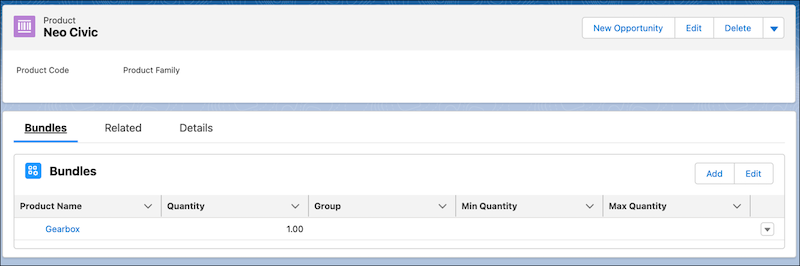
            1. Open the parent product record and click Bundles.
            2. Click Add.
            3. .Select a product.
              Only the products with Product Type as Bundle show up in the list.
            4. Click Next.
            5. Select the Product Relationship Type record you created.
            6. To allow others to change the quantity o the component within the bundle, select Allow quantity changes.
            7. Enter the minimum and maximum quantity of the component within the bundle.
              For example, if you’re adding Doors as a component to the Vehicle product bundle, specify the Max Quantity as 4.
            8. Save your changes.
              Bundles

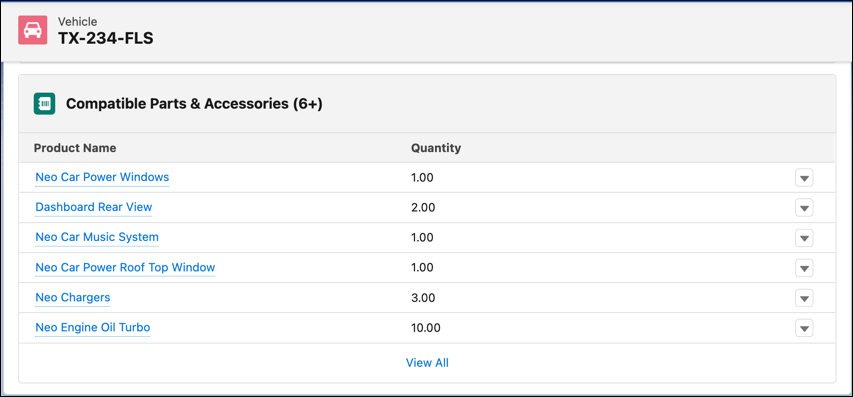
          Product related components showing up as compatible parts and accessories on a Vehicle record.

          The Compatible Parts and Accessories related list on a Vehicle record page layout derives information from the Product Related Component records. The parts and accessories that aren’t part of the base vehicle configuration but that can be recommended or sold are displayed along with the quantity.

           
          Loading
          Salesforce Help | Article