
You are here:
Write Off Invoices by Using Invocable Action in Flow
Invoke the Write Off Invoices action in a flow to write off invoices.
Required Editions
| Available in: Lightning Experience |
| Available in: Enterprise, Unlimited, and Developer Editions with the Revenue Cloud Billing license. Contact your Salesforce account executive for more information. |
| User Permissions Needed | |
|---|---|
| To write off invoices by using invocable action: | Billing Operations User permission set Or Credit Memo Operations User permission set |
Before you use the write-off process, go to the Object Manager and add all the required values to the Reason Code picklist field on the Credit Memo object. Add values such as BD for bad debt charges.
Create a screen flow, define the these variables to use as the input and output for the action.
-
Create WriteOffInvoiceInputList resource.
- Select Variable as the resource type.
- Enter WriteOffInvoiceInputList as the API name.
- Select Apex-defined as the data type.
- Select InvoiceWriteOff__WriteOffInvoiceInputList as the apex class.
-
Create WriteOffInvoiceInput resource.
- Select Variable as the resource type.
- Enter WriteOffInvoiceInput as the API name.
- Select Apex-defined as the data type.
- Select InvoiceWriteOff__WriteOffInvoiceInput as the apex class.
You can create multiple input resources as required. -
Specify invoiceId, reasonCode, and
reason as the API names for the input variables of text data
type.
reasonCode is a required value but reason is optional.
-
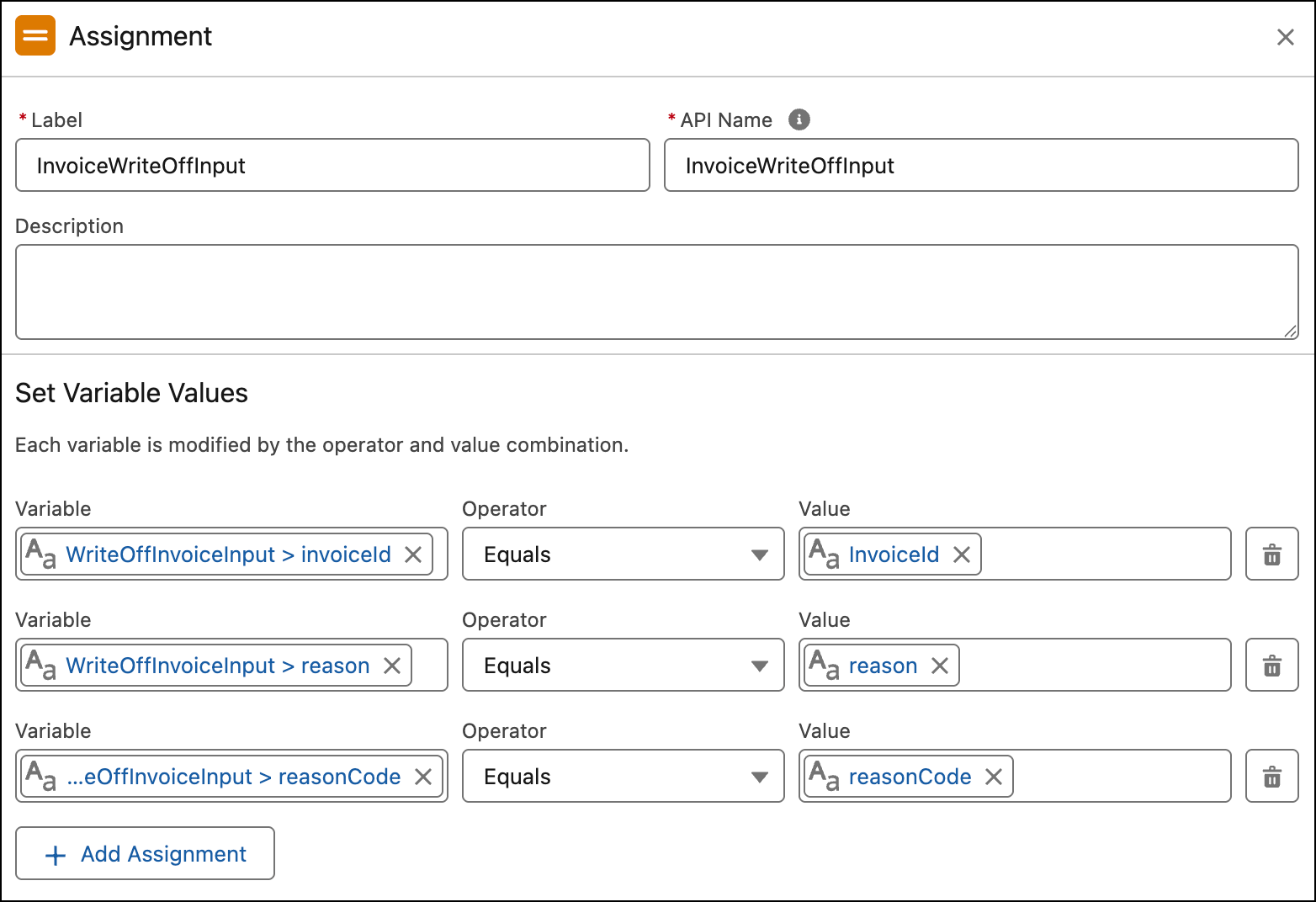
Add an Assignment element and assign the text data type variables as values to the
Apex-defined data type variables of the WriteOffInvoiceInput resource.
-
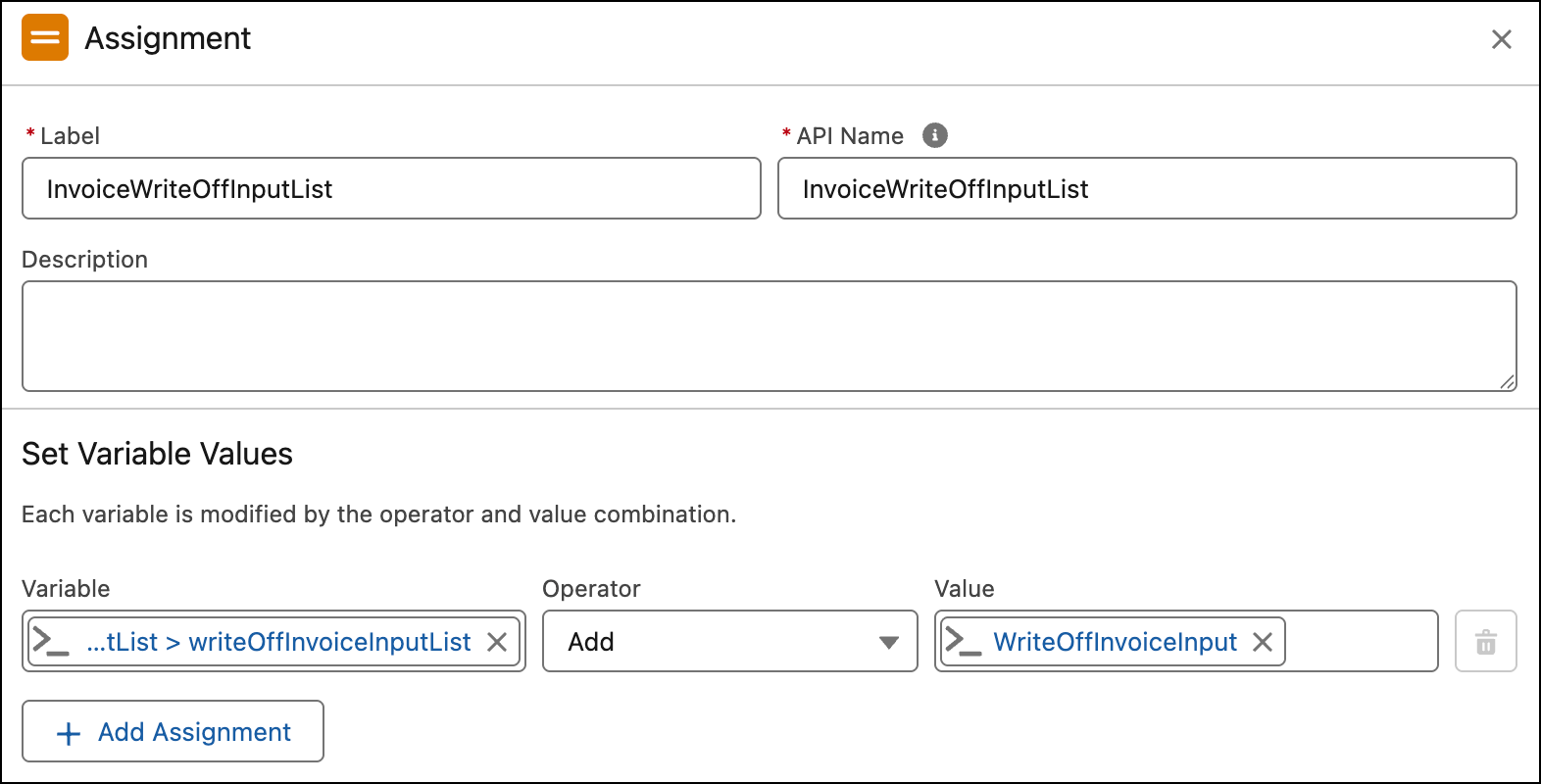
Add an Assignment element and add WriteOffInvoiceInput resource to
WriteOffInvoiceInputList.
If you have created multiple WriteOffInvoiceInputs, click Add Assignment and add them all to the WriteOffInvoiceInputList in the same element.
-
Repeat the steps to create WriteOffInvoiceResponse and WriteOffInvoiceResponseList
resources and assign WriteOffInvoiceResponse to WriteOffInvoiceResponseList resource.
Alternatively, you can also create a Loop element for WriteOffInvoiceResponseList resource.
-
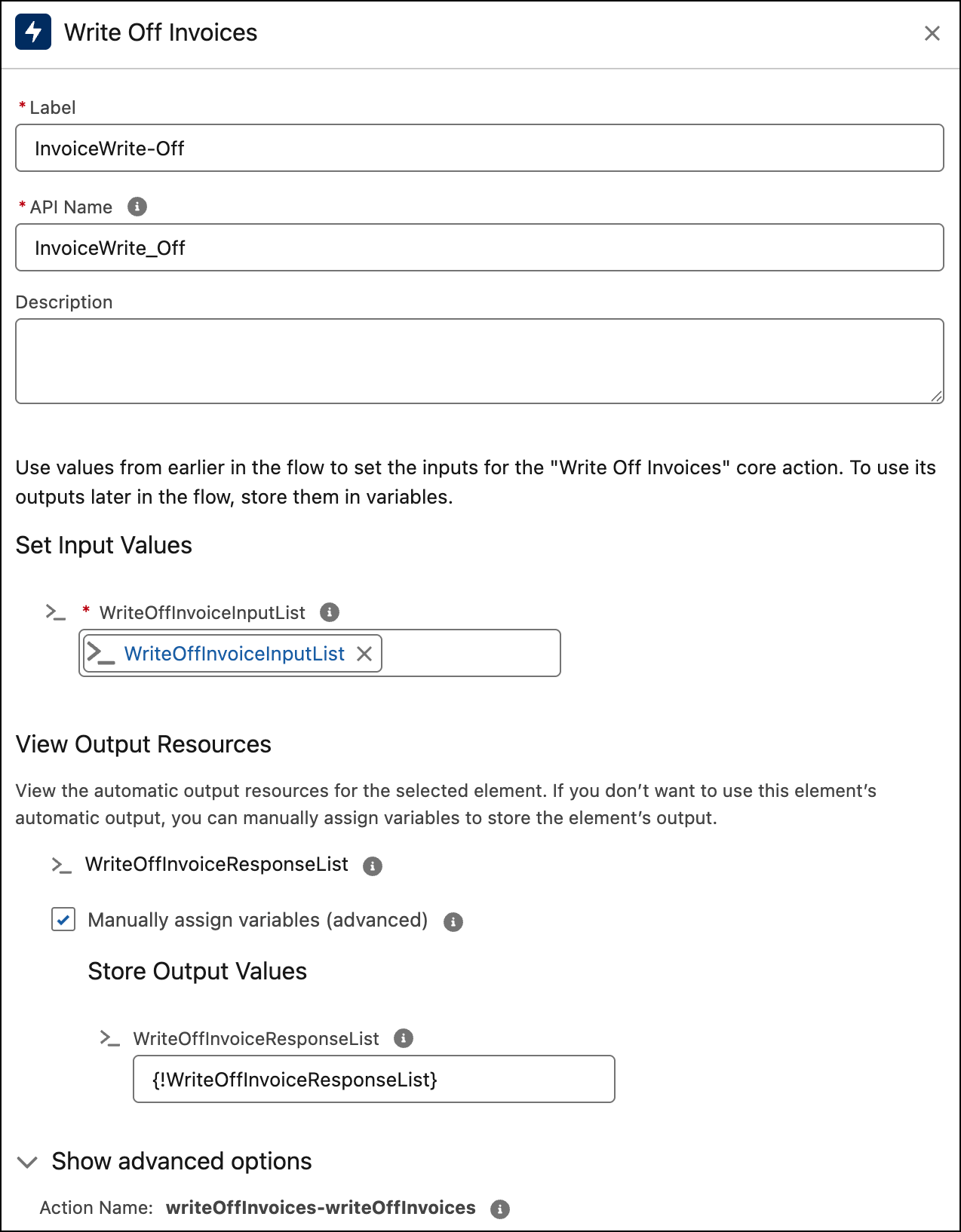
Add an Action element, find and select
writeOffInvoices-writeOffInvoices action.
- Select the writeOffInvoiceInputList input value as the writeOffInvoiceInputList.
- Select the writeOffInvoiceResponseList output value as the writeOffInvoiceResponseList.
- Activate the flow.
After activating the flow, create and add a quick action to the invoice page layout and use the invocable action.
Did this article solve your issue?
Let us know so we can improve!
