
Loading
Table of Contents
Select Filters

          No results
          No results
          Here are some search tips

          Check the spelling of your keywords.
          Use more general search terms.
          Select fewer filters to broaden your search.

          Search all of Salesforce Help
          Submit Care Requests with the Care Request Extensions Unmanaged Package

          Submit Care Requests with the Care Request Extensions Unmanaged Package

          You can use the Utilization Management app that’s part of the Health Cloud Care Request Extensions unmanaged package to submit requests. Care requests help you to work with a health plan to make sure that members get the appropriate care and providers get paid for their work. A care request includes the information such as member identifiers, a diagnosis, and the requested medication or service.

          Required Editions

          Available in: Lightning Experience

          Available in: Enterprise and Unlimited Editions with Health Cloud

          Note
          Note This information is specific for users who use the Health Cloud Care Request Extensions unmanaged package. The package contains the Utilization Management app with the record types, page layouts, and other metadata to support request submission. However, we recommend that you use the new Utilization Management for Payers app and the guided OmniStudio process workflows to submit and review requests with ease.

          The Utilization Management app helps you to create, submit, and track care requests. Health plans practice utilization management by reviewing care requests and approving or denying the services or medications described.

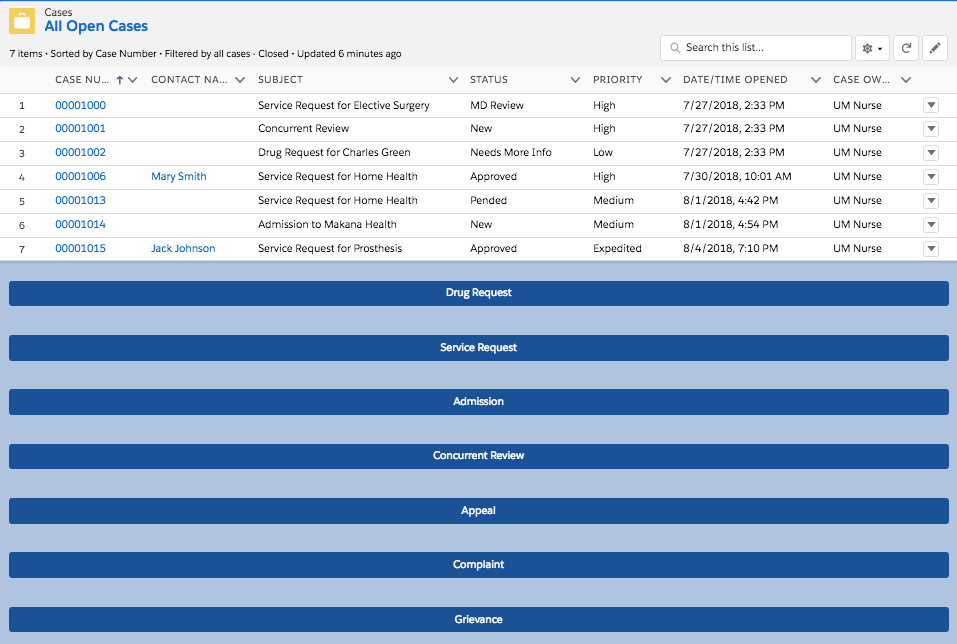
          1. Use the App Launcher to go to the Utilization Management app. Below the list of existing care requests, pick a category for your new request.
            For example, if you’re requesting medication that’s been prescribed for a patient, click Drug Request.
            A typical configuration of the care request interface
            Your Health Cloud admin must have configured the Create Care Request lightning component and set up your care request list to fit your organization's workflow. This example shows a typical configuration. Make sure to provide values for all required fields.
            Note
            Note Make sure to enter either the member ID or the member's first and last names.
          2. Identify the member and their care provider.
            Some of these fields are automatically filled out ahead of time. You can add more details, depending on how the request was created.
          3. Provide the diagnosis that's driving this care request.
            The diagnosis codes are a critical piece of information that the reviewer needs.
          4. Provide the details of any drug that's required, along with administration instructions.
          5. Click Save when you've added all the information you want to send to the reviewer.
          • Review Care Requests
            The Health Cloud Utilization Management features let you work with plan members and contracted medical providers to interpret, administer, and explain the medical policies of the health plan. You can influence member care decision-making via case-by-case review of the appropriateness of care before it is provided.
           
          Loading
          Salesforce Help | Article