Files in Consumer Goods Cloud
Keep all relevant information in one place, making it easily accessible and organized by using the Files object. Add, store, share, and manage versions for various types of files for Enhanced data model objects via an object’s related list or directly via the Files object.
Required Editions
Available in: Lightning Experience Available in: Enterprise and Unlimited Editions where Consumer Goods Cloud is enabled |
| User Permissions Needed | |
|---|---|
| To manage files: | CGCloud Business Admin OR CGCloud Retail Business Admin |
Supported File Types
Consumer Goods Cloud supports all common file types, including:
- Microsoft® PowerPoint presentations
- Excel spreadsheets
- Adobe® PDFs
- Image files
- Audio and video files

File Details and Custom Fields
After you upload a file, you can edit the file details to improve its functionality and usability. You can upload only one file per usage type. If you upload multiple files for the same usage type, the Consumer Goods Cloud Offline mobile app picks a file at random and renders it. Here are the key fields in the Files object and their purposes.
- Relative Position (Numeric): Defines the display sequence for sell sheets in the Sales Folder on the Consumer Goods Cloud offline mobile app.
- Usage (Picklist): Defines the usage type of the file.
- Icon — Stores icons for object instances, such as Account, Product, and Promotion. For example, a customer’s image, a product image, or a promotion icon.
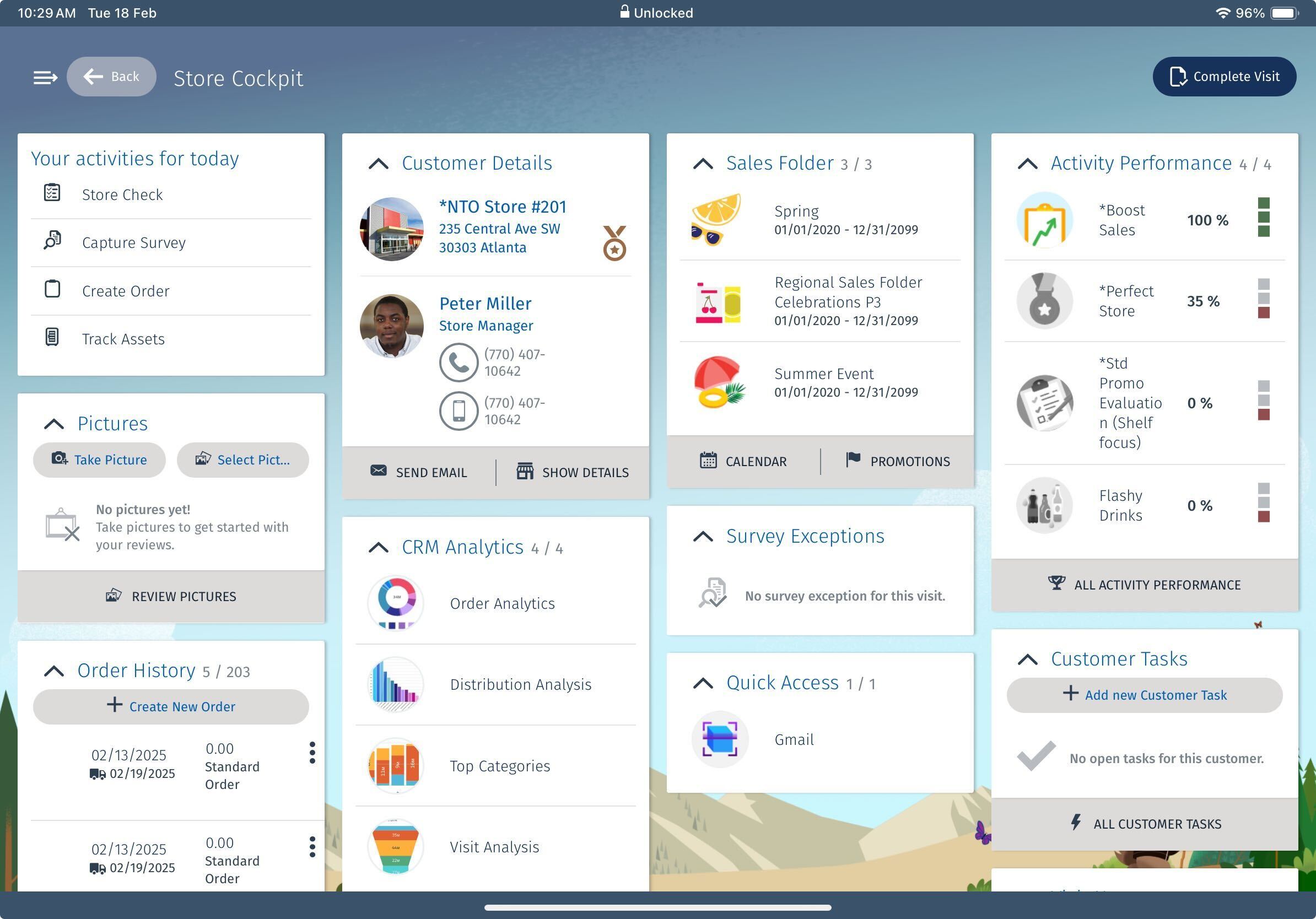
- InitialBadge or FulfilledBadge — Stores files to show activity performance while evaluating activities by users. For example, if the activity score doesn't meet the threshold, the InitialBadge image appears. Once the activity score meets the threshold, the image switches to the FulfilledBadge.
- Sales — This usage type isn’t supported in Consumer Goods Cloud.
- Service — This usage type isn’t supported in Consumer Goods Cloud.
- Marketing — This usage type isn’t supported in Consumer Goods Cloud.
- SelectionBar — This usage type isn’t supported in Consumer Goods Cloud.
- Banner — If the user chooses Selectable Promotions in orders, this field stores the files that appear as a selectable promotion’s banner.
- Pricing — Stores system-generated pricing logs of an order when the user opts to receive pricing logs for their orders in the order template. To generate a pricing log for an order, see Pricing Logs.
- HurdleRewardLog — If the user opts to generate a rewards log in the order template, this field stores the log files of rewards when the user saves the order.
- Printout — Stores PDF files, such as order invoices, that are printed.