
Add a Calculation Schema Step
Use calculation steps to determine the behavior for a calculation schema.
Required Editions
Available in: Lightning Experience Available in: Enterprise and Unlimited Editions where Consumer Goods Cloud is enabled |
| User Permissions Needed | |
|---|---|
| To create a pricing condition scale stage record: | (CGCloud Business Admin OR CGCloud Retail Business Admin) AND Penny Perfect Pricing |
You define calculation behavior in the calculation step or its linked pricing condition template.

Note If you edit the pricing condition template fields from the Calculation Step UI, it affects the Pricing Condition Template itself.
Add a calculation schema step.
- From App Launcher, find and select Calculation Schemas.
- Select a calculation schema, and then click Edit.
- On the Calculation Schema Steps section, select the pricing condition template and click Add Step.
- Provide the relevant step details and save your changes.

Example We have an order with standard order items weighing 1,200 kg, return items weighing 200
kg, and Free Items weighing 100 kg. With Item Meta Rules, you can define how to sum up these
items in an order.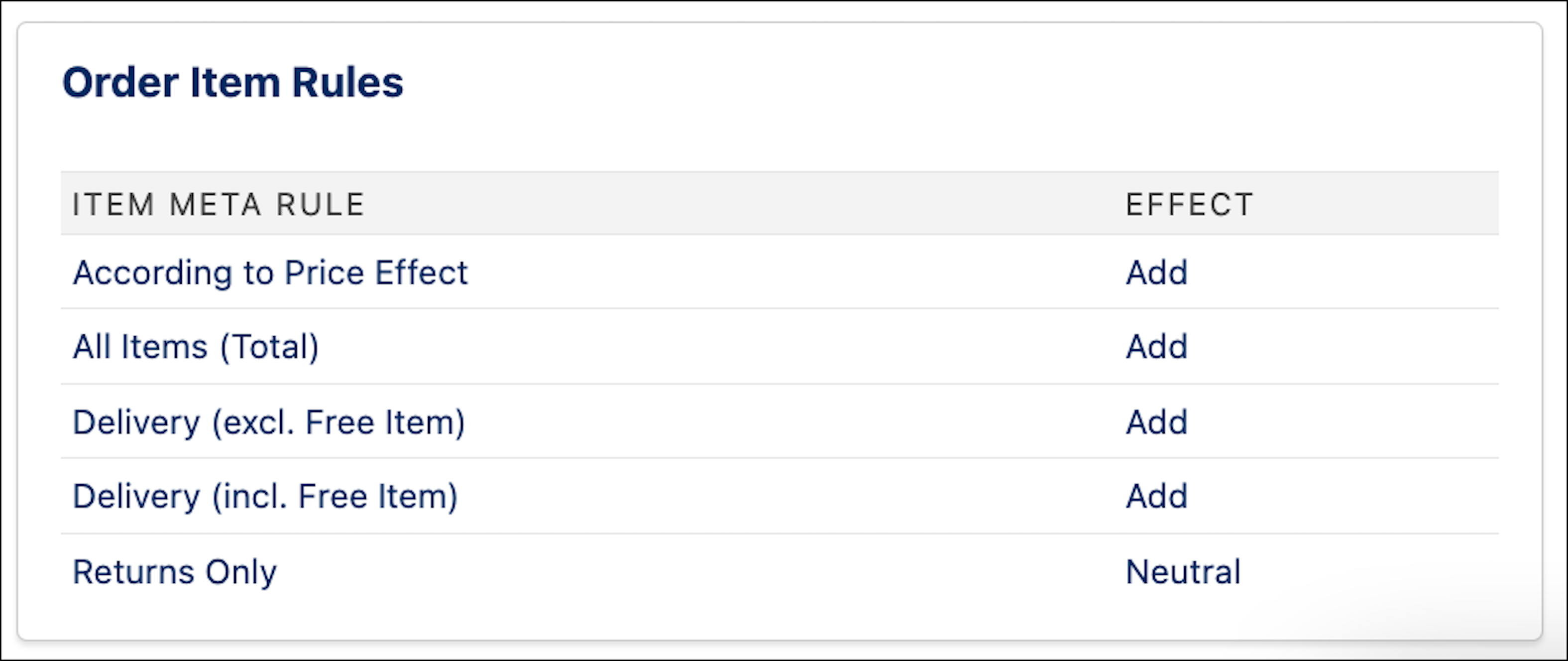 Here is the image showing order item meta rules for return orders.
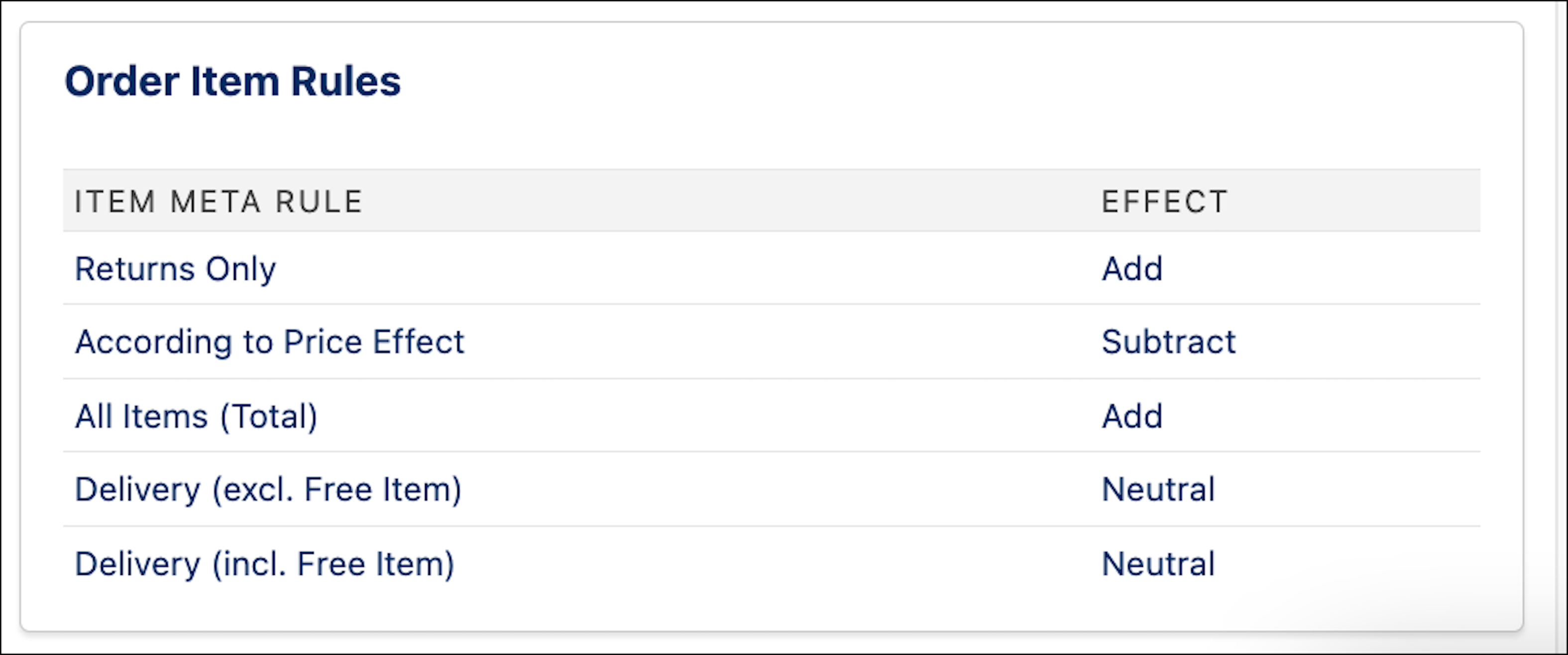 Here is the image showing order item meta rules for free items order.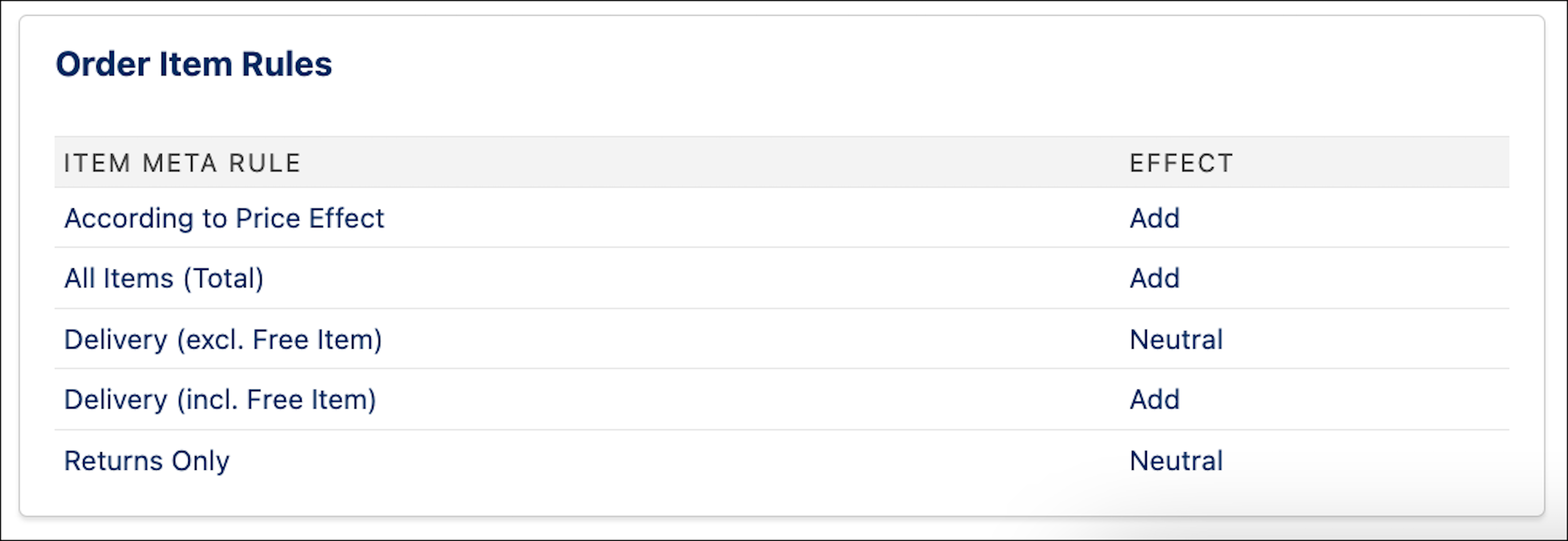
Here “Delivery (excl. Free Item)” is used as the item meta-rule that results in 1,200 kg (as in the order item template for returns and free items is set as Neutral and for standard order items it’s set as Add) being used as weight for the scale condition.
Here is the image showing order item meta rules for standard order.Did this article solve your issue?
Let us know so we can improve!
