
Create and Map Context Definitions
Define the context structure in which you want to determine the parameters for Integration Orchestration. The data from the context service is mapped as inputs to the Business Rules Engine (BRE).
Required Editions
| Available in Lightning Experience in Developer, Enterprise, Professional, and Unlimitededitions for Industries clouds where Context Service is enabled. |
| User Permissions Needed | |
|---|---|
| To create context definitions: | Context Service Admin |
| To run context definitions: | Context Service Runtime |
Context Service defines the relationship between the nodes and the attributes within each node. By using nodes and attributes, your users can easily access relevant data from the mapped data source.
-
Create the context definition for a root node, and add relevant attributes.
For example, add ApplicationForm as the root node, and add the Name and Stage attributes. For more information on how to create a context definition, see Create Context Definitions.
-
Create child node or sibling node with the relevant attributes.
For example, add Applicant and ApplicationFormProduct as child or sibling nodes. For more information on how to create a context definition, see Create Context Definitions.
- Create a sibling node and call it Integrations.
- Add attributes for the root node and child node. For example, for ApplicationForm and Applicant child node, add Name, Stage, and UsageType and select the appropriate Type and Data Type.
-
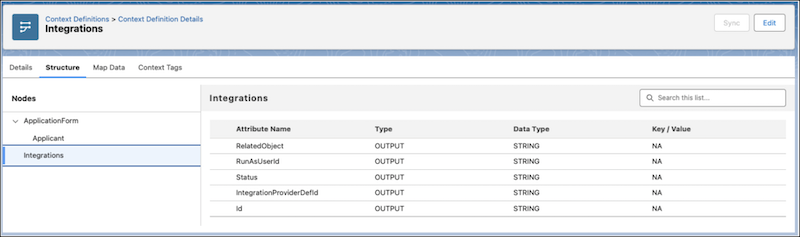
Add attributes for the Integrations node: RunAsUserId, IntegrationProviderDefId,
RelatedObject, Status, and Id. The attributes under Integrations are fixed and are mapped
as output to the decision table.
-
To create attribute tags, click Generate All Tags.
The tag names should exactly match the attribute names.
- For the Integrations node, enter the tag name as IntegrationProviderDcsnRqmt.
- Save your changes.
- Open the custom context definition created.
- Add mapping to the context definition.
- For the Mapping Definition Details, enter a name and description.
- Select both Automatic Salesforce object mapping and Mark as Default.
- Click Next and then click Map.
- Click Connect Objects.
- For Select Data Sources, look for and select the IntegrationProviderDcsnRqmt object.
-
Map the attributes of the context definition to the sObjects. For example, in
Integration Orchestration, map the attributes with the Integration Provider Decision
Requirement object as shown in the image.
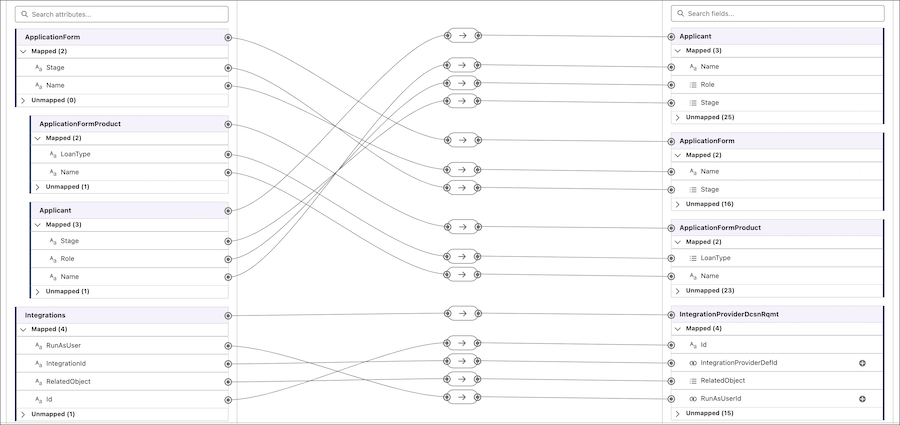 Mapping the Status attribute isn't required.
 -
Map the attributes as inputs for the decision table.
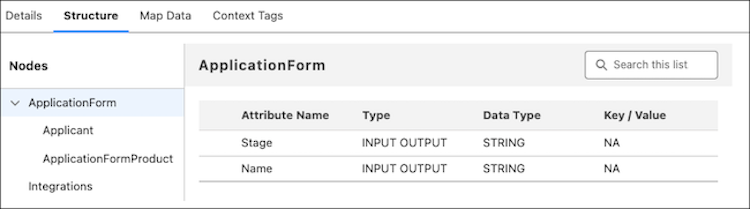 After the fields are mapped, the data from the context service are used for the input and output parameters in the decision table.
 - Activate the context definition.
Did this article solve your issue?
Let us know so we can improve!
