You are here:
Create a Standard Decision Matrix Manually
If a decision matrix has only a few rows of data, creating the matrix manually is easier. When you create a decision matrix, the matrix's first version is created by default.
Required Editions
| Available in: Lightning Experience |
| Available in: Enterprise, Unlimited, and Developer Editions for clouds that have Business Rules Engine enabled |
| User Permissions Needed | |
|---|---|
| To create, update, and delete decision matrices and matrix versions: | Rule Engine Designer |
| To use decision matrices in Business Rules Engine: | Rule Engine Runtime |
Create a decision matrix named StudentDiscountEligibility. This matrix determines the eligibility of students to receive a discount on fees based on a combination of their age and Grade Point Average (GPA).
-
Click
 , and then find
and select Business Rules Engine.
, and then find
and select Business Rules Engine.
- Click the app navigation menu, and then select Lookup Tables.
- Click New.
- Select Decision Matrix | Next.
- For name, enter StudentDiscountEligibility, and for Type, select Standard.
- Save your changes.
- On the Related tab on the decision matrix record page, click version 1 of the matrix.
-
On the Matrix tab, click Add Column, and then create three columns
with these settings.
Column Header Header Type Data Type StudentAge Input Number Range GPA Input Number Range Qualified Output Boolean - Click Done.
- To create a row, click Add Row.
-
To add row data, click a table cell, click
 in the cell, and then enter
the value
Add these rows and values.
in the cell, and then enter
the value
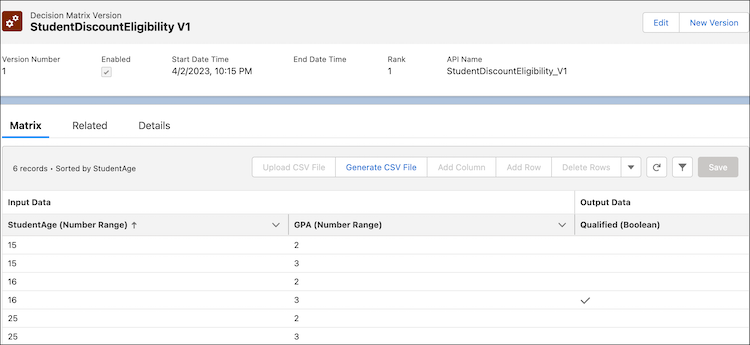
Add these rows and values.StudentAge GPA Qualified 15 2 Not checked 15 3 Not checked 16 2 Not checked 16 3 Checked 25 2 Not checked 25 3 Not checked - Save your changes.
-
Activate your decision matrix version:
Expression sets can call only active matrix versions.
- From the actions menu for the decision matrix version, select Edit | Enabled.
- Save your work.
The final decision matrix looks like this.
Did this article solve your issue?
Let us know so we can improve!
