
You are here:
Create a UI Plugin to Show Charts
Create a Competitor Rate custom report on the CG offline mobile app to show the competitor rate of the available displays in a store. Configure the JavaScript implementation of the UIPluginV2 contract to define the properties, labels, libraries, HTML, and CSS.
Required Editions
| Available in: Professional, Enterprise, and Unlimited Editions that have Consumer Goods Cloud enabled |
| User Permissions Needed | |
|---|---|
| To create a UI plugin to show charts: | CG Cloud Developer, Admin |
In a retail store, different competing brands display their products in the same category. Sales reps review the percentage of products from each brand to understand trends such as the share-of-shelf of a product. The Competitor Rate report shows this info with an easy-to-understand chart.
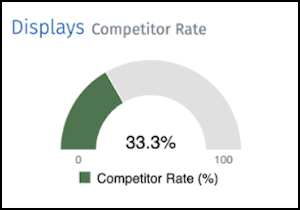
Here, a 33.3% competitor rate on the chart means that competitor products make up 33.3% of the displayed products in a retail store. The remaining 66.7% of the displayed products are from the manufacturer.
- To create a UIPluginV2 contract, in the UI Plugins folder in your Modeler workspace, clone the template file $workspace/contractSnippets/UI_Plugins/#Name#UiPluginV2.uipluginv2.xml.
- Name the cloned contract as MyCardDisplayReportUiPluginV2.uipluginv2.xml and save the contract at $workspace/src/UI Plugins.
- Set the name attribute to MyCardDisplayReportUiPluginV2 in MyCardDisplayReportUiPluginV2.uipluginv2.xml.
- Save your changes.
-
To check for validation errors, build your contracts. Run
sf mdl build. -
In Interface, add the
CompetitorRateproperty.<Interface> <Property id="competitorRate" /> </Interface> -
In Labels, add the
CardReportingCompetitorRate_Titlelabel.<Labels> <Label id="CardReportingCompetitorRate_Title" /> </Labels> -
In Libraries, add the C3JS and D3JS libraries.
<Libraries> <Library name="C3JS" /> <Library name="D3JS" /> </Libraries> -
In the UI Component HTML, define the HTML structure of UIPluginV2.
<UIComponentHTML name="UIComponentHTML"><![CDATA[ <div class="WrappingContainer"> <div id="Component" class="ComponentContainer"> <div id="ChartContainer" class="GaugeChart"> <div id="Chart"></div> </div> </div> </div> ]]></UIComponentHTML> -
In UI Component CSS, define the CSS classes.
<UIComponentCSS name="UIComponentCSS"><![CDATA[ /* overall wrapper class to remove scroll-bar */ .WrappingContainer { overflow: hidden; } ]]></UIComponentCSS> -
Set up the JavaScript implementation.
// Declarations let config = { measures: [60, 90, 100], measureColors: [], }; let chartReference; const selectors = { chart: "#Chart", }; // React specific Callbacks function connectCallback() { renderChart(); } function disconnectCallback() { if (PluginManager.helpers.isDefined(chartReference)) { chartReference.destroy(); } } function renderCallback() { inputChanged(); } function setStyles() { config.measureColors = [ PluginManager.pluginConfiguration.Color15, PluginManager.pluginConfiguration.Color16, PluginManager.pluginConfiguration.Color14 ]; } function inputChanged() { if (PluginManager.helpers.isDefined(chartReference)) { chartReference.load({ columns: [[PluginManager.locale.labels.CardReportingCompetitorRate_Title, PluginManager.competitorRate]], }); } } function renderChart() { if (PluginManager.helpers.isDefined(PluginManager.competitorRate)) { //destroy chart object before setting new reference if (PluginManager.helpers.isDefined(chartReference)) { chartReference.destroy(); } //set styles and colors if (PluginManager.helpers.isDefined(PluginManager.pluginConfiguration)) { setStyles(); } //create chart chartReference = c3.generate({ bindto: selectors.chart, data: { columns: [ [PluginManager.locale.labels.CardReportingCompetitorRate_Title, PluginManager.competitorRate], ], type: "gauge", }, gauge: {}, color: { pattern: config.measureColors, // the three color levels for the percentage values. threshold: { values: config.measures, }, }, size: { height: 140, }, tooltip: { show: false } }); } } - Save your changes.
-
To check for validation errors, build your contracts. Run
sf mdl build.
- Add a Global Label for the UIPluginV2 contract in Modeler
Add a global label for the UIPluginV2 contract in Visual Studio Code-based Modeler to localize the contract in different languages. - Prepare the Report Data
Create business logic methods in Visual Studio Code-based Modeler to define the data that business reports and charts show.
