
You are here:
Sync Display Data by Using a Named Query
After adding an account lookup field to the Display object, use a named query from Sync Configuration to ensure that sales reps see only the displays related to their accounts. The named query filters data and shows information relevant to the user's account in the offline mobile app.
Required Editions
Available in: Lightning Experience Available in: Enterprise and Unlimited Editions where Consumer Goods Cloud is enabled |
| User Permissions Needed | |
|---|---|
| To create a named query | CGCloud Sync Admin |
"
- From the App Launcher, find and select Sync Configuration.
- Click Named Queries.
-
Add a named query.
-
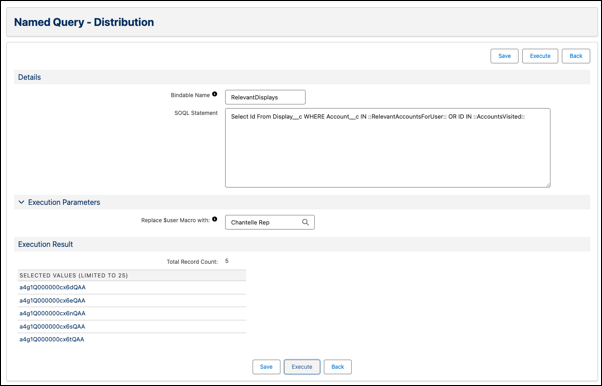
On the Named Queries page, click Newand enter
these details:
Field Value Bindable Name RelevantDisplays SOQL Statement Select Id From Display__c WHERE Account__c IN ::RelevantAccountsForUser:: OR Account__c IN ::AccountsVisited::Replace $user Macro with Browse and select your sales rep user - Click Execute.
-
On the Named Queries page, click Newand enter
these details:
-
Use a named query in a tracked object configuration.
- In Sync Configuration, click Tracked Objects.
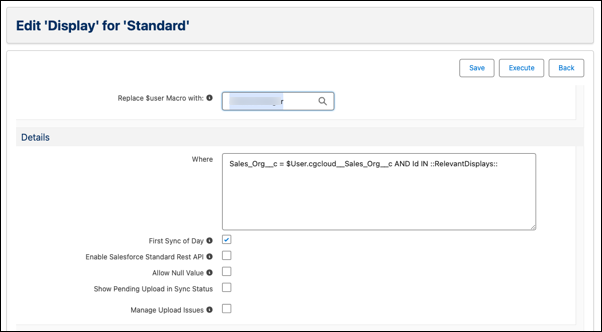
- Open the Display tracked object in edit mode.
-
In Where, add this query:
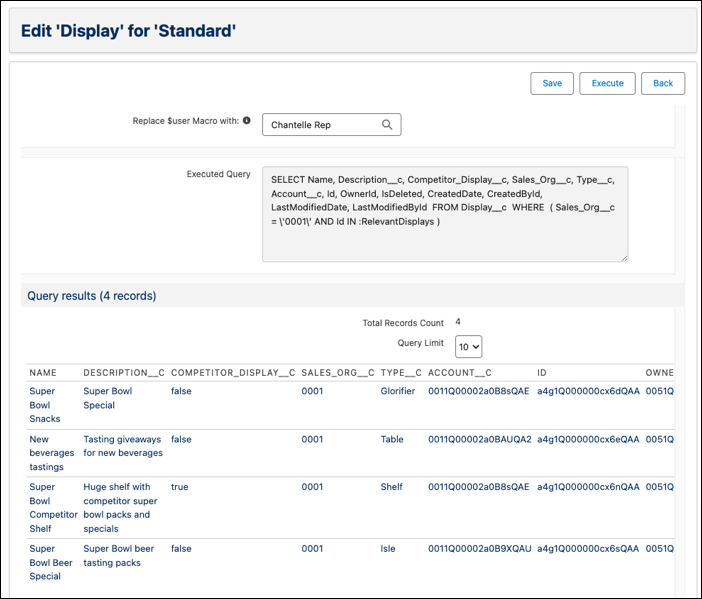
Sales_Org__c = $User.cgcloud__Sales_Org__c AND Id IN ::RelevantDisplays:: - To test the tracked object, in Replace $user Macro with, select a sales rep user.
- Click Execute.
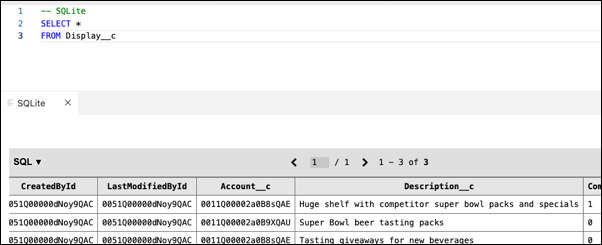
- To fetch the Account column and its data, perform a sync on the simulator app.
-
Verify the Account table in the offline mobile app database.
-
In VS Code based Modeler, stop the backend server. Press
CTRL+C(Windows) orcontrol+C(Mac). -
Run this command in Modeler CLI:
sf mdl cleanup. -
To build your contracts, run
sf mdl build. - To ensure that the local storage has no outdated sync status, close the incognito browser window of your simulator app.
-
To restart the server, run
sf mdl simulate.
-
In VS Code based Modeler, stop the backend server. Press
Did this article solve your issue?
Let us know so we can improve!
