You are here:
Show Attachments on a New Tab on the Displays Detail Page
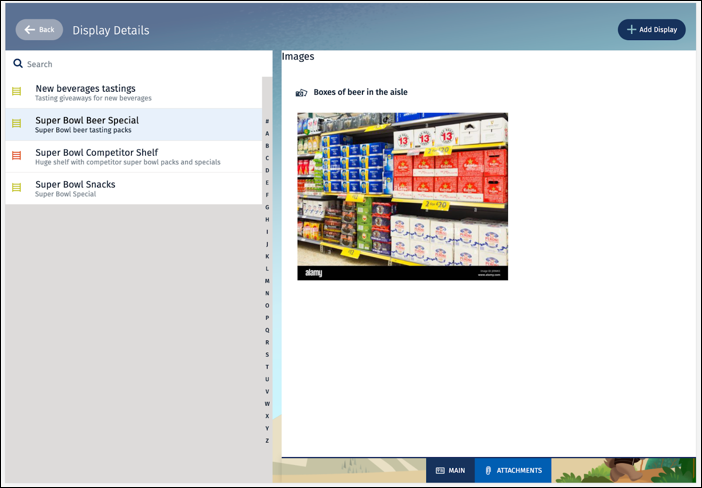
Add a tab in the Display master detail dialog in Visual Studio Code base Modeler. Create a MediaList UI control in the tabbed area to show the list of synced attachments.
Required Editions
Available in: Lightning Experience Available in: Enterprise and Unlimited Editions where Consumer Goods Cloud is enabled |
| User Permissions Needed | |
|---|---|
| To add a tab and the MediaList UI control | Developer, Customizer |
-
To add a tab, in Visual Studio Code base Modeler, in
MyDisplay_DisplayDetailsUI.userinterface.xml, change
the
SectionPatternattribute of thedetailSectiontoTabbedViewAreaSection. Then, add anAreanode as the first sub element of the detail section. This area defines the tabs to be displayed.The
tabAreasection in this code snippet defines a tab selector with two tabs:detailAreaandAttachments. Each tab has bindings for an image and a label, with default values and a one-time binding mode to ensure they're set correctly when the tab is initialized.<Area areaName="tabArea" areaPattern="TabElementArea"> <TabSelector name="TabSelector"> <Items> <Tab tabName="detailArea"> <Bindings> <Resource target="image" type="Image" id="MainGrey24" defaultImage="MainGrey24" bindingMode="ONE_TIME" /> <Resource target="text" type="Label" id="MainId" defaultLabel="Main" bindingMode="ONE_TIME" /> </Bindings> </Tab> <Tab tabName="Attachments"> <Bindings> <Resource target="image" type="Image" id="ClipGrey24" defaultImage="ClipGrey24" bindingMode="ONE_TIME" /> <Resource target="text" type="Label" id="AttachmentsId" defaultLabel="Attachments" bindingMode="ONE_TIME" /> </Bindings> </Tab> </Items> <Events/> </TabSelector> </Area> -
Create a new area as the last element of the detail section.
<Area areaName="Attachments" areaPattern="SingleElementArea" lazyLoading="true"> </Area> -
Configure
MediaListControlto show the attachments-
In the new
Attachmentsarea implement theMediListControlwith the relevant bindings:The
MediaListControlnamedPromotionAttachmentis bound to theloAttachment.Items[]data source from theProcessContext::CurrentDisplay. It includes one-way bindings for the media path, description, and type, ensuring that these properties are displayed correctly in the control.<MediaListControl name="PromotionAttachment" dataSource="ProcessContext::CurrentDisplay.loAttachment.Items[]"> <Bindings> <Binding target="MediaPath" type="Text" binding=".mediaPath" bindingMode="ONE_WAY" /> <Binding target="IsTagged" type="Text" bindingMode="ONE_WAY" /> <Binding target="Description" type="Text" binding=".description" bindingMode="ONE_WAY" /> <Binding target="Type" type="Text" binding=".type" bindingMode="ONE_WAY" /> </Bindings> </MediaListControl>The
detailSectionof this code snippet contains a tab selector with two tabs:detailAreaandAttachments. The Attachments tab includes aMediaListControlnamedPromotionAttachmentthat binds to theloAttachment.Items[]data source, and shows the media path, description, and type with one-way bindings.<Section sectionName="detailSection" sectionPattern="TabbedViewAreaSection"> <Area areaName="tabArea" areaPattern="TabElementArea"> <TabSelector name="TabSelector"> <Items> <Tab tabName="detailArea"> <Bindings> <Resource target="image" type="Image" id="MainGrey24" defaultImage="MainGrey24" bindingMode="ONE_TIME" /> <Resource target="text" type="Label" id="MainId" defaultLabel="Main" bindingMode="ONE_TIME" /> </Bindings> </Tab> <Tab tabName="Attachments"> <Bindings> <Resource target="image" type="Image" id="ClipGrey24" defaultImage="ClipGrey24" bindingMode="ONE_TIME" /> <Resource target="text" type="Label" id="AttachmentsId" defaultLabel="Attachments" bindingMode="ONE_TIME" /> </Bindings> </ Tab> </Items> < Events/> </TabSelector> </Area> <Area areaName="detailArea" areaPattern="GroupedElementsArea"> </Area> <Area areaName="Attachments" areaPattern="SingleElementArea" lazyLoading="true"> <MediaListControl name="PromotionAttachment" dataSource="ProcessContext::CurrentDisplay.loAttachment.Items[]"> <Bindings> <Binding target="MediaPath" type="Text" binding=".mediaPath" bindingMode="ONE_WAY" /> <Binding target="IsTagged" type="Text" bindingMode="ONE_WAY" /> <Binding target="Description" type="Text" binding=".description" bindingMode="ONE_WAY" /> <Binding target="Type" type="Text" binding=".type" bindingMode="ONE_WAY" /> </Bindings> </MediaListControl> </Area> </Section>
-
In the new
- Save all the contracts.
-
To clean all contracts, run
sf mdl cleanup. -
To build your contracts, run
sf mdl build. -
To stop the back-end server and restart the simulator app, run
sf mdl
                        simulate
. - To test the implementation, close the incognito browser of the simulator app and restart it.