Understand Execution Conditions for Order Fulfillment
When you configure fulfillment plans, Dynamic Revenue Orchestrator directs you to
create conditions that control when those fulfillment steps are executed.
Required Editions
Available in: Enterprise, Unlimited, and Developer
Editions
For example, set a condition so that a representative follows up by phone only if
the customer lives in the same country. Or a condition that says that after a pause,
fulfillment doesn’t continue until a credit check comes through.
When an entity in DRO
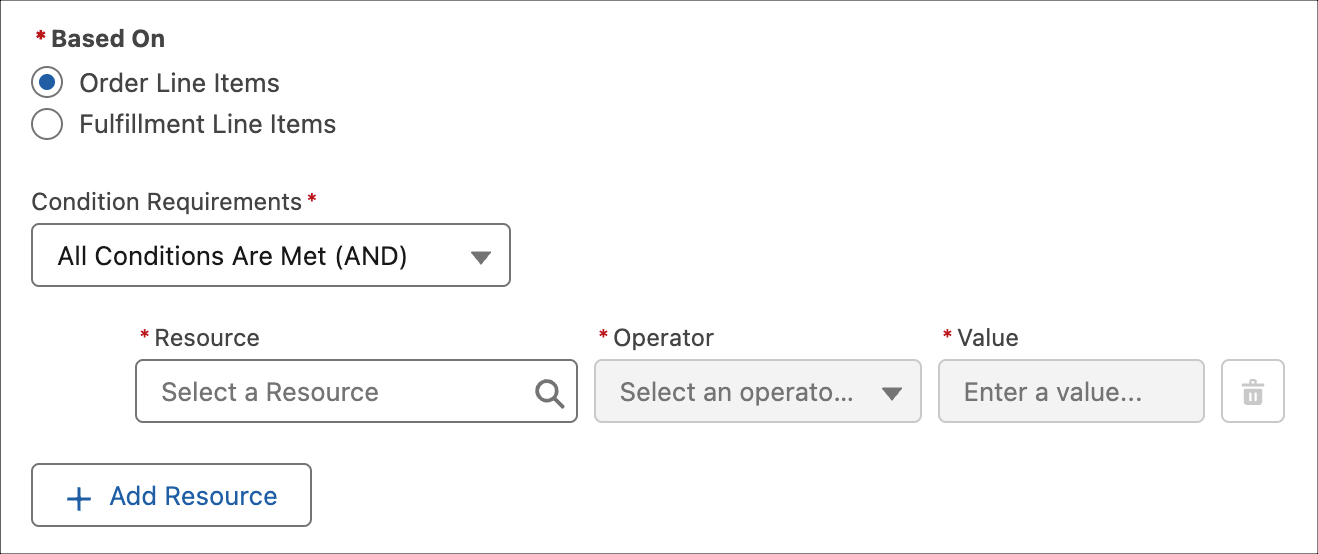
requires, or allows, conditions to be set, it launches the Condition Builder pane.
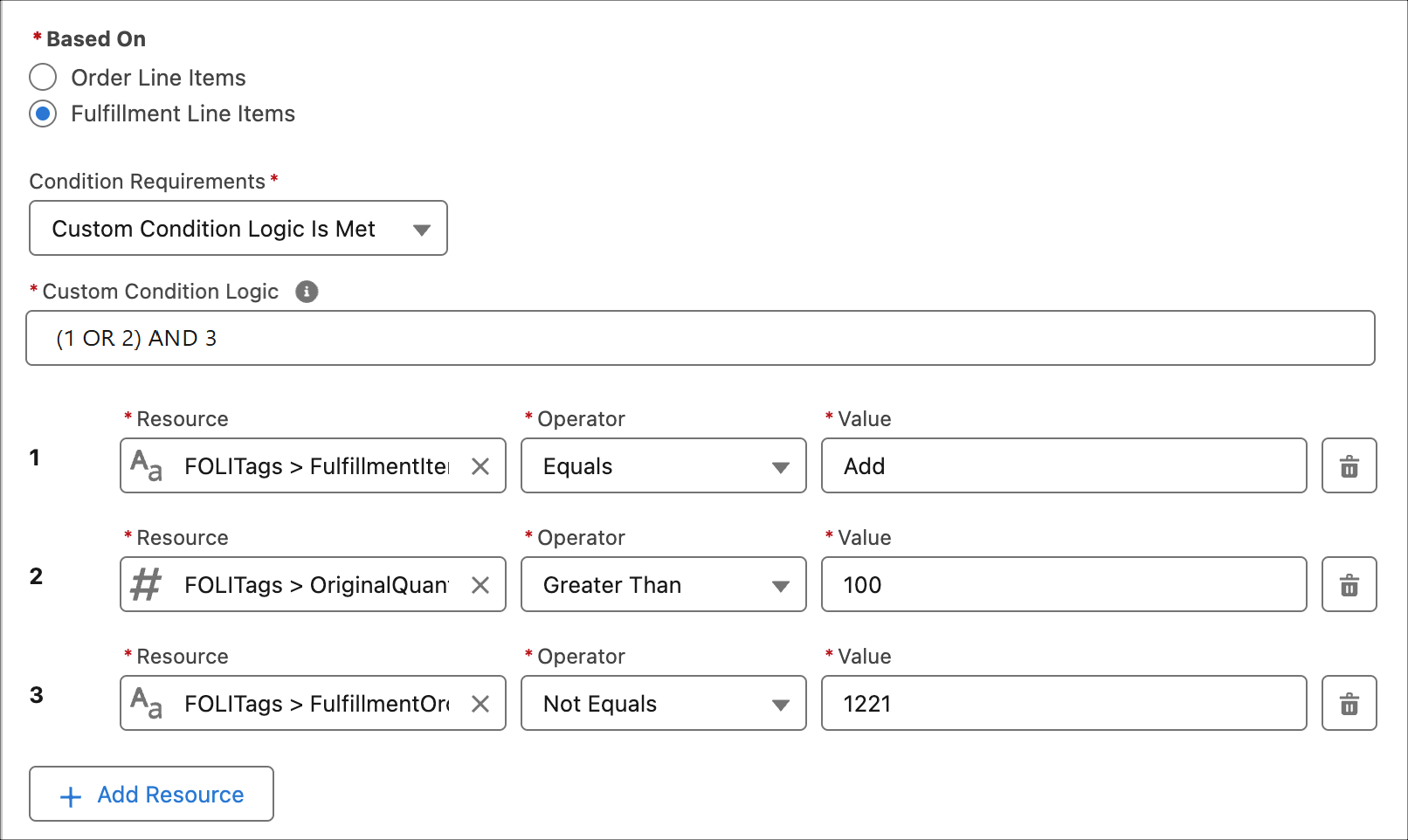
Condition #1: There's a fulfillment order line item tag called
FulfillmentItemAction that equals Add.
Condition #2: There's a tag called OriginalQuantity that's greater
than 100.
Condition #3: There's a tag called FulfillmentOrderID that doesn't
equal 1221.
The Custom Condition Logic says (1 OR 2) AND 3. That means that condition #3 must be
met, and that either condition #1 or #2, or both, must be met.
Let's look at some possible examples after an order is submitted.
Order
#1:
FulfillmentItemAction equals Add. Condition one is
met.
OriginalQuantity equals 150. Condition two is
met.
FulfillmentOrderID is 1221. Condition three isn't
met. The condition requires that FulfillmentOrderID type is something
other than 1221.
Because condition #3 isn't met, the set of conditions isn't met, and the entity
associated with this rule doesn't run.
Order #2:
FulfillmentItemAction tag equals Add. Condition
one is met.
OriginalQuantity equals 90. Condition two isn't
met. The condition requires the value to be greater than 100.
FulfillmentOrderID is 1000. Condition three is
met. The condition requires the value type to be anything except 1221,
and it is.
This set of conditions is met according to the custom logic and the entity associated
with this rule runs.
Did this article solve your issue?
Let us know so we can improve!
Loading
Salesforce Help | Article
Cookie Consent Manager
Cookie Consent Manager
General Information
Required Cookies
Functional Cookies
Advertising Cookies
General Information
We use three kinds of cookies on our websites: required, functional, and advertising. You can choose whether functional and advertising cookies apply. Click on the different cookie categories to find out more about each category and to change the default settings.
Privacy Statement
Required Cookies
Always Active
Required cookies are necessary for basic website functionality. Some examples include: session cookies needed to transmit the website, authentication cookies, and security cookies.
Functional Cookies
Functional cookies enhance functions, performance, and services on the website. Some examples include: cookies used to analyze site traffic, cookies used for market research, and cookies used to display advertising that is not directed to a particular individual.
Advertising Cookies
Advertising cookies track activity across websites in order to understand a viewer’s interests, and direct them specific marketing. Some examples include: cookies used for remarketing, or interest-based advertising.