Use expression sets to perform complex transformations on the source product's fields
and attributes and use the output variables of the expression sets to enrich the target
product's fields and attributes. For example, set delivery priority in the target product based
on the order value and the delivery zipcode.
Required Editions
Available in: Salesforce Classic (not available in all orgs) and Lightning
Experience
Available in: Enterprise, Unlimited, and Developer
Editions
User Permissions
Needed
To configure an expression set based mapping:
Fulfillment Designer
OR
DRO Admin
Consider these recommendations for expresssion set mapping.
Reuse expression sets for multiple mappings: To reduce performance impact during order
submission, implement multiple transformations in a single expression set and reuse for
multiple mappings.
Simulate expression sets before use: To validate the expected output and achieve
accurate data transformation during fulfillment, simulate the expression set in Business
Rules Engine's Expression Builder with sample data before using it in mapping. See Simulate and Activate Your Expression Set Version.
Create a Field & Attribute Mapping within a Decomposition Rule.
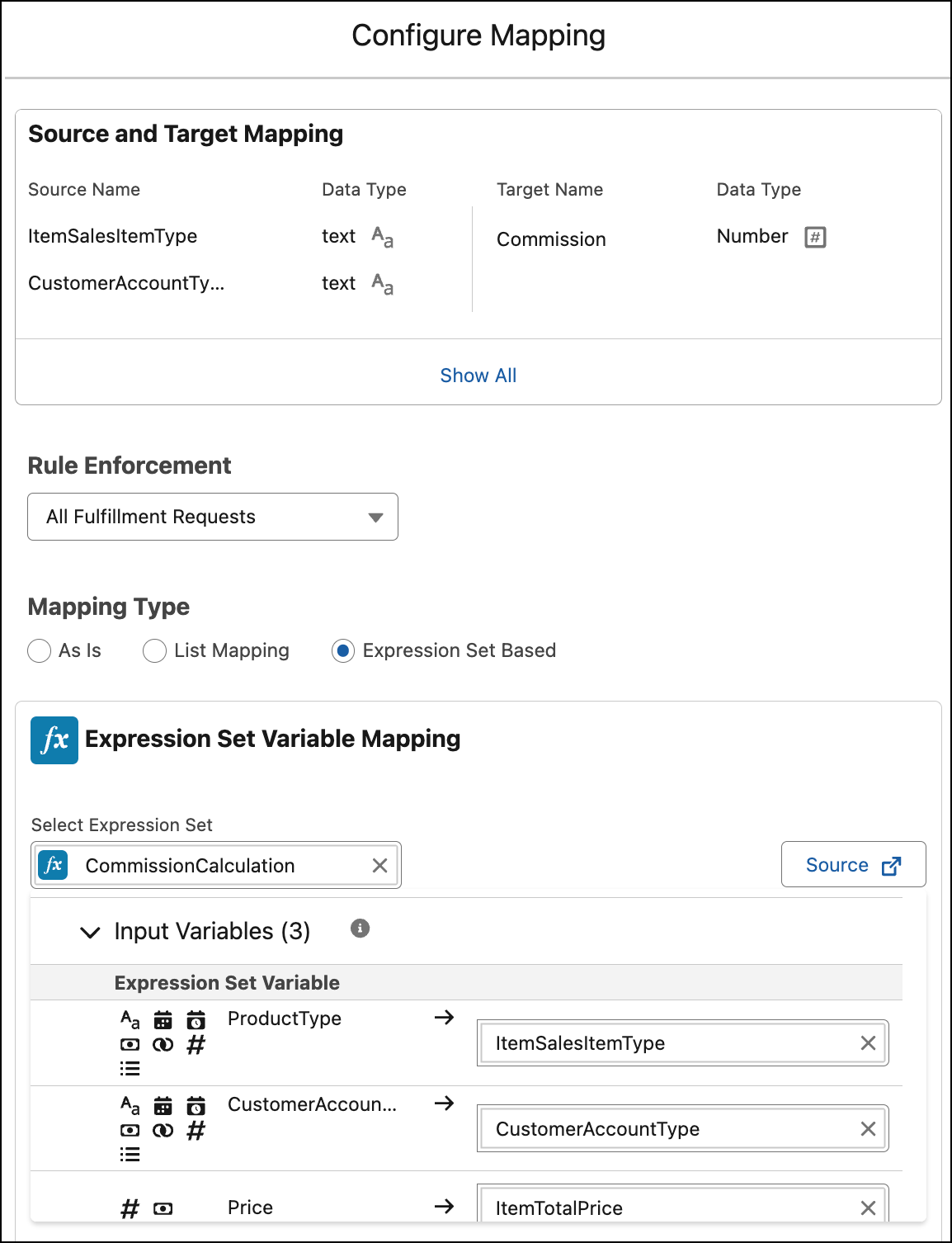
For Mapping Type, select Expression Set Based Mapping.
Select the expression set.
To view or edit the expression set in Business Rules Engine's Expression Builder, click
Source.
In the Input Variables section, map at least one input variable of the expression set
to a source field or attribute.
In the Output Variables section, map one output variable of the expression set to a
target field or attribute.
Save your work.
Example
Consider a source commercial product that has attributes ProductType,
CustomerAccount, and Price.
The target technical product has a Commission Amount attribute.
An expression set, CommissionCalculation is designed to calculate the
commission amount by taking in ProductType, CustomerAccount, and Price as inputs
variables.
Configure the mapping from the source to the target mapping by using the
CommissionCalculation expression set. Map the input variables of the
expression set to the source product attributes ProductType,
CustomerAccount, and Price. Map the output variable
of the expression set to the Commission Amount attribute of the target
product.
When a user submits an order with ProductType as Advanced,
CustomerAccount as Priority, and Price as $12000,
the target product is set with Commission Amount as $1000.
When the user submits an order with ProductType as Basic,
CustomerAccount as Regular, and Price as $1200, the
target product is set with Commission Amount as $100.
Did this article solve your issue?
Let us know so we can improve!
Loading
Salesforce Help | Article
Cookie Consent Manager
Cookie Consent Manager
General Information
Required Cookies
Functional Cookies
Advertising Cookies
General Information
We use three kinds of cookies on our websites: required, functional, and advertising. You can choose whether functional and advertising cookies apply. Click on the different cookie categories to find out more about each category and to change the default settings.
Privacy Statement
Required Cookies
Always Active
Required cookies are necessary for basic website functionality. Some examples include: session cookies needed to transmit the website, authentication cookies, and security cookies.
Functional Cookies
Functional cookies enhance functions, performance, and services on the website. Some examples include: cookies used to analyze site traffic, cookies used for market research, and cookies used to display advertising that is not directed to a particular individual.
Advertising Cookies
Advertising cookies track activity across websites in order to understand a viewer’s interests, and direct them specific marketing. Some examples include: cookies used for remarketing, or interest-based advertising.