Loading
Feature degradation | Gmail Email delivery failureRead More
Table of Contents
Select Filters

          No results
          No results
          Here are some search tips

          Check the spelling of your keywords.
          Use more general search terms.
          Select fewer filters to broaden your search.

          Search all of Salesforce Help
          Configure a Fulfillment Scenario

          Configure a Fulfillment Scenario

          Use a fulfillment scenario to define whether Dynamic Revenue Orchestrator (DRO) adds a fulfillment step definition group to a fulfillment plan after an order is submitted. To simplify fulfillment for products frequently included in bundles, create a fulfillment scenario to automate the addition of steps to a fulfillment plan. This way, you don’t have to create a step every time. You can orchestrate all products in an order by using one fulfillment scenario, eliminating the need to configure separate scenarios for each product. With these order-based scenarios, you can't make in-flight changes.

          Required Editions

          Available in: Lightning Experience
          Available in: Enterprise, Unlimited, and Developer Editions of Agentforce Revenue Management
          User Permissions Needed
          To set conditions for fulfillment step groups:

          Fulfillment Designer

          OR

          DRO Admin User

          For example, you have a laptop bundle and fetching the laptop from the warehouse is a common fulfillment step. For this situation, define a fulfillment scenario with the condition that when the laptop bundle is added to an order, DRO adds a step to fetch the laptop from the warehouse.

          1. From the App Launcher, find and select Fulfillment Workspaces.
          2. Click a fulfillment step definition group.
          3. In the Details panel, click Related.
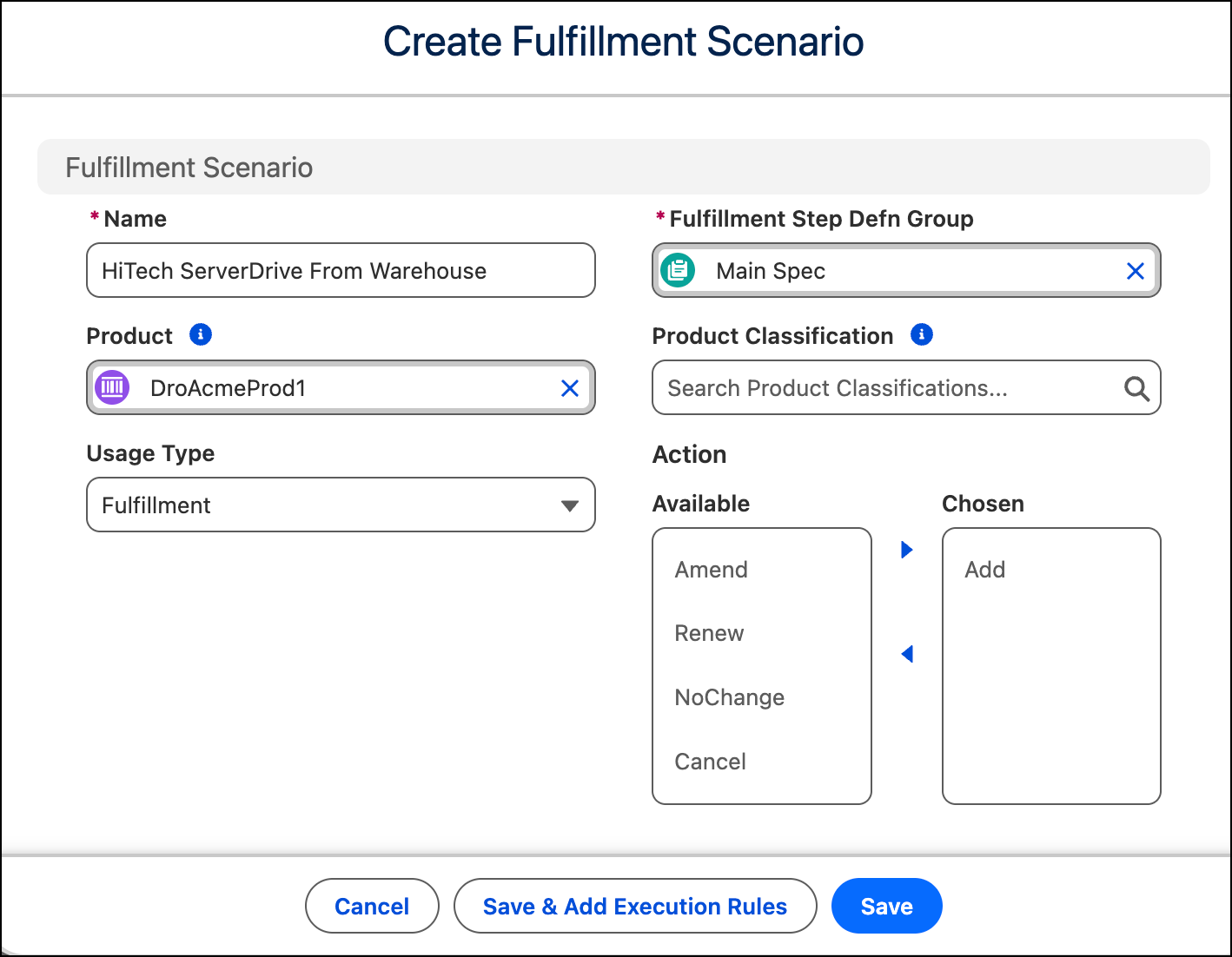
          4. Under Scenarios, click New.
          5. Name the scenario.
          6. Enter the name of the relevant fulfillment step definition group.
          7. Select a product or a product classification the scenario applies to.
            To apply the scenario to the entire order regardless of the products, leave the Product and Product Classification fields blank and set the dependency scope to Plan.
          8. Select the usage type.
          9. From the Available list, move the actions that trigger adding the group to a fulfillment plan to the Chosen list.
          10. Save your work.
            • To save the scenario and see the details pane for the scenario, click Save.
            • To save the scenario and then define when the scenario runs during fulfillment, click Save & Configure Execution Rules.
            Note
            Note To see the details and related scenarios for the step definition group, click the group and check the side panel. You can create a scenario from the side panel.
            If you configure a fulfillment scenario between a product class and a step group, and then another scenario between a product belonging to the product class and the same step group, then the scenario configured for the product is applied during plan generation.
            Define appropriate conditions to resolve the scenarios when multiple product-based or order-based fulfillment scenarios exist for an order.
          Example
          Example

          Let’s say you create two products called HiTech ServerDrive and HiTech ServerDrive - Express under the classification Enterprise Server Components. To pull the units from the warehouse, you create a fulfillment step definition group called Standard Warehouse Processing.

          Next, create a fulfillment scenario. Specify that the chosen action is Add, select the Standard Warehouse Processing step definition group, and select the Enterprise Server Components product classification.

          Then, create another fulfillment scenario specifically for the HiTech ServerDrive - Express product and use the Express Delivery step group.

          When HiTech ServerDrive is added to an order and the order is submitted, the Standard Warehouse Processing step definition group is added to the fulfillment plan. However, when HiTech ServerDrive - Express is added to the order, DRO recognizes the specific Express Delivery scenario defined for the product and uses the Express Delivery step group instead of the Standard Warehouse Processing step group from the product class.

          This product-specific fulfillment scenario overrides the more general, class-based scenario, which helps HiTech to handle exceptions or special cases in their fulfillment process.

          A new fulfillment scenario
           
          Loading
          Salesforce Help | Article