You are here:
Define Execution Rules for a Decomposition Rule
To apply logic that determines when a specific decomposition rule runs, define execution rules that specify the conditions for the rule. By default, products decompose into fulfillment line items independent of execution rules.
Required Editions
| Available in: Salesforce Classic (not available in all orgs) and Lightning Experience |
| Available in: Enterprise, Unlimited, and Developer Editions |
| User Permissions Needed | |
|---|---|
| To define conditions for when a decomposition rule runs: | Fulfillment Designer OR DRO Admin User |
To prevent order orchestration failures during decomposition or plan composition, complete these configuration prerequisites:
- For every context definition attribute you create, define a corresponding tag and map it to an sObject field.
- Confirm that all tags are present so that resources appear correctly in the Condition Builder.
- Confirm that all attributes are mapped to prevent incorrect condition evaluations during rule execution.
- To apply changes to the context definitions, clone the DRO RuleLibrary version, associate the new context definition, and activate it.
To control when a decomposition rule executes, create an execution rule. Execution rules contain the conditions that must be met before the decomposition rule is executed.
- From the App Launcher, find and select Dynamic Revenue Orchestrator.
- From the app navigation menu, select Products.
- Click a product.
- Click the Decomposition tab. On the Decomposition Workspace, select a decomposition rule by clicking the connector icon on the line that connects the source and target products. A side panel opens with the Details, Execution Rules, and Attribute Mapping tabs.
- In the side panel, click the Execution Rules tab.
- Click Configure Execution Rules.
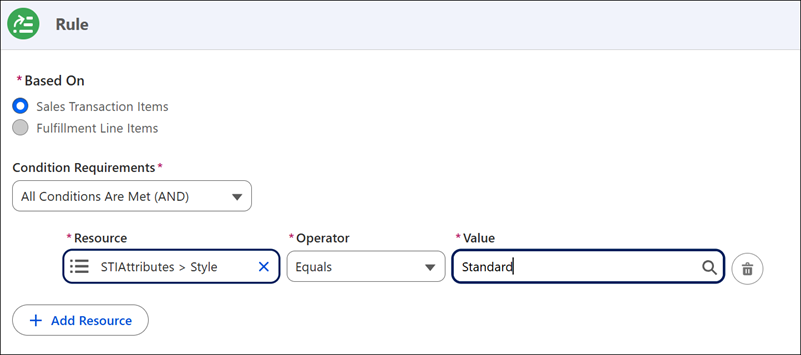
- In the Condition Builder modal, configure the conditions.
- In the Based On field, select Sales Transaction Items.
-
Select a Condition Requirement to determine how multiple conditions within the rule are
evaluated:
-
- For every condition to be met, select All Conditions Are Met (AND).
- For at least one condition to be met, select Any Condition Is Met (OR).
- To create complex logic, select Custom Logic Is Met.
 Note If a decomposition rule condition (ruleset) contains multiple dynamic rules, they are evaluated separately. The condition evaluates to true if at least one individual dynamic rule is true, applying OR logic between the rule results.
-
-
In the Resource field, select a tag or attribute.
Note The items available in the resource list are determined by your tags and attributes configuration:
- Tags: Sourced from the Sales Transaction Item (STI) context nodes within the active context definition mapped in Setup. If an STI context node does not have a defined tag, it does not appear in the resource list. If a tag is defined but is not mapped to an object field, the condition evaluates to false at runtime.
- Attributes: Populated from the source product or product classification attributes.
- From the Operator dropdown, select a value, such as Equals.
-
Enter or select a Value.
Note For picklist resource tags, enter the text value manually.
- Save your changes.
Let's explore an example of a execution rule in action:
Imagine you sell a Cloud Security Suite with a service tier attribute that can be either Standard or Enterprise. You want the suite to decompose into different fulfillment patterns based on this style.
Single Execution Rule: To ensure only enterprise-tier suites follow a specific decomposition rule, go to the execution rule builder. In the Based On field, select Order Line Items. Set the condition to Service Tier Equals Enterprise. The rule executes only when an order line item contains an enterprise-tier suite.
Multiple Execution Rules: If you want the same decomposition rule to apply to both Standard and Enterprise tiers, you can create two separate execution rules—one for each tier. Because multiple rules are evaluated using OR logic at the ruleset level, the decomposition rule executes if either tier is detected in the order line item.