
Add Household Members and Relationships (Managed Package)
Add members to a household, and relate businesses, trusts, and other people to the household members. Define how to summarize the members’ activity and financials at the household level.
Required Editions

Important This feature is available in Salesforce orgs that have installed the
Financial Services Cloud managed package. This is different from the standard Groups and Households
feature, which can be accessed without installing the managed package.
| Available in: Lightning Experience |
| Available in: Professional, Enterprise, and Unlimited Editions |

Note If you can’t add a client to more than one household, ask your Salesforce admin to enable
the multiple relationship groups custom setting.
Do one of the following.
Add Members to a Household
Get a full picture of the client’s household by adding members.
-
In Create Relationship Group for Member Name, enter a client’s name, or click +
New Contact.
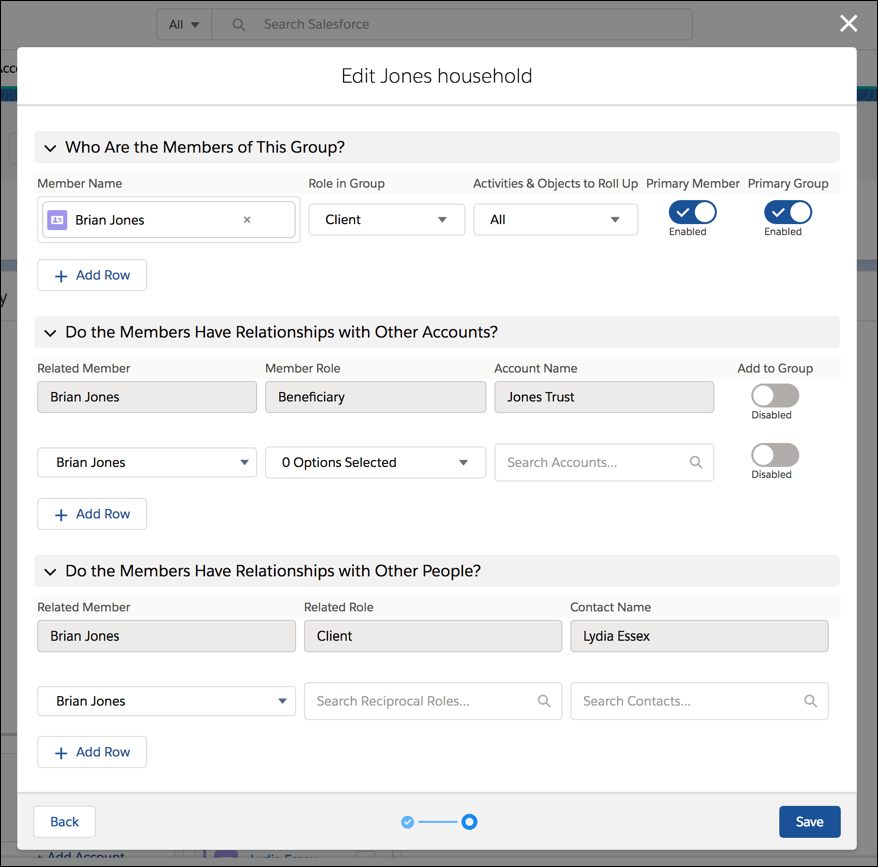
For a new contact, do the following.
- Select the Individual or Person Account record type, and click Next.
- Enter the contact’s last name and other information.
- Save the information.
-
Select the member’s role.
- If the member is the primary household member, select Client. You can select more than one role for each member.
- If the member is not the primary household member, select the member’s role relative to the primary household member’s role, such as Dependent or Spouse.
-
If you want to roll up activities and objects for this member, select Primary
Group.
Rollup items are summarized at the household level for all members who have this household as their primary group. Designating a household as a primary group for a member enables you to add the member’s related businesses and trusts to the household. As a member of the household, the related business or trust’s activities and objects are summarized at the household level.
-
If you enabled this household as a primary group for the member, select which activities
and objects, such as financial accounts or financial goals, to roll up when summarizing data
at the household level.
Note You can select more than one item for each member.
-
To designate this person as the primary household member, select Primary
Member.
Designating a primary member is not required, but a household can have only one primary member.
- To add another member to the household, click + Add Row, and enter the required information.
Relate a Member’s Business or Trust to Their Household
Capture a client’s related financial interests by adding details for their businesses and trusts.
-
In the section Do the Members Have Relationships With Other Accounts?, under Related
Member, select a household member.
Note
- To relate businesses or trusts to the member, this household must be the member’s primary household. Related business and trust activities and objects can be summarized at the household level.
- You can add a business or trust to a member in only one primary group.
- Under Member Role, select the role that describes how the member is associated with the related business or trust.
- Under Account Name, select a member’s related business or trust or click + New Account and enter the details for the business or trust.
- Enable Add to Group to roll up the business’s or trust’s activities and objects to the household.
- To relate another business or trust to the household, click + Add Row, and complete the information.
Relate a Member to Another Person
Capture a client’s full relationship network by adding people related to the client.
- In the section Do the Members Have Relationships with Other People?, under Related Member, select a household member.
- Under Member Role, select the related role that describes how the contact is associated with the related member.
- Under Contact Name, select the member’s related contact or click + New Contact and enter the contact’s details.
- To relate another person to a household member, click + Add Row, and complete the information.
Did this article solve your issue?
Let us know so we can improve!
