
Configure a Member Relationships Node
Lists accounts that are currently tied to a parent account. For example, a trust that holds assets for the household. The relationship (association type) is account-account relationship (member).
Required Editions
| Available in: Lightning Experience |
| Available in: Professional, Enterprise, and Unlimited Editions |
| User Permissions Needed | |
|---|---|
| To create an ARC Relationship Graph: | Financial Services Cloud Extension OR FSC Sales AND Customize Application |
- From Setup, in the Quick Find box, enter Actionable Relationship Center, and then select Actionable Relationship Center.
-
Click New Relationship Graph or edit an existing graph.
 Important The Root Node object must be Account to configure the Member Relationships Node.
 - Click the plus icon to add a child node.
-
On the Properties tab, configure the node properties as follows:
Field Name Field Value Object Account Relationship Type Many-to-Many Junction Object Account-Account Relationship Parent Node Lookup Field Account Object Lookup Field Related-Account -
Click Filter and define the following filter criteria:
Field Name Field Value Apply filter to Junction Field Association Type Operator equals Value Member 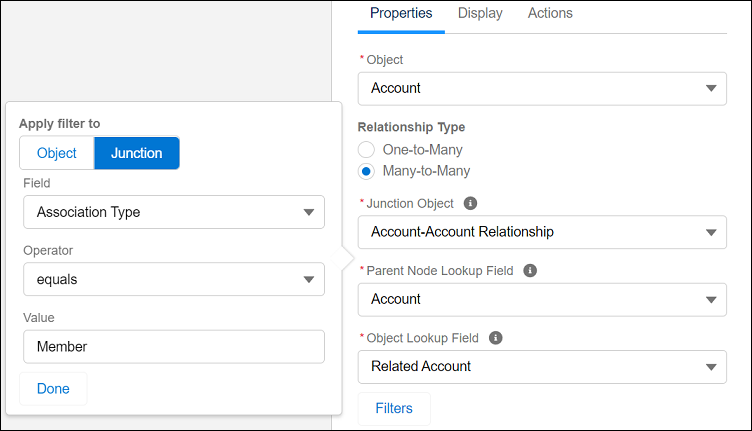
- Click Done. Configure the node Display and Actions tabs.
- Save your graph.
Did this article solve your issue?
Let us know so we can improve!
