Lists accounts that have non-hierarchical associations to the selected account. For
example, a business account can have a peer relationship to another business that is an important
supplier. The relationship (association type) is account-account relationship (peer).
Required Editions
Available in: Lightning Experience
Available in: Professional, Enterprise, and Unlimited
Editions
User Permissions Needed
To create an ARC Relationship Graph:
Financial Services Cloud Extension OR FSC Sales
AND
Customize Application
From Setup, in the Quick Find box, enter Actionable Relationship
Center, and then select Actionable Relationship
Center.
Click New Relationship Graph or edit an existing graph.
Important The Root Node object must be Account to configure the Related Accounts
Node.
Click the plus icon to add a child node.
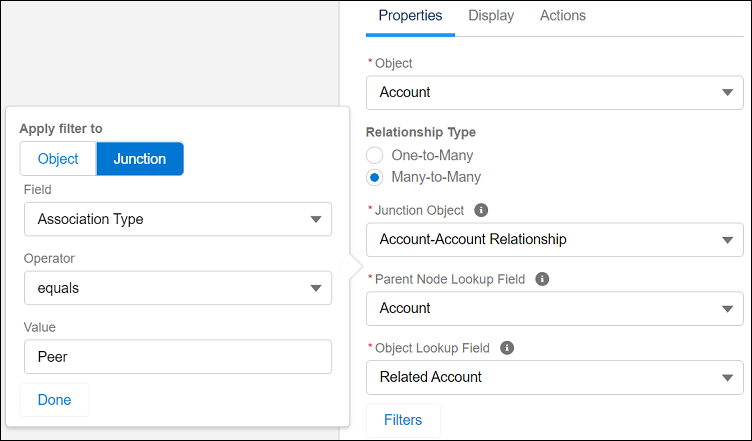
On the Properties tab, configure the node properties as follows:
Field Name
Field Value
Object
Account
Relationship Type
Many-to-Many
Junction Object
Account-Account Relationship
Parent Node Lookup Field
Account
Object Lookup Field
Related-Account
Click Filter and define the following filter criteria:
Field Name
Field Value
Apply filter to
Junction
Field
Association Type
Operator
equals
Value
Peer
Click Done. Configure the node Display and Actions tabs.
We use three kinds of cookies on our websites: required, functional, and advertising. You can choose whether functional and advertising cookies apply. Click on the different cookie categories to find out more about each category and to change the default settings.
Privacy Statement
Required Cookies
Always Active
Required cookies are necessary for basic website functionality. Some examples include: session cookies needed to transmit the website, authentication cookies, and security cookies.
Functional Cookies
Functional cookies enhance functions, performance, and services on the website. Some examples include: cookies used to analyze site traffic, cookies used for market research, and cookies used to display advertising that is not directed to a particular individual.
Advertising Cookies
Advertising cookies track activity across websites in order to understand a viewer’s interests, and direct them specific marketing. Some examples include: cookies used for remarketing, or interest-based advertising.