
Define Association Criteria
Define your own criteria for automatically linking records like accounts, leads, opportunities, and cases with the branches that work with them.
Required Editions
| Available in: Lightning Experience |
| Available in: Professional, Enterprise, and Unlimited Editions |
| User Permissions Needed | |
|---|---|
| To use Record Association Builder: | Financial Services Cloud Extension OR FSC Sales OR FSC Service |
Record Association Builder extends the automatic record linking capabilities that come with the Branch Management feature. Branch Management lets you automatically attribute new accounts and leads to specific branches. Record Association Builder lets you define your own criteria for associating new or updated records with the branches that work with them.
To define or edit association criteria, use the Record Association Builder settings page in Setup. You can edit an existing association criteria that is in Draft status, inactivate one that is Active, or delete one that hasn’t generated any associations.
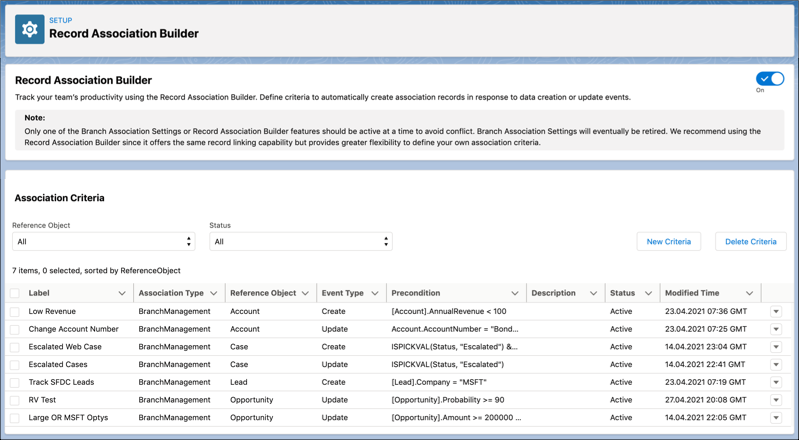
The Reference Object and Event Type fields determine which object events, such as the creation of a record, cause the criteria to be evaluated. Record Association Builder directly supports the following reference objects:
- Account (including Person Account)
- Lead
- Opportunity
- Case
- Contact
- Interaction Summary
Record Association Builder supports the following Financial Services Cloud objects:
- Assets and Liabilities
- Financial Accounts
Record Association Builder supports all custom objects.
Record Association Builder listens for Create and Update event types for each object. A Create event occurs whenever a new record is created for that object. An Update event occurs whenever one or more fields in an existing record are changed.
One reference object can have up to five association criteria.
The Precondition section includes a formula that, when true, causes a new association to be created. Precondition formulas use the same format as the formulas for calculated fields.
| Reference Object | Event Type | Precondition Formula | Description |
|---|---|---|---|
| Lead | Create | ISPICKVAL([Lead].Status, "Qualified") | A qualified lead is created. |
| Opportunity | Update | ISPICKVAL([Opportunity].Stage, "Closed") | An existing opportunity is closed. |
| Account | Create | [Account].AnnualRevenue > 3000000 && [Account].NumberOfEmployees > 20 | An account is created that meets requirements for annual revenue and number of employees. |
| Person Account | Update | [Account].FSC12__NetWorth__c > 500000 | Net Worth Greater than 500k |
| Contact | Update | [Contact].MailingCity = ‘San Francisco’ | Contact whose mailing city is San Francisco. |
| Interaction Summary | Create | [InteractionSummary].Name = ‘Follow-up Interaction’ | Interaction Summary whose name/title is Follow-up Interaction. |
To create an association criteria record for one of the directly supported reference objects, follow the steps in the order listed.
- From Setup, in the Quick Find box, enter association, and then select Record Association Builder.
- Click New Criteria.
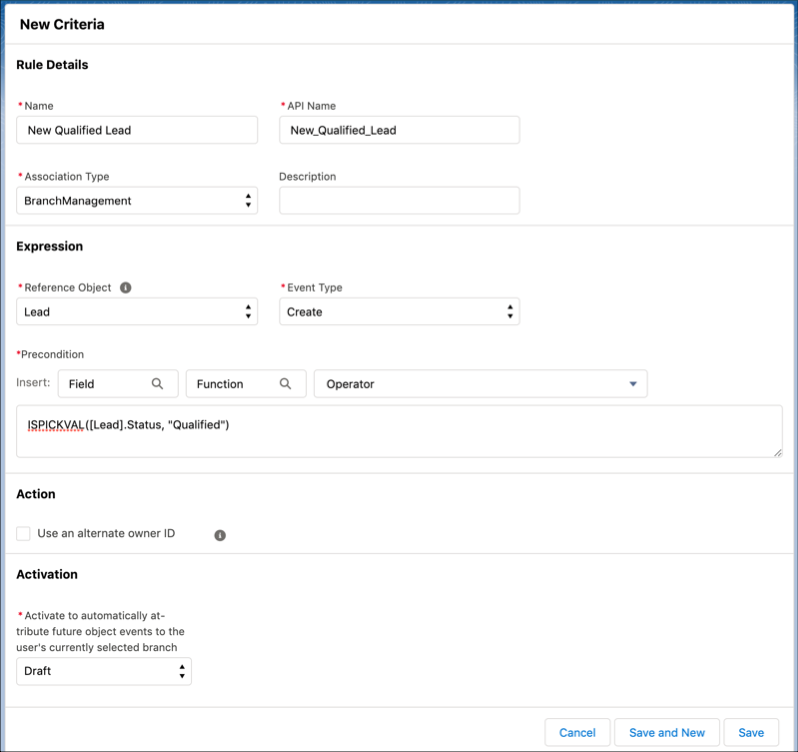
- On the New Criteria page, enter a descriptive Name. The API Name field value is filled in automatically.
- Select the association type in the Association Type dropdown.
- (Optional) Add a description if desired. A description can be helpful for differentiating criteria that are based on similar events or formulas.
- Select an object in the Reference Object dropdown.
- Select an event type in the Event Type dropdown.
-
Specify a formula in the Precondition formula field. You can use the
controls in the Insert bar above the formula to insert elements at the
cursor location in the formula field.
-
Keep the Use an alternate owner ID checkbox unchecked to use the
default Owner ID field when making associations. If the Reference Object you selected doesn’t
include an Owner ID field, or if you want to use a different ID field:
- Click Use an alternate owner ID.
- Click the search box.
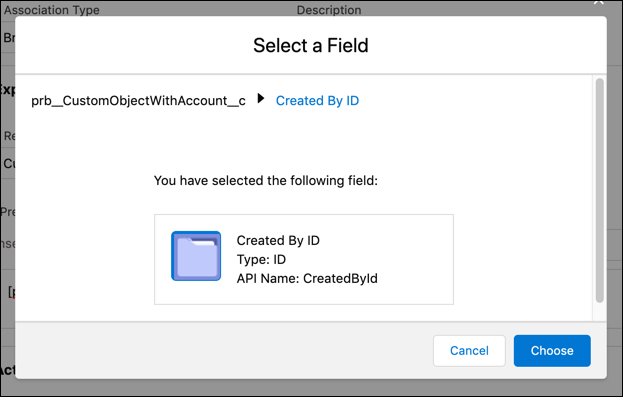
- In the Select a Field window use the filter control to find and select the ID field to use.
-
Click Choose to select that field.
- Keep the Activation set to Draft if you want to edit this criteria in the future. Only select Active in the Activation dropdown when you’re ready to enable automatic associations whenever this criteria is met.
- Save your work.
