Loading
Table of Contents
Select Filters

          No results
          No results
          Here are some search tips

          Check the spelling of your keywords.
          Use more general search terms.
          Select fewer filters to broaden your search.

          Search all of Salesforce Help
          Incorporate Your Company Logo in Estate Planning Service Process Communications

          Incorporate Your Company Logo in Estate Planning Service Process Communications

          Use your company logo in an email template and use the template with the Estate Planning service process for customer interactions.

          Required Editions

          Available in: Lightning Experience
          Available in: Professional, Enterprise, and Unlimited Editions where Financial Services Cloud is enabled
          User Permissions Needed
          To activate and deactivate flows: Manage flow

          Before you begin, add your company logo to Salesforce Classic documents, and incorporate the logo into an email template.

          1. From Setup, in the Quick Find box, enter Flows, and then select Flows.
          2. In the list view, find and select Service Process: Estate Planning.
          3. Save the flow as a new flow.
            Note the API name of the flow for referencing it in the orchestrator later.
          4. On the upper-left corner of the page, click the Toolbox icon.
          5. In the Toolbox pane, under Constants, select HeaderImageURL.
          6. In Value, enter the location in your system where you saved the company logo.
          7. Save and activate the flow.
          8. Link the new flow to the orchestration that you created when you cloned and activated the Estate Planning flow.
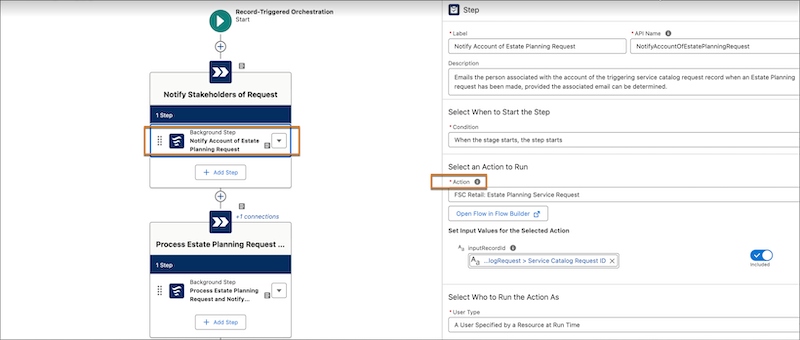
            1. Open the orchestration, and go to the Notify Account of Estate Planning step.
            2. Replace the Action value with the name of the flow that you created earlier.Updating the Action field in the orchestrator with the name of the new flow
           
          Loading
          Salesforce Help | Article