Create a Service Process Eligibility Decision Table
Use a decision table and a rule object that contains the rules that the decision table
uses to determine the service process products qualification.
Required Editions
Available in: Lightning Experience
Available in:
Enterprise and
Unlimited Editions with the required licenses
User Permissions Needed
To create, edit, and activate a decision table:
Product Catalog Management Designer
From the App Launcher, find and select Product Catalog
Management.
Click Qualification Rules.
To create a decision table, click New.
Enter SvcProcessEligibilityTable as the name.
In Source Object, select Product Qualification.
The Product Qualification object contains the rules for the decision table. Use one source
object for one decision table.
In Filter Result By, select Any Value.
In Usage Type, select Product Qualification.
Click Next.
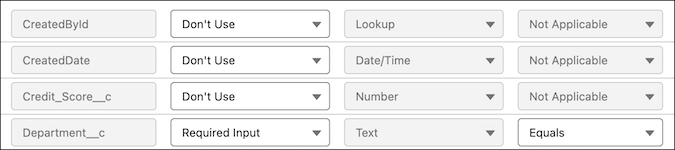
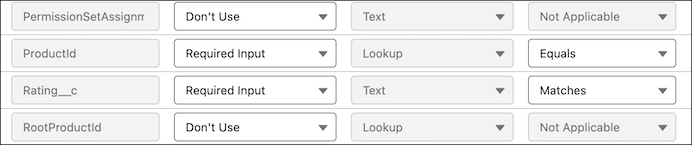
Select the input fields and an operator for each input field.
In this example, as we’re qualifying the service process product based on the customer’s
rating and the agent’s department, select Department_c, Rating_c, and ProductId as the input
fields.
Note Department_c and Rating_c are custom fields of the Text data type. To see these fields in
the decision table, create these fields in the Product Qualification object.
Select IsQualified as the output field.
You can’t select a picklist (multi-select) type field as an output field. For the fields
that aren’t selected as either Required Input or Required Output, leave those fields as Don't
Use.
Click Next.
For Define Conditions Logic, select All conditions are met
(AND).
We use three kinds of cookies on our websites: required, functional, and advertising. You can choose whether functional and advertising cookies apply. Click on the different cookie categories to find out more about each category and to change the default settings.
Privacy Statement
Required Cookies
Always Active
Required cookies are necessary for basic website functionality. Some examples include: session cookies needed to transmit the website, authentication cookies, and security cookies.
Functional Cookies
Functional cookies enhance functions, performance, and services on the website. Some examples include: cookies used to analyze site traffic, cookies used for market research, and cookies used to display advertising that is not directed to a particular individual.
Advertising Cookies
Advertising cookies track activity across websites in order to understand a viewer’s interests, and direct them specific marketing. Some examples include: cookies used for remarketing, or interest-based advertising.