
Edit a Financial Goal in Financial Services Cloud
On the FinancialGoals FlexCard, edit a financial goal.
Required Editions
Available in: Lightning Experience Available in: Professional, Enterprise, and Unlimited Editions |
| User Permissions Needed | |
|---|---|
| To use financial plans and goals, OmniScript, Data Mappers, FlexCards, and Integration Procedures: | Financial Services Cloud Extensions OR FSC Sales AND OmniStudio User OR OmniStudio Admin permissions set |
- Click a person account or household account record.
- On the FinancialGoals FlexCard, click the action menu on a goal, then click Edit.
- On the Goal Details screen, update the goal details and click Next.
-
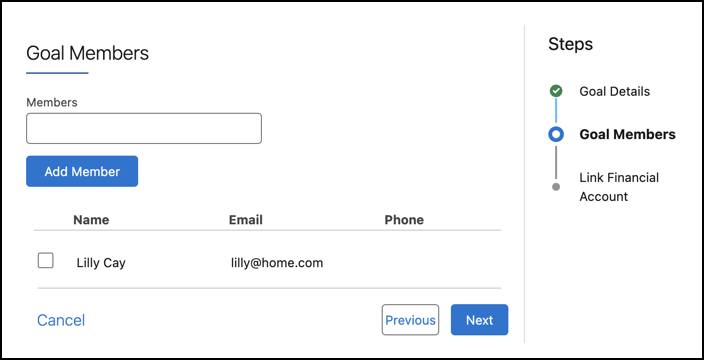
On the Goal Members screen, confirm the goal member.
- To add new goal members, in the Members box, enter a name. Select a member and click Add Member.
- To remove goal members, select the goal member and click Remove.
-
On the Link Financial Account screen, select a financial account to fund the goal.
To show the financial account associated with a goal, the account must be associated with the person account or household that’s associated with the goal.
- To view the details and other goals funded by the financial account, select a financial account.
- To remove all financial accounts from the goal, select Don’t associate a financial account.
- Save your changes.
Did this article solve your issue?
Let us know so we can improve!
