
You are here:
Calculate Total Household Portfolio Value (Managed Package)
Here’s a step-by-step guide to roll up the financial account balances for each household. This example considers all the accounts that are part of the household and all the financial accounts that belong to each account in the rollup operation.
 This is a Financial Services Cloud managed package feature.
- The Rollup by Lookup (RBL) framework is available and enabled.
For more information, see Enable the RBL Using Data Processing Engine Framework.
- Familiarity with data transformation operations such as joins and appends.
- Familiarity with adding formulas to RBL rules.
Let's say that a Bank A has a large set of customers modeled as Person Accounts and that these customers have one or more Financial Accounts. Also, these customers form a part of their households, which are Accounts.
The requirement is to roll up the financial account balances for each household by including:
- All the accounts that are part of the household
- All the financial accounts that belong to each account
To calculate the total household portfolio value, you can create a DPE definition to aggregate the financial accounts of a household using the household__c field and display the sum on the household record."
The DPE plan to achieve the requirement:

- Create two data sources with the source objects as Accounts and Financial Accounts.
- Filter the results of the Accounts data source to consider only the RecordType, IndustriesHousehold.
- Create an aggregate on Financial Accounts.
- Groupby the household id field.
- Sum the balance field.
- Create a left outer join to join the results of steps 2 and 3.
- Writeback with the results of step 4 to the Accounts data source.
-
Create a data processing engine definition.
- From Setup, in the Quick Find box, enter Data Processing Engine, and then select Data Processing Engine.
- Click New.
- Enter the name of the definition as Total Household Portfolio Value.
- Click Create.
-
Create a data source (Accounts) and select its objects and fields.
- On the Data Processing Engine definition page, click New Data Source.
- Enter the name as Account and Recordtype.
- Save your changes.
- From the Source Object dropdown list, search for and select Account.
- Click Select Fields.
-
Select the fields Id and Balance__c.
Note Balance__c is a custom field in the Accounts object to which we will roll up the financial account balance value of each household.
- Enter the alias name for Id as AccountId and for Balance__c as AccountBalance.
- Click Done.
-
Select the related objects and fields for the Account and Recordtype data source.
- Click Add Related Object.
- Select the RecordType object.
- Click Select Fields.
- Select the DeveloperName and Id fields.
- Enter the alias name for Id as RecordTypeId and for DeveloperName as DeveloperName.
- Click Done.
- Save your changes.
-
Create a data source (Financial Account) and select its objects and fields.
- On the Data Processing Engine definition page, click New Data Source.
- Enter the name as Financial Accounts.
- Save your work.
- From the Source Object list, search for and select Financial Account.
- Click Select Fields.
- Select the Household__c and Balance__c fields.
- Enter the alias name for Household__c as FAHouseholdId and for Balance__c as FABalance.
- Click Done.
- Save your changes.
-
Create a new node to filter the Account and Recordtype data source.
- On the Data Processing Engine definition page, click New Node.
- In the Select Node Type dropdown list, select Filter.
- Enter the name as Filter Household Recordtypes.
- Click Create.
-
Configure the filter.
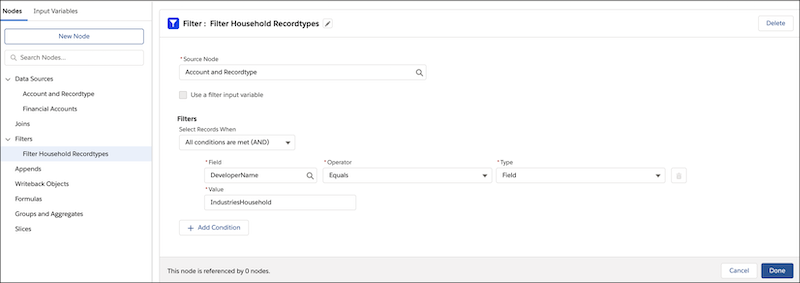
Configure the filter so that the result of the Filter Household Recordtypes data source is a filtered set of records with RecordType as IndustriesHousehold. Define these filter conditions.
- Source Node: Account and Recordtype.
- Select Records When: All Conditions are met (AND).
- Field: DeveloperName
- Operator: Equals
- Type: Field
- Value: IndustriesHousehold
- Click Done.
- Save your changes.
Here’s what the filter conditions look like in the Filter Household Recordtypes data source page.
-
Create a node to aggregate the values of the FAbalance fields in the Financial Accounts
data source.
- On the Data Processing Engine definition page, click New Node.
- In the Select Node Type dropdown list, select Group and Aggregate.
- Enter the name as Aggregate FA Balances.
- Click Create.
- From the Source Node list, search for and select Financial Accounts.
- Click Select Group Fields.
- Select the Household__c field.
-
Click Add Aggregate and define a new aggregate.
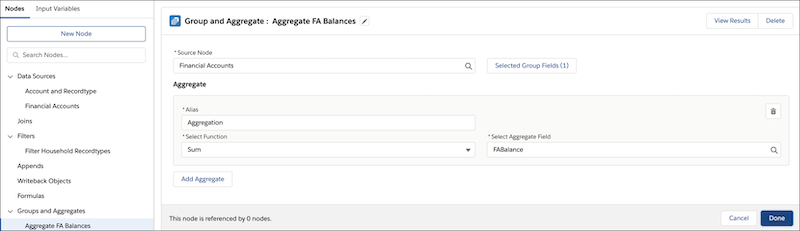
Under the Aggregate section, configure the aggregate as follows:
- Alias: Aggregation
- Function: Sum
- Aggregate Field: FABalance
- Click Done.
- Save your changes.
Here’s what the aggregation definitions look like in the Aggregate FA Balances data source page.
-
Create a node to join the results of the Filter Household Recordypes node and the Aggregate
FA Balances node.
- On the Data Processing Engine definition page, click New Node.
- In the Select Node Type dropdown list, select Join.
- Enter the name as Join FA Aggregates and Household.
- Click Create.
-
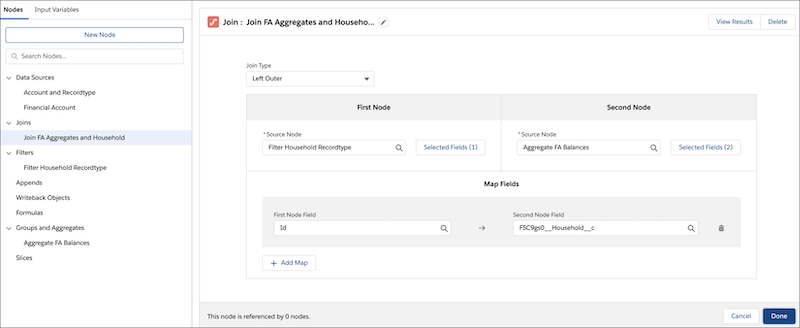
Configure the join.
Define the following as join conditions.
- Join Type: Left Outer
- First Node: Filter Household Recordypes
- Fields (first node): AccountId
- Second Node: Aggregate FA Balances
- Fields (second node): Aggregation
-
Map the join fields.
Under the Map Fields section, map fields from the first node to fields from the second node.
- Map the Id field from the filter to the Household__C field from the Financial Accounts data source.
Here’s what the join conditions look like in the Join FA Aggregates and Household data source page.
-
Create a node to write back the results to the Accounts data source.
- On the Data Processing Engine definition page, click New Node.
- In the Select Node Type dropdown list, select Writeback.
- Enter the name as Account Writeback.
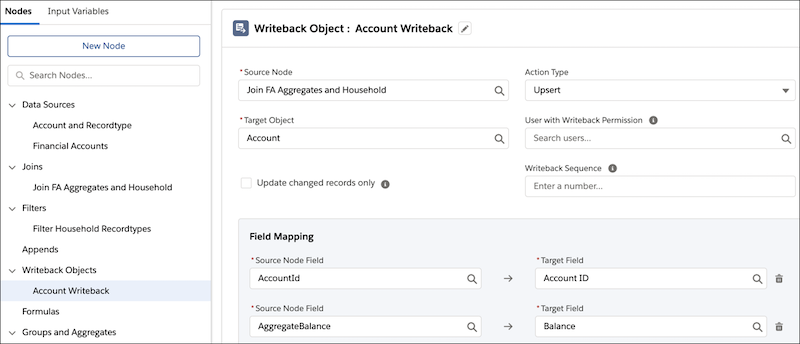
- From the Source Node list, search for and select Join FA Aggregates and Household.
- In the Action Type dropdown list, select Upsert.
- In the Target Object dropdown list, select Account.
-
Define the field mappings.
Under the Field Mapping section, map the Source Node fields to Target fields.
- Map the AccountId field from the join to the Account ID field in the Accounts data source.
- Map the AggregateBalance field from the join to the Balance field in the Accounts data source.
Here’s what the writeback configurations look like in the Account Writeback data source page.
- Save your changes.
You can now activate and execute the RBL rule to calculate the total household portfolio value. After you activate the rule, you can also invoke them as actions in flows to orchestrate processes.
