
Loading
Table of Contents
Select Filters

          No results
          No results
          Here are some search tips

          Check the spelling of your keywords.
          Use more general search terms.
          Select fewer filters to broaden your search.

          Search all of Salesforce Help
          Enable and Configure Einstein Relationship Insights

          Enable and Configure Einstein Relationship Insights

          Confirm that Einstein Relationship Insights is enabled in your Salesforce org. Einstein Relationship Insights is needed to configure the active record, person record, and company record objects. Use the record of interest to see recommended relationships. Enable content sources so that your users can explore relationships. For example, connect with Twitter as a content source and enable your users to search for content on Twitter and view recommended relationships based on the attachments.
          Required Editions

          Available in: Lightning Experience
          Available in: Professional, Enterprise, and Unlimited Editions
          User Permissions Needed
          To view ARC Einstein Relationships Insights

          Financial Services Cloud Extension OR FSC Sales

          AND

          FSC Package

          AND

          Einstein Relationship Insights Starter

          OR

          Einstein Relationship Insights Growth

          Before using custom objects for the Active Record Object, Person Record Object, or Company Record Object field, confirm that the objects have search enabled within Salesforce.

          1. From Setup, in the Quick Find box, enter Einstein, and then select Einstein Relationship Intelligence.
          2. Turn on Einstein Relationship Insights.
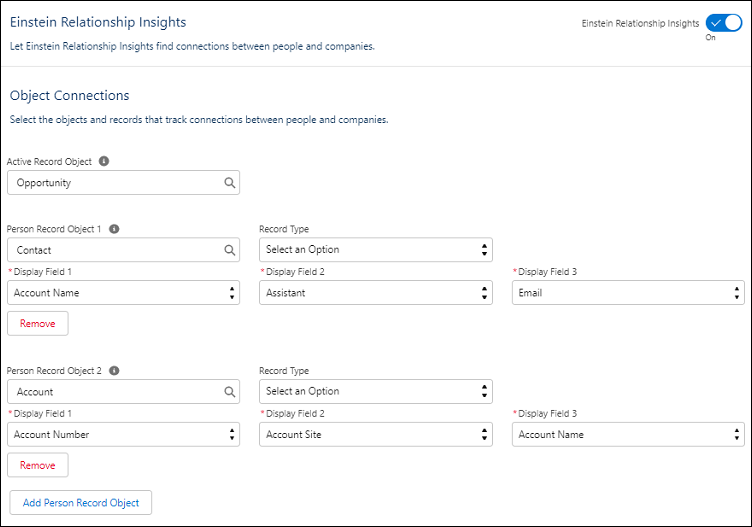
          3. Select an active record object. A record based on this object is either created or updated when there’s a response.
            Enable Einstein Relationship Insights
            This field is applicable only for users with the Einstein Relationship Insights Growth license.
          4. Select a person record object. A record based on this object is either created or updated when there’s a response.
            Most customers select the contact object.
          5. Select the values for Display Field 1, Display Field 2, and Display Field 3.
            The display fields let your user select the correct matching record. Multiple matching records exist for a contact or person object.
          6. To add more person records, click Add Person Record Object.
            You can add up to five person record objects. You can also select the record type and the display fields.
          7. Select a company record object and the display fields. A record based on this object is either created or updated when there’s a response.
            You can add up to five company record objects. Most users select the account object.
          8. To add more company records, click Add Company Record Object.
            You can also select their display fields.
          9. Save your changes.
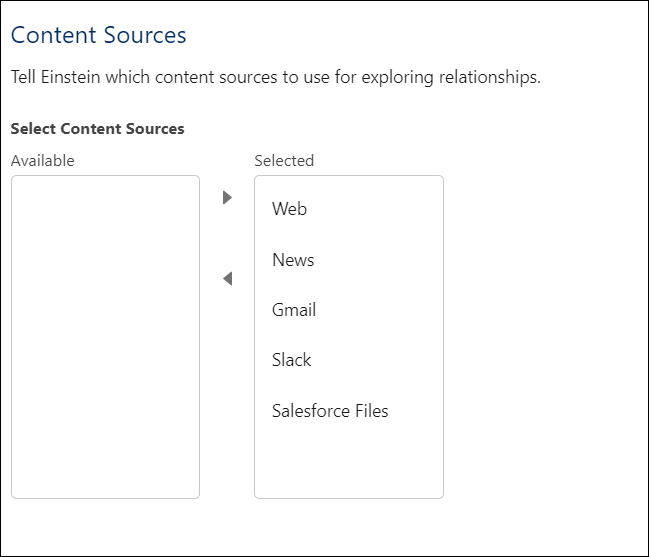
          10. Under Content Sources, move the content sources that you want to enable for your users to the selected list, and then save your changes.
            ERI Content sources
            Note
            Note When you disconnect Slack as a content source, ask the Salesforce support team to delete the workspace content. To reconnect with Slack, add Slack as a content source and notify your users to connect with the Slack workspace.
           
          Loading
          Salesforce Help | Article
