
Create a Client or Prospect with the Individual Builder (Managed Package)
When your implementation uses the person model, use the Create Individual builder to add clients or prospects, and optionally add them to a relationship group.
Required Editions

Important This feature is available in Salesforce orgs that have installed the
Financial Services Cloud managed package. This is different from the standard Groups and Households
feature, which can be accessed without installing the managed package.
| Available in: Lightning Experience |
| Available in: Professional, Enterprise, and Unlimited Editions |
In the Create Individual builder, complete this information about the client or prospect.
- Account details
- Contact details
- Relationship group details (optional)
- Click Home.
-
In the Create Individual section, click New.
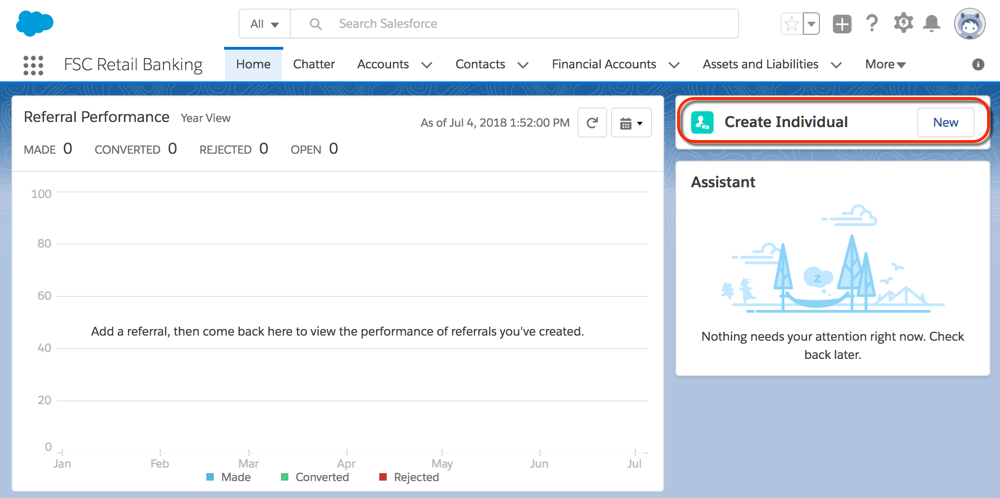
- For the account name, enter the client or prospect’s name.
-
Select a status.
- For a client, select Active.
- For a prospect, select Prospect.
- For a client that you’re onboarding, select Onboarding.
- (Optional) Enter the remaining client or prospect details, and then click Save & Next.
-
(Optional) Enter the client or prospect’s contact details, and then click one of the
following.
- To finish creating the client or prospect, click Save.
- To add the client or prospect to a relationship group, click Save & Next.
-
To designate this client or prospect as the primary household member, select
Primary Member.
Designating a primary member is not required, but a household can have only one primary member.
-
Select the member role that the client or prospect fills within the household.
- If the role is primary household member, select Client. You can select more than one role.
- If the role isn’t primary household member, select the member’s role relative to the primary household member’s role. For example, Dependent or Spouse.
-
If you want to roll up activities and information for the client or prospect, select
Primary Group.
Roll-up items are summarized at the household level for all members who have this household as their primary group. To add the member’s related business to the household, designate the household as the member’s primary group. As a member of the household, the related business’s activities and information are also summarized at the household level.
-
If you enabled this household as a primary group, select which activities and information
to roll up when summarizing data at the household level.
 Note You can select more than one item to roll up for the client.
 - Save your changes.
Did this article solve your issue?
Let us know so we can improve!
