
Customize Omnistudio Data Mappers to Show Blank Values
When retrieving real-time financial account data from your core banking system to show on the FSCFinancialAccountSummary and FSCFinancialAccountDetails components, show a blank value for a field rather than the Salesforce value.
Required Editions
Available in: Lightning Experience Available in: Professional, Enterprise, and Unlimited Editions |
| User Permissions Needed | |
|---|---|
| To use FSCFinancialAccountsSummary, OmniScript, Data Mappers, FlexCards, and Integration Procedures: | Financial Services Cloud Extension OR Financial Services Cloud Foundations OR FSC Sales OR FSC Service AND OmniStudio User OR OmniStudio Admin permissions set |
For example, if you want the field AvailableCredit to show real-time data from your core banking system, clone the FSCFetchFinanaiclAccountDetails Data Mapper and add a formula to show the Salesforce field value for AvailableCredit as blank.
FSCFetchFinancialAccountDetails — performs the extraction of field values for Financial Accounts. Fields can be added or removed from the Data Mapper to determine the fields that show on the FSCFinancialAccountsSummary and FSCFinancialAccountDetails components.
FSCTransformFinancialAccountsData — transforms the field values from the FSCFetchFinancialAccountDetails Data Mapper into an output so the fields can display on the FSCFinancialAccountsSummary and FSCFinancialAccountDetails cards.
- From the App Launcher, find and select OmniStudio.
- In the OmniStudio app, from the navigation bar, select OmniStudio Data Mappers.
- Select FSCTransformFinancialAccountsData and click Clone.
- Enter a name for the cloned Data Mapper and click Save.
- In the new Data Mapper, select the Formula tab.
-
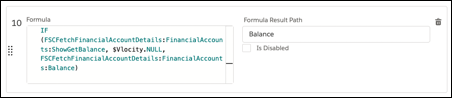
Find the Formula Result Path for Balance and copy the formula.
-
Scroll to the bottom, click +Formula, and paste the formula in the
formula field.
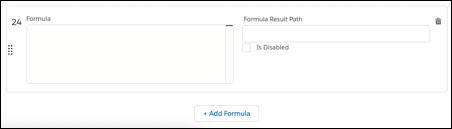
- Replace the field in the formula with your field: FSCFetchFinancialAccountDetails:FinancialAccounts:<fieldname>
- Click the Transforms tab.
-
Remove the transform for the field: FSCFetchFinancialAccountDetails:FinancialAccounts:
<fieldname>.
 Note This line only applies to fields that are already being fetched in the FSCFetchFinancialAccountDetails Data Mapper. If the field is new, or the line doesn’t exist, skip this step.
 -
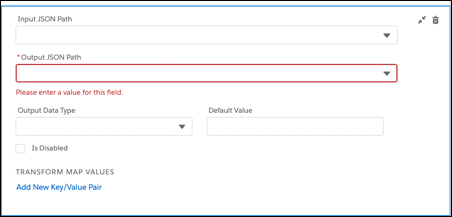
Click the plus icon and enter the details like this:
- Input JSON Path: <field>
- Output JSON Path: <field>
- Output Data Type: String
-
Update the Data Mapper referenced in the FetchFinancialAccounts Integration
Procedure.
-
In the OmniStudio app, from the navigation bar, select OmniStudio Integration
Procedures.
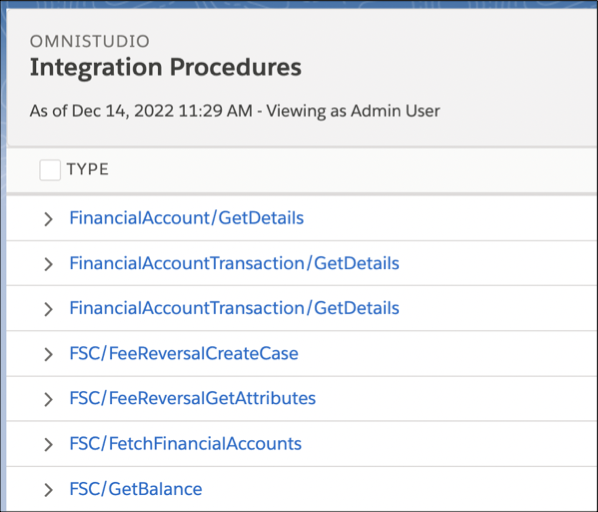
- Select FSC/FetchFinanicalAccounts.
- Click Procedure Configuration.
- Click Create Version.
- Replace the existing Data Mapper with the one you created.
- Activate the Integration Procedure.
-
In the OmniStudio app, from the navigation bar, select OmniStudio Integration
Procedures.
