
You are here:
Import Quotas Data to the Analytics for Wealth Management App
Follow these steps to add quotas data from an external source to the Analytics for Wealth Management app.
- Create a .CSV file with these fields, in this order, with exactly these names. Field
names are case-sensitive:
- StartDate (in yyyy-mm-dd format)
- QuotaAmount
- OwnerName
- Username
 Important Create and open .CSV files using only a UTF-8-compliant text editor. Opening them in Microsoft Excel or other spreadsheet software reformats .CSV files and makes them unusable in CRM Analytics.
 - Save the .CSV file to a location you can easily remember.
- Create the app according to the instructions provided in Create and Share the Analytics for Wealth Management App.
- Open the app, click Datasets, and locate the quotas dataset.
- Click the triangle on the far-right side of the screen, and select Edit.
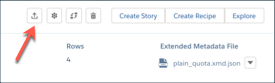
- At the top of the next screen, locate the Replace Data icon, next to the gear, and click
it.
- Click Select a file or drag it here, locate the .CSV file you created, select it, and click Open.
- On the next two screens, click Next. Then, click Upload File and Replace.
The next time the dataflow for your app runs, CRM Analytics adds fees and earnings metrics to relevant dashboards.
Did this article solve your issue?
Let us know so we can improve!
