
Example: Create a Contact Hierarchy for an Organization
Explore a practical example of creating a contact hierarchy for Cumulus Corporation, including specific details on nodes and their relationships to model the complex organizational structure. Review the comprehensive instructions to implement the hierarchy by using the hierarchy builder, Data Loader, or API methods, ensuring flexibility for both manual management and high-volume data integrations.
Required Editions
Available in: Lightning Experience Available in: Unlimited and Agentforce Editions |
| User Permissions Needed | |
|---|---|
| To create flexible hierarchies: | Flexible Hierarchy Manager |
To create a contact hierarchy by using the hierarchy builder, APIs, or Data Loader, complete these prerequisites.
- Create the contact records for all the roles listed in the Cumulus Corporation's contact hierarchy example table.
- Make sure that your Flexible Hierarchy admin has created a hierarchy type that includes a node linked to the Contact object.
- Make sure that your Hierarchy Admin has created these roles for the Flexible Hierarchy Node
object.
- Executive Sponsor
- Global Decision Maker
- Risk Influencer
- Policy Owner
- EMEA Decision Maker
- APAC Decision Maker
- AMER Decision Maker
To better visualize this feature, review the Cumulus Corporation contact hierarchy example, which demonstrates the practical interaction between different node roles and their functional impacts.
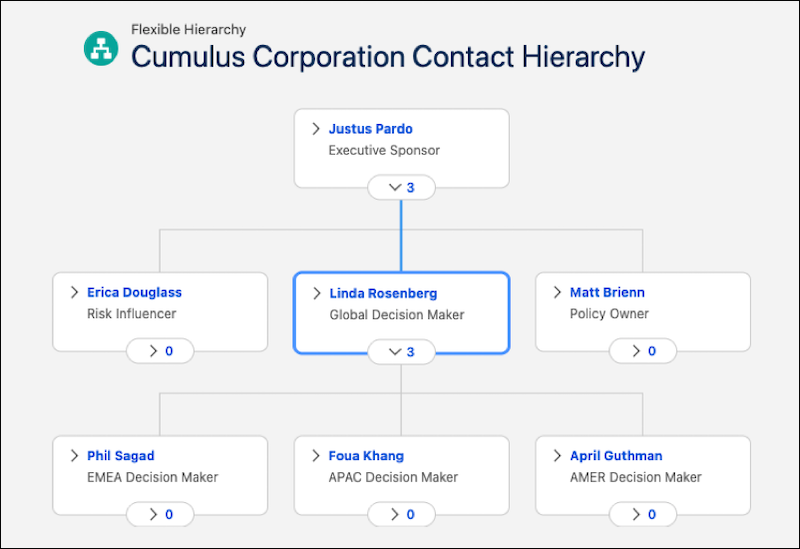
This table lists nodes, roles, and role impacts in the Cumulus Corporation's contact hierarchy. Create contact records in Salesforce for these nodes. When creating nodes in the contact hierarchy, use the source system identifier and source system names as listed in this table.
| Node Name | Role | Source System Identifier | Role Impact |
|---|---|---|---|
| Justus Pardo | Executive Sponsor | FH-Cumulus-001 | The root node that serves as the primary financial stakeholder and ultimate signatory for global credit facilities and treasury mandates. |
| Linda Rosenberg | Global Decision Maker | FH-Cumulus-002 | Serves as the primary operational authority for strategic execution and cross-regional coordination. |
| Erica Douglass | Risk Influencer | FH-Cumulus-003 | Serves as a critical advisory node responsible for identifying, assessing, and mitigating institutional risks that can affect global financial stability. |
| Matt Brienn | Policy Owner | FH-Cumulus-004 | Serves as the primary custodian of organizational standards and governance frameworks. |
| Phil Sagad | EMEA Decision Maker | FH-Cumulus-005 | Serves as the primary regional authority for the EMEA region. |
| Foua Khang | APAC Decision Maker | FH-Cumulus-006 | Serves as the primary regional authority for the APAC region. |
| April Guthman | AMER Decision Maker | FH-Cumulus-007 | Serves as the primary regional authority for the AMER region. |
Create Contact Hierarchy by Using Hierarchy Builder
Create the contact hierarchy for Cumulus Corporation by using a hierarchy type in the hierarchy builder.
- From the App Launcher, find and select Flexible Hierarchies, and then click New.
- Enter the name as Cumulus Corporation Contact Hierarchy.
- Select the hierarchy type that your admin has created to implement this contact hierarchy.
- Search and select Contact as the root object.
- Search and select Justus Pardo as the root object record.
- Enter FH-Cumulus-001 as the source system identifier.
- Enter CumulusSourceSystem as the source system name.
- Select IsActive
- Specify the start and end dates. This flexible hierarchy is applicable during this time frame.
- Save the changes.
-
Add these nodes to the Cumulus Corporation Contact Hierarchy in the hierarchical sequence
shown in the example diagram.
Node Record Role Linda Rosenberg Global Decision Maker Erica Douglass Risk Influencer Matt Brienn Policy Owner Phil Sagad EMEA Decision Maker Foua Khang APAC Decision Maker April Guthman AMER Decision Maker - Click the pencil icon on the top-right corner of the page.
- Click the plus icon.
- Select a node record.
- Select a corresponding role as listed in the example table.
To ensure structural integrity, the Hierarchy Builder automatically validates the hierarchy every time a new node is added. This continuous verification prevents data inconsistencies and ensures that the hierarchy is valid. - To quit the edit mode, and to save the changes, click Exit.
Create Contact Hierarchy with APIs
To facilitate the rapid deployment of complex, large-scale structures, you can use any of the sOBJECT APIs to perform bulk uploads of hierarchy nodes and relationship definitions directly into the system’s dedicated data model.
Consider Composite APIs to create Cumulus Corporation's contact hierarchy. This API helps you to run a series of REST API requests in a single call. For more information, see Composite API.
-
To get the ID of the flexible hierarchy type that you plan to use to create the
contact hierarchy:
-
In the Developer Console, run this query:
SELECT DeveloperName, Id, MasterLabel FROM RelationshipGraphDefinition - From the list of hierarchy types, note the ID of the hierarchy type that you want to use.
-
In the Developer Console, run this query:
-
To note all the node record IDs by using the record details page:
- From the App Launcher, find, and select Contacts.
- From the list of contacts, click a contact record that represents a node. For example, open the Justus Pardo's contact record.
- In your browser's address bar, locate the URL for the page.
- Identify the unique alphanumeric string that follows the object name in the URL path.
-
For example, in this URL, the record ID is 003RM000003fG8yYAE.
https://example.lightning.force.com/lightning/r/Contact/003RM000003fG8yYAE/view, - Highlight the record ID and copy it to your clipboard.
- Repeat steps a and f to note the record IDs for all the nodes in the Cumulus Corporation Contact Hierarchy.
-
Alternatively, note the record IDs by running the query as shown in this
example.
Select id, Name from Contact where Name IN ('Justus', 'Pardo') -
To create Cumulus Corporation Hierarchy, use the API endpoint and the request body as
shown in this example.
Endpoint: /services/data/v66.0/composite Request Body { "allOrNone": false, "compositeRequest": [ { "method": "POST", "url": "/services/data/v66.0/sobjects/FlexibleHierarchy", "referenceId": "cumulushierarchy", "body": { "HierarchyTypeReferenceId": "06JSG0000004gqH2AQ", "Name": "Contact Hierarchy for Cumulus Corporation", "RootRecord": "003SG00000ViGLlYAN", "RootRecordObject": "Contact", "SourceSystemIdentifier": "FH-Cumulus-001", "SourceSystemName": "CummulusSourceSystem" } }, { "method": "POST", "url": "/services/data/v66.0/sobjects/FlexibleHierarchyNode", "referenceId": "node1", "body": { "FlexibleHierarchyId": "@{cumulushierarchy.id}", "ReferenceRecord": "003SG00000VkAFRYA3", "ReferenceRecordObject": "Contact", "Role": "Executive Sponsor", "SourceSystemIdentifier": "FHN-Cumulus-001" } }, { "method": "POST", "url": "/services/data/v66.0/sobjects/FlexibleHierarchyNode", "referenceId": "node2", "body": { "FlexibleHierarchyId": "@{cumulushierarchy.id}", "ReferenceRecord": "003SG00000VkAFRYA3", "ReferenceRecordObject": "Contact", "Role": "Global Decision Maker", "SourceSystemIdentifier": "FHN-Cumulus-002" } }, { "method": "POST", "url": "/services/data/v66.0/sobjects/FlexibleHierarchyNode", "referenceId": "node3", "body": { "FlexibleHierarchyId": "@{cumulushierarchy.id}", "ReferenceRecord": "003SG00000VkAH3YAN", "ReferenceRecordObject": "Contact", "Role": "Risk Influencer", "SourceSystemIdentifier": "FHN-Cumulus-003" } }, { "method": "POST", "url": "/services/data/v66.0/sobjects/FlexibleHierarchyNode", "referenceId": "node4", "body": { "FlexibleHierarchyId": "@{cumulushierarchy.id}", "ReferenceRecord": "003SG00000VkAAbYAN", "ReferenceRecordObject": "Contact", "Role": "Policy Owner", "SourceSystemIdentifier": "FHN-Cumulus-004" } }, { "method": "POST", "url": "/services/data/v66.0/sobjects/FlexibleHierarchyNode", "referenceId": "node5", "body": { "FlexibleHierarchyId": "@{cumulushierarchy.id}", "ReferenceRecord": "003SG00000VkAKHYA3", "ReferenceRecordObject": "Contact", "Role": "EMEA Decision Maker", "SourceSystemIdentifier": "FHN-Cumulus-005" } }, { "method": "POST", "url": "/services/data/v66.0/sobjects/FlexibleHierarchyNode", "referenceId": "node6", "body": { "FlexibleHierarchyId": "@{cumulushierarchy.id}", "ReferenceRecord": "003SG00000VkADqYAN", "ReferenceRecordObject": "Contact", "Role": "APAC Decision Maker", "SourceSystemIdentifier": "FHN-Cumulus-006" } }, { "method": "POST", "url": "/services/data/v66.0/sobjects/FlexibleHierarchyNode", "referenceId": "node7", "body": { "FlexibleHierarchyId": "@{cumulushierarchy.id}", "ReferenceRecord": "003SG00000VkANVYA3", "ReferenceRecordObject": "Contact", "Role": "AMER Decision Maker", "SourceSystemIdentifier": "FHN-Cumulus-007" } }, { "method": "POST", "url": "/services/data/v66.0/sobjects/FlexibleHierarchyNodeRela", "referenceId": "relation1", "body": { "FlexibleHierarchyId": "@{cumulushierarchy.id}", "PredecessorNodeId": "@{node1.id}", "SuccessorNodeId": "@{node2.id}", "SourceSystemIdentifier": "FHR-Cumulus-001", "SourceSystemName": null } }, { "method": "POST", "url": "/services/data/v66.0/sobjects/FlexibleHierarchyNodeRela", "referenceId": "rela2", "body": { "FlexibleHierarchyId": "@{cumulushierarchy.id}", "PredecessorNodeId": "@{node1.id}", "SuccessorNodeId": "@{node3.id}", "SourceSystemIdentifier": "FHR-Cumulus-002", "SourceSystemName": null } }, { "method": "POST", "url": "/services/data/v66.0/sobjects/FlexibleHierarchyNodeRela", "referenceId": "rela3", "body": { "FlexibleHierarchyId": "@{cumulushierarchy.id}", "PredecessorNodeId": "@{node1.id}", "SuccessorNodeId": "@{node4.id}", "SourceSystemIdentifier": "FHR-Cumulus-003", "SourceSystemName": null } }, { "method": "POST", "url": "/services/data/v66.0/sobjects/FlexibleHierarchyNodeRela", "referenceId": "rela4", "body": { "FlexibleHierarchyId": "@{cumulushierarchy.id}", "PredecessorNodeId": "@{node2.id}", "SuccessorNodeId": "@{node5.id}", "SourceSystemIdentifier": "FHR-Cumulus-004", "SourceSystemName": null } }, { "method": "POST", "url": "/services/data/v66.0/sobjects/FlexibleHierarchyNodeRela", "referenceId": "rela5", "body": { "FlexibleHierarchyId": "@{cumulushierarchy.id}", "PredecessorNodeId": "@{node2.id}", "SuccessorNodeId": "@{node6.id}", "SourceSystemIdentifier": "FHR-Cumulus-005", "SourceSystemName": null } }, { "method": "POST", "url": "/services/data/v66.0/sobjects/FlexibleHierarchyNodeRela", "referenceId": "rela6", "body": { "FlexibleHierarchyId": "@{cumulushierarchy.id}", "PredecessorNodeId": "@{node2.id}", "SuccessorNodeId": "@{node7.id}", "SourceSystemIdentifier": "FHR-Cumulus-006", "SourceSystemName": null } }, } ] } -
Request your Flexible Hierarchy Admin to validate the hierarchy that you created
earlier by using the Flexible Hierarchies Bulk Validation endpoint.
This example illustrates the bulk validate API endpoint.
/services/data/v66.0/connect/flexible-hierarchies/actions/bulk-validate
{"hierarchyIds": ["<cumulushierarchyId>"]}
Create Contact Hierarchy by Using Data Loader
Use Data Loader to bulk import or export hierarchy data. Use it to insert, update, delete, or export Flexible Hierarchy and related object records.
When importing data, Data Loader reads, extracts, and loads data from comma-separated values (CSV) files or from a database connection. When exporting data, it outputs CSV files.
-
To get the ID of the flexible hierarchy type that you plan to use to create the
contact hierarchy:
-
In the Developer Console, run this query:
SELECT DeveloperName, Id, MasterLabel FROM RelationshipGraphDefinition - From the list of hierarchy types, note the ID of the hierarchy type that you want to use.
-
In the Developer Console, run this query:
-
To note all the node record IDs by using the record details page:
- From the App Launcher, find, and select Contacts.
- From the list of contacts, click a contact record that represents a node. For example, open the Justus Pardo's contact record.
- In your browser's address bar, locate the URL for the page.
- Identify the unique alphanumeric string that follows the object name in the URL path.
-
For example, in this URL, the record ID is 003RM000003fG8yYAE.
https://example.lightning.force.com/lightning/r/Contact/003RM000003fG8yYAE/view, - Highlight the record ID and copy it to your clipboard.
- Repeat steps a and f to note the record IDs for all the nodes in the Cumulus Corporation Contact Hierarchy.
-
Alternatively, note the record IDs by running the query as shown in this
example.
Select id, Name from Contact where Name IN ('Justus', 'Pardo') -
Create a CSV file to create the contact hierarchy with the root node details. Specify
the details in the CSV file as shown in this example. Use the Data Loader to upload the file by
specifying the Operation as Insert, and Object as Flexible hierarchy.

- After the successful insert operation, view the success file, and note the ID of the flexible hierarchy that was created.
-
Create a CSV file to create the nodes of the contact hierarchy. Specify the details
in the CSV file as shown in this example. Specify the hierarchy ID that you copied from
the previous step. Use the Data Loader to upload the file by
specifying the Operation as Insert, and Object as Flexible hierarchy Node.
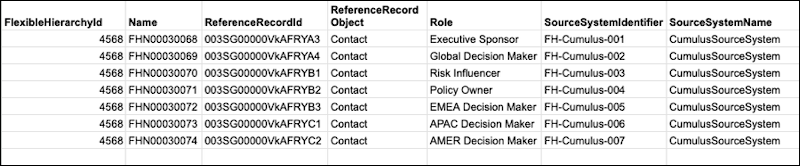
- After the successful insert operation, view the success file, and note the IDs of the flexible hierarchy nodes that were created.
-
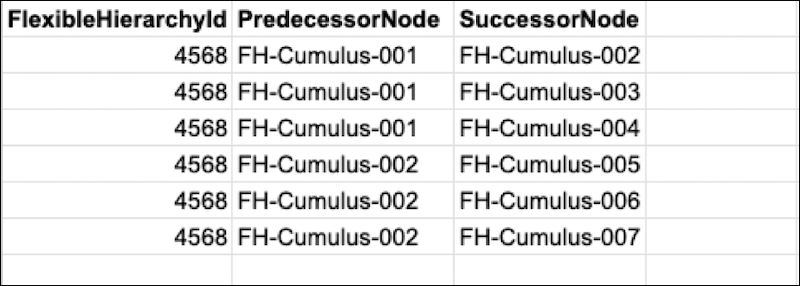
Create a CSV file to create the node relations in the contact hierarchy. Specify the
details in the CSV file as shown in this example. Specify the flexible hierarchy ID and
flexible hierarchy node IDs that you copied from the previous steps. Use the Data Loader to upload the file by
specifying the Operation as Insert, and Object as Flexible hierarchy Node
Relation.
-
Request your Flexible Hierarchy Admin to validate the hierarchy that you created
earlier by using the Flexible Hierarchies Bulk Validation endpoint.
This example illustrates the bulk validate API endpoint.
/services/data/v66.0/connect/flexible-hierarchies/actions/bulk-validate
{"hierarchyIds": ["<cumulushierarchyId>"]}
