Flow Screen Input Component: Multi-Select Table
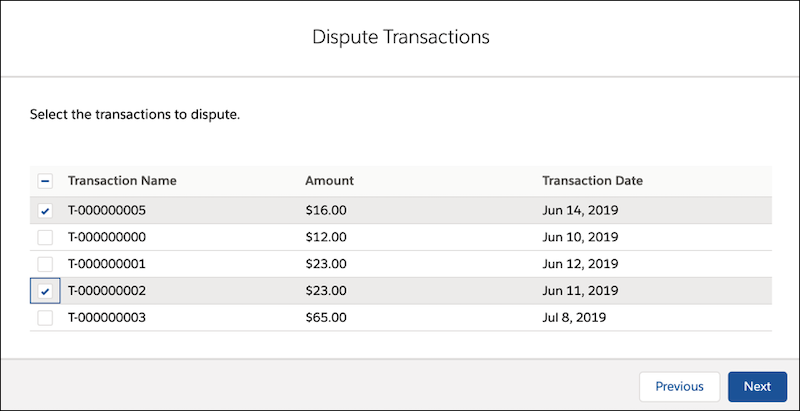
Display a table with a checkbox next to each row in the table. A user can select one or more rows in the table.
Required Editions
| Available in: Lightning Experience |
| Available in: Professional, Enterprise, and Unlimited Editions |
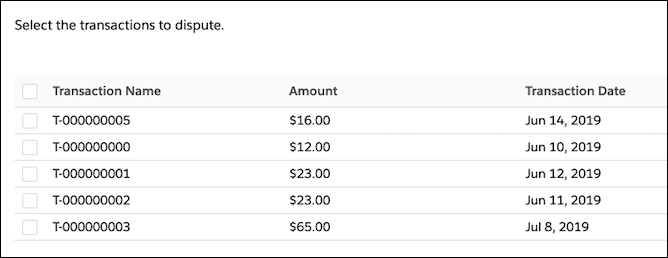
For information about adding screen components to your flow screen, see Screen.

Configure the Multi-Select Table Component
You can select resources from the flow, such as variables or global constants, or you can manually enter a value.
| Attribute | Description |
|---|---|
| Columns | Required. Defines columns for the table. Add a Text collection variable that contains a list of field API names that you want to include in the table. |
| Records | Required. Defines rows for the table. Add a Text collection variable that contains a list of record IDs that you want to include in the table. Ensure that the variable contains at least one record ID. Otherwise, the component shows an error message when you run the flow. |
| Editable Column | Enter the API name of the column that you want to be editable in the table. You can have only one editable column, and it must be one of the columns that you entered in the Columns field. |
| Error Messages | Add a Text variable to store error messages returned by the component. |
| Selectable Rows | If it’s set to $GlobalConstant.True, the rows in the table are selectable. By default, it’s set to $GlobalConstant.False. |
| Selected Records | Add a Text collection variable to store the selected records. To access individual record IDs, create a loop that iterates over this collection variable. |
Store the Multi-Select Table Component’s Values in the Flow
The flow stores values automatically. If you store values manually, store the attribute’s output value in a variable.
To store values manually, select Manually assign variables (advanced).
All attributes are available to store in flow variables, but the Selected Records attribute is the most likely attribute to store.
To store the records that the user selected, map the Selected Records attribute to a text collection variable.


In a Dispute Transactions flow, a table shows all the transactions for the selected financial account. Users can select one or more transactions that they want to dispute.
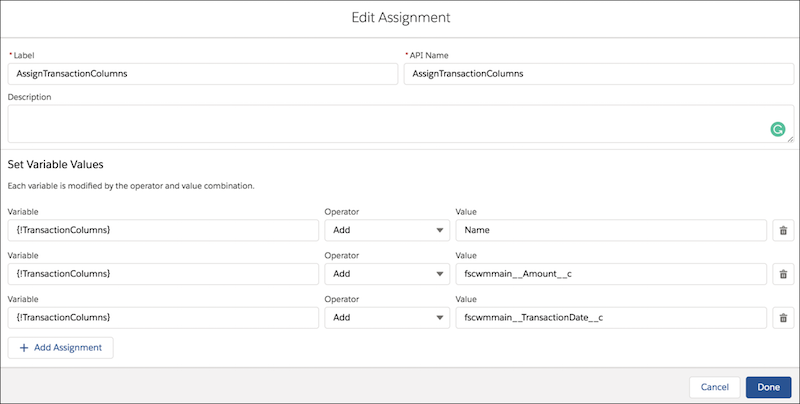
- Define the columns for the table.
- Create a Text collection variable.
- Use an Assignment element to assign the API names of the fields to the Text collection
variable. The fields must be from the same object. Add the fields in the order in which you
want them to appear in the table.
- Connect the Assignment element at the appropriate place in the flow.
- Define the rows for the table.
- Create a Record collection variable.
- Use a Get Records element to populate the Record collection variable with the records that you want to include in the table.
- Create a Text collection variable.
- Create a loop that iterates over the Record collection variable to fetch individual record IDs. Within the loop, use an Assignment element to add the fetched record IDs to the Text collection variable.
- At the end of the loop, use the Text collection variable as an input to the table.
When a user runs the flow, the table shows all the transactions for the financial account that the user selects.