
Clone and Activate the Address Update Salesforce Flow
Use the Address Update Salesforce Flow Orchestration to show your users step-by-step instructions to submit an address update for a client. You can customize the flow to meet your business needs.
Required Editions
| Available in: Lightning Experience |
| Available in: Professional, Enterprise, and Unlimited Editions |
| User Permissions Needed | |
|---|---|
| To set up Address Update service process: | Industries Service Process, Industry Service Excellence, OmniStudio, Document Checklist, Business Rules Engine Case, Service Catalog Request, and Document Checklist Items objects Read, Create, Edit, Delete, View All Records Decision Matrix, Decision Matrix Columns, Decision Matrix Rows, Decision Matrix Versions, Expression Set, Expression Set Object Aliases, Expression Set Step Relationships, Expression Set Versions objects Read, Create, Edit, Delete, View All Records AND Financial Services Cloud Extension OR FSC Service OR Financial Services Cloud Basic OR Financial Services Cloud Standard |
| To use Address Update service process: | Industries Service Process, Industry Service Excellence, OmniStudio, Document Checklist, and Business Rules Engine Case, Service Catalog Request, and Document Checklist Items objects: Read, Create, Edit, Delete Decision Matrix, Decision Matrix Columns, Decision Matrix Rows, Decision Matrix Versions, Expression Set, Expression Set Object Aliases, Expression Set Step Relationships, Expression Set Versions objects: Read, View All Records AND Financial Services Cloud Extension OR Financial Services Cloud Basic OR Financial Services Cloud Standard |
Clone the Process Address Update orchestrate template and activate a new version in Salesforce. The orchestration provides a declarative process automation that contains a sequence of stages and steps. A stage contains interactive and background steps. Interactive steps have an assigned user and execute a designated screen flow. Background steps execute an auto-launched flow that’s executed by the system and requires no user interaction. The interactive and background steps are required to fulfill the request for Address Update that is submitted.
The Process Address Update orchestrate allows a user working on a case to review an address update request, submit the change, and either update the case record or notify the case owner that the update failed. The orchestration contains these three business stages:
- Review Address Update: A work item is assigned to a user. They verify the documents submitted by the customers and check the data entered in the request and approve the request.
- Update Address: When the work item is completed by the user, the invoke address update API calls an asynchronous Apex action to update the data in the core banking system. A background flow integrates with the core banking system to update the address of the selected customer and selected financial accounts.
- Update Case Status or Display Error: Updates the case status to closed if the API response is successful. If the API fails, an error message shows to the user and a work item is assigned to the user to update the client’s address manually.
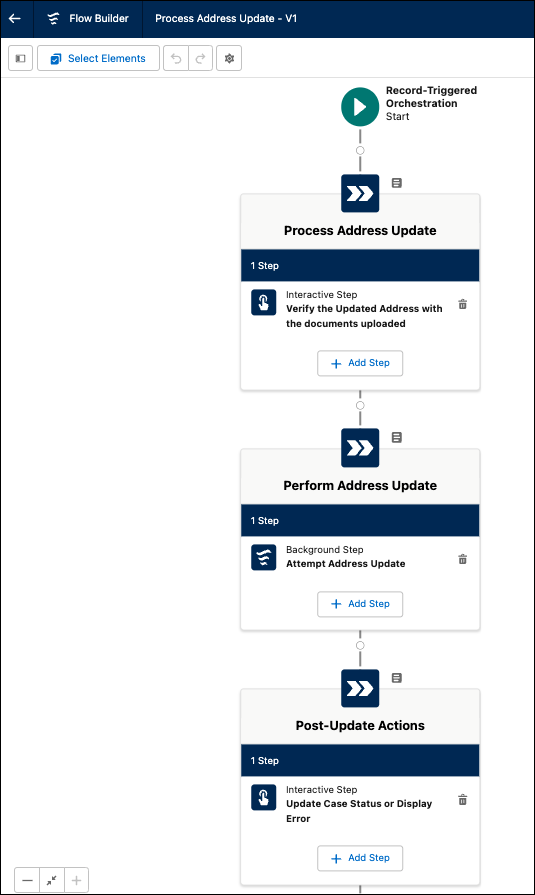
You can customize and add the Review Address Update Salesforce Flow Orchestration to the address update service process.
- In Setup, in the Quick Find box, enter Flow, and then click Flow.
- Click New Flow.
- Click All + Templates and select Flow Orchestration.
-
Select Process Address Update orchestrate and click
Create.
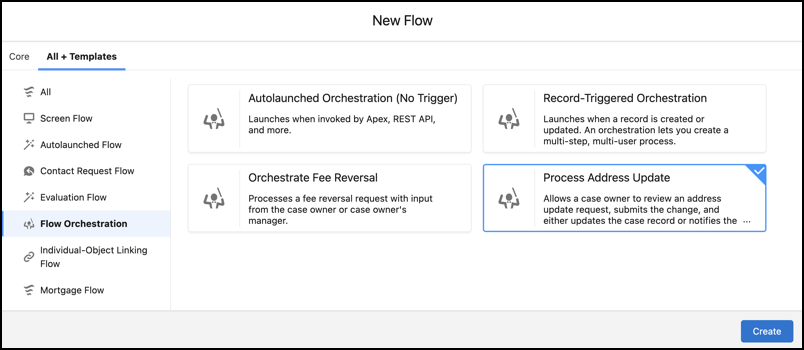
-
Click Save.
- Enter an Orchestration Label and Description.
- Enter the Orchestration API Name: fsc_address_update_flow.
-
Click Save.
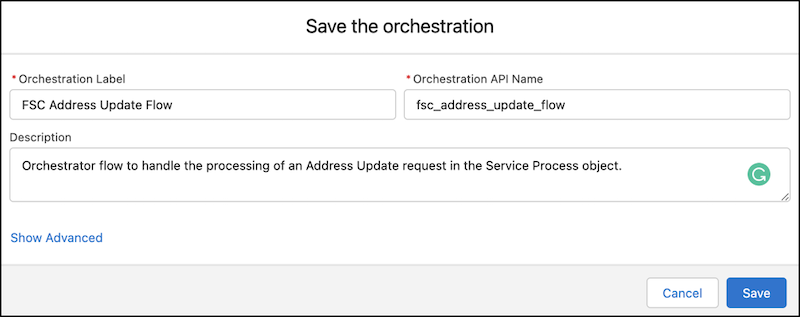
-
Assign a case owner.
- On the fsc_address_update_flow orchestration screen, under Process Address Update, select Verify the Updated Address with the documents uploaded.
-
Under Select Someone to Complete the Action, for
Asignee Type, select User, and for
User Resource, select a user who has the necessary permissions to
complete the flow.
You can also assign the step to a queue whose members have the necessary permissions to complete the flow. For Asignee Type, select Queue, and for Queue, select an appropriate queue.
- Save your changes.
- Under Post-Update Actions, select Update Case Status or Display Error and assign a user or a queue who has the necessary permissions to complete the flow.
- Save your changes.
-
On the fsc_address_update_flow orchestration screen, select Attempt Address
Update. Then click Open Flow in Flow Builder.
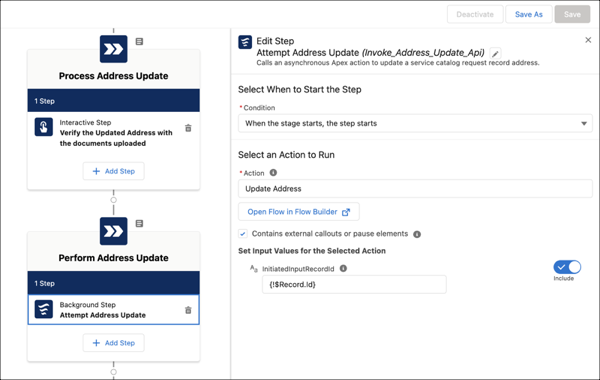
- In the Toolbox, click the Manager tab.
- In the Variables section, click IntegrationDefinition.
-
Update the default value to match the Integration Definition Developer name from Create
an Integration Definition.
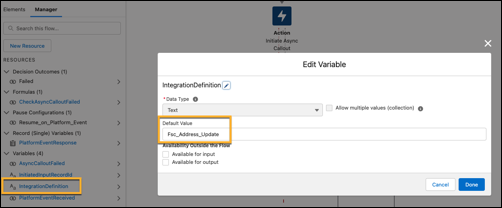
- Click Done.
- Click Save As and enter a unique name Flow Label and Flow API Label.
- Click Activate.
- On the fsc_address_update_flow orchestration screen, refresh the page.
-
On the fsc_address_update_flow orchestration screen from step 7, clone the Update Case
Status or Display Error flow.
 Important You must clone the Update Case Status or Display Error flow before cloning the Update Address flow. Cloning in the wrong order causes flow activation errors.
- Click the Update Case Status or Display Error interactive step in the Post-Update Actions stage.
- Open the flow Update Case Status or Display Error by clicking Open Flow in Flow Builder.
- Save as a new flow.
- Give the label FSC Update Case Status or Display Error and an API name.
- Activate the flow FSC Update Case Status or Display Error.
- Replace the Update Case Status or Display Error flow of the interactive step in Post-Update Actions with the newly cloned flow FSC Update Case Status or Display Error.
- Click Save.
-
After cloning the Update Case Status or Display Error flow, go to the Perform Address
Update stage and clone the Update Address flow.
- Click the Attempt Address Update interactive step in the Perform Address Update stage.
- Open the Update Address flow by clicking Open Flow in Flow Builder.
- Save as a new flow. Give the label FSC Update Address and API name fsc_address_update.
- Activate the flow FSC Update Address.
- Replace the Update Address flow of the Attempt Address Update background step in the Perform Address Update stage with the newly cloned flow FSC Update Address.
- Click Save.
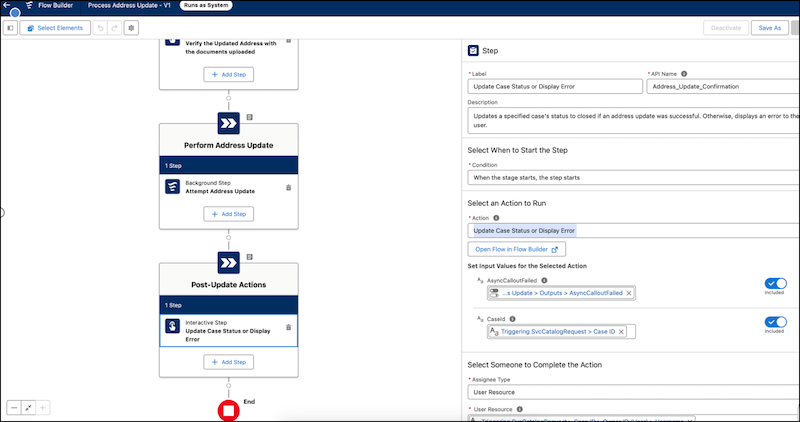
- Click the Update Case Status or Display Error interactive step in the Post-Update Actions stage.
- Update AsyncCalloutFailed with {!Invoke_Address_Update_Api.Outputs.AsyncCalloutFailed}, if empty.
- Update CaseId with {!$Record.CaseId}, if empty.
-
Click Save.
-
Select Update Address flow.
- In Select a Flow, update the flow to run when the steps start in the flow you created.
- Select Contains external callouts or pause elements.
- Enter {!$Record.ID} in the InitiatedinputRecordID field.
- Save your changes.
- Save and activate the FSC Address Update Flow orchestration.
