
Create Address Update Action
Create an action launcher deployment that uses the service process template to give your users quick access to the Address Update OmniScript. If you have an existing action launcher deployment, add the Address Update OmniScript to it.
Required Editions
| Available in: Lightning Experience |
| Available in: Professional, Enterprise, and Unlimited Editions |
| User Permissions Needed | |
|---|---|
| To set up Address Update service process: | Industries Service Process, Industry Service Excellence, OmniStudio, Document Checklist, Business Rules Engine Case, Service Catalog Request, and Document Checklist Items objects Read, Create, Edit, Delete, View All Records Decision Matrix, Decision Matrix Columns, Decision Matrix Rows, Decision Matrix Versions, Expression Set, Expression Set Object Aliases, Expression Set Step Relationships, Expression Set Versions objects Read, Create, Edit, Delete, View All Records AND Financial Services Cloud Extension OR Financial Services Cloud Basic OR Financial Services Cloud Standard |
| To use Address Update service process: | Industries Service Process, Industry Service Excellence, OmniStudio, Document Checklist, and Business Rules Engine Case, Service Catalog Request, and Document Checklist Items objects: Read, Create, Edit, Delete Decision Matrix, Decision Matrix Columns, Decision Matrix Rows, Decision Matrix Versions, Expression Set, Expression Set Object Aliases, Expression Set Step Relationships, Expression Set Versions objects: Read, View All Records AND Financial Services Cloud Extension OR FSC Service OR Financial Services Cloud Basic OR Financial Services Cloud Standard |
-
In Setup, in the Quick Find box, enter Action Launcher, then click
Action Launcher.
If you can’t see Action Launcher, you need the Industries Service Excellence permission set. Contact your Salesforce Admin for help.
- Click New Deployment.
- Click Next.
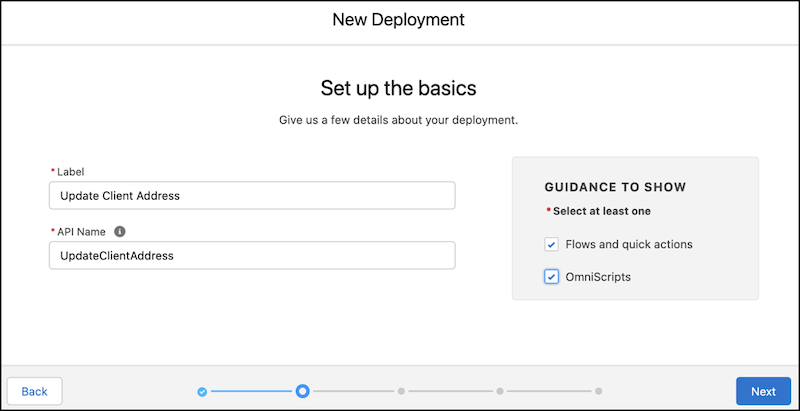
- Enter a Label and API Name.
- In Guidance to Show, select Flows and Quick Actions and OmniScripts.
-
Click Next.
-
In the Available Objects list, select Account and move it to the
Selected Objects list.
The selected objects determine the objects where you can show the action.
- Click Next.
- In Select actions to add, select all the actions.
- Click Next.
-
In Select frequently used actions, select Action API Name
/FSCAddressUpdate/CreateRequest/English Omniscript.
The OmniScript must be activated to see it in the list.
If you created a unique OmniScript with a different name, select your customized OmniScript.
- Click Save.
