
Create an Expression Set for Address Update Service Process
Create an expression set to read the values in the decision matrix and populate the values in the document type.
Required Editions
| Available in: Lightning Experience |
| Available in: Professional, Enterprise, and Unlimited Editions |
| User Permissions Needed | |
|---|---|
| To set up Address Update service process: | Industries Service Process, Industry Service Excellence, OmniStudio, Document Checklist, Business Rules Engine Case, Service Catalog Request, and Document Checklist Items objects Read, Create, Edit, Delete, View All Records Decision Matrix, Decision Matrix Columns, Decision Matrix Rows, Decision Matrix Versions, Expression Set, Expression Set Object Aliases, Expression Set Step Relationships, Expression Set Versions objects Read, Create, Edit, Delete, View All Records AND Financial Services Cloud Extension OR Financial Services Cloud Basic OR Financial Services Cloud Standard |
| To use Address Update service process: | Industries Service Process, Industry Service Excellence, OmniStudio, Document Checklist, and Business Rules Engine Case, Service Catalog Request, and Document Checklist Items objects: Read, Create, Edit, Delete Decision Matrix, Decision Matrix Columns, Decision Matrix Rows, Decision Matrix Versions, Expression Set, Expression Set Object Aliases, Expression Set Step Relationships, Expression Set Versions objects: Read, View All Records AND Financial Services Cloud Extension OR FSC Service OR Financial Services Cloud Basic OR Financial Services Cloud Standard |
- From the App Launcher, find and select Business Rules Engine.
- In the OmniStudio app, from the navigation bar, select Expression Sets.
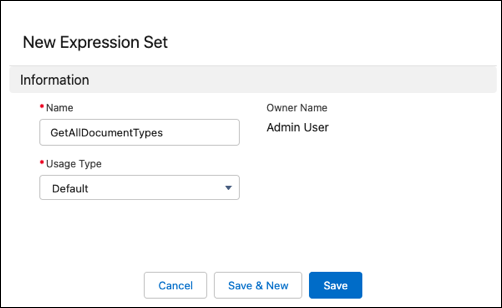
- Click New.
- Enter Name GetAllDocumentTypes and select Usage Type Default.
-
Click Save.
- In the Expression Set Versions, click the version name.
-
To add the decision matrix, click Open in Expression Set
Builder.
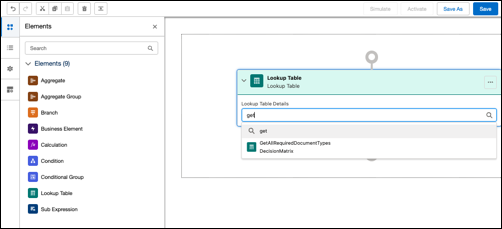
- Click Elements icon.
- Drag the Lookup Table element onto the expression set canvas.
-
In the Search Lookup Table box, select
GetAllRequiredDocumentType.
-
Set the properties for the expression set.
- Click the cog icon.
- Enter a start date time and an end date time for the expression set.
- Enter a rank number.
-
Set the element details for the expression set.
- Click the element details icon.
- Select Include in Output.
- Save and activate the expression set.
