
Connect to MuleSoft and Create a Named Credential for Address Update Service Process
Turn on Financial Services Cloud Integrations and create a MuleSoft named credential to connect your external banking system to Salesforce.
Required Editions
| Available in: Lightning Experience |
| Available in: Professional, Enterprise, and Unlimited Editions |
| User Permissions Needed | |
|---|---|
| To set up Address Update service process: | Industries Service Process, Industry Service Excellence, OmniStudio, Document Checklist, Business Rules Engine Case, Service Catalog Request, and Document Checklist Items objects Read, Create, Edit, Delete, View All Records Decision Matrix, Decision Matrix Columns, Decision Matrix Rows, Decision Matrix Versions, Expression Set, Expression Set Object Aliases, Expression Set Step Relationships, Expression Set Versions objects Read, Create, Edit, Delete, View All Records AND Financial Services Cloud Extension OR FSC Sales OR Financial Services Cloud Basic OR Financial Services Cloud Standard |
| To use Address Update service process: | Industries Service Process, Industry Service Excellence, OmniStudio, Document Checklist, and Business Rules Engine Case, Service Catalog Request, and Document Checklist Items objects: Read, Create, Edit, Delete Decision Matrix, Decision Matrix Columns, Decision Matrix Rows, Decision Matrix Versions, Expression Set, Expression Set Object Aliases, Expression Set Step Relationships, Expression Set Versions objects: Read, View All Records AND Financial Services Cloud Extension OR Financial Services Cloud Basic OR Financial Services Cloud Standard |
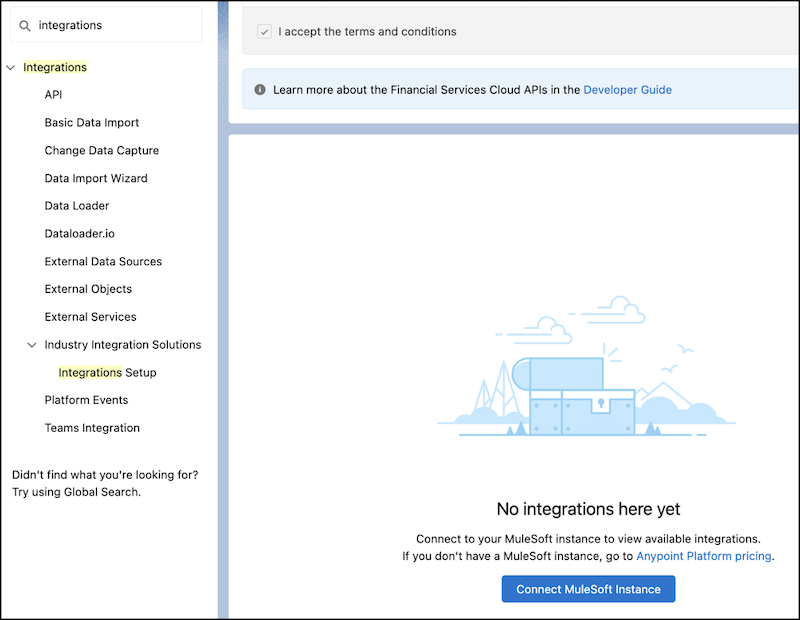
- In Setup, in the Quick Find box, enter Integrations Setup, and then select Integrations Setup.
- In Financial Services Cloud Integrations, click I accept the terms and conditions.
- Turn on Financial Services Cloud Integrations.
-
Click Connect to MuleSoft Instance.
- Select a service and click Next.
- Enter your MuleSoft username and password and click Sign In.
- Click Grant Access to <your username>. It takes a few minutes for Salesforce to connect to MuleSoft.
- Locate the API to connect to and click Enable.
- In Setup, in the Quick Find box, enter Named Credential, and then select Named Credential.
- Create a new named credential and verify that it was added for the connected MuleSoft instance.
